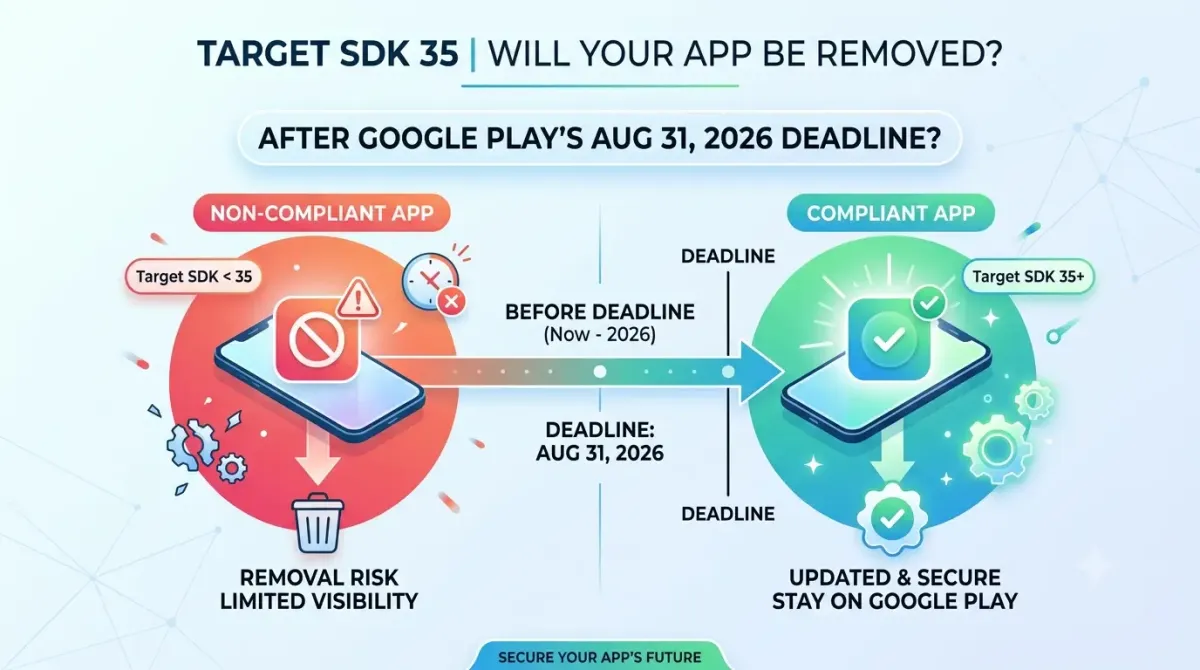
Target SDK 35: Will Your App Be Removed After Google Play's Aug 31, 2026 Deadline?
If you've spotted a warning in your Play Console lately — or just heard whispers about an "August 31 deadline" — you're in the right place. This guide explains exactly what's happening, who's affected, and what you need to do about it. No fluff, no panic, just the facts.
1. What Is Target SDK and Why Does Google Care?
The Basics — What targetSdkVersion Actually Means
Every Android app has a few version numbers baked into its configuration. The one everyone gets confused about is targetSdkVersion — but once you understand it, the whole Google Play deadline situation makes a lot more sense.
Here's the quick breakdown:
| Setting | What it does |
|---|---|
minSdkVersion |
The oldest Android version your app will run on |
compileSdkVersion |
The SDK version used to build and compile the app |
targetSdkVersion |
The Android version your app was designed and tested for |
Think of targetSdkVersion like a safety certification sticker on a piece of equipment. It tells Android: "Hey, I was built and tested against this version of the OS. Treat me accordingly." An old certification on new equipment raises red flags — and that's exactly how Google sees an app with an outdated target SDK.
Why Google Enforces an Annual Upgrade Cycle
Every new Android release tightens things up — better privacy controls, stricter background limits, improved security. But here's the thing: apps that declare an old targetSdkVersion can bypass those protections entirely. They're running in a kind of compatibility bubble from a previous era.
That's a problem for users. Google's fix? Require developers to keep that target SDK current, so every app on the Play Store is playing by modern rules.
This annual upgrade cycle has been running since 2018 (when API 26 was the minimum). Every year, Google pushes the bar higher. The 2026 deadline is the same concept — just with Android 15 and Android 16 landing close together, making the jump feel a little more dramatic than usual.
How the Policy Has Evolved Over the Years
Google has been consistent about this: the hard deadline typically lands in August, with a short grace period available for apps that can't quite make it. The cycle has repeated reliably for years. You can find the full historical table in Google's official Play Console help documentation.
2. The Aug 31, 2026 Deadline — Exactly What Changes
This is where most people get confused, because there are actually two different rules — and which one applies to you depends on what you're doing.
Two Different Rules, Two Different Groups
Rule 1 — Existing Apps (Already Published, Not Recently Updated)
If you have an app that's live on Google Play and you haven't touched it in a while, it needs to target at least Android 15 (API level 35) by August 31, 2026. If it doesn't, new users on newer Android devices won't be able to find or install it.
Rule 2 — New Submissions and Updates to Existing Apps
Here's where it gets a bit spicy: if you plan to submit a new app or push an update to an existing app on or after August 31, 2026, that submission must target Android 16 (API level 36) — one level higher.
So if your app is currently targeting API 34 and you're planning to drop an update in September, bumping to 35 won't be enough. You'll need 36.
The Timeline at a Glance
| Date | What Happens |
|---|---|
| Now | Check Play Console → Policy Status for warnings |
| August 31, 2026 | Hard deadline: existing apps need API 35; new submissions/updates need API 36 |
| November 1, 2026 | Extension deadline (for eligible apps — see Section 8) |
The earlier you start, the less stressful August will be. Ideally you're handling this in July — staged rollouts, proper testing, and a buffer for surprises.
Select your status configuration below to instantly compute your ruleset requirements.
3. Will Your App Actually Be Removed? (The Real Answer)
Short answer: no, Google won't delete your app. But the longer answer is a bit more sobering.
The Short Answer Is No — But the Impact Feels Like Removal
Non-compliant apps are not deleted from the Play Store. What actually happens is they become undiscoverable and uninstallable for new users on devices running newer Android versions.
Your existing users? Fine. They keep the app. They can keep using it indefinitely. The damage is entirely to new user acquisition.
Why "Invisible to New Users" Is as Bad as Removal
Here's why that still stings:
- A new user searching for your app in the Play Store won't see it.
- Someone who scanned a QR code, clicked a referral link, or followed a friend's recommendation hits a dead end.
- Someone upgrading to a new phone and trying to reinstall your app can't find it.
None of this shows up as an error or a crash. No alert. No notification. Your app just quietly disappears from search results on newer devices, and your install numbers start dipping — with no obvious reason in your dashboard.
Install rate drops, organic ranking falls, and acquisition dries up. The effect on your business is essentially the same as removal. It's just slower and quieter.
What Non-Compliance Looks Like in Play Console
Google does give you a heads-up before the deadline. If your app is at risk, a policy warning will appear on the Policy Status page in Play Console, listing each affected app, its current target API, and the deadline.
To find it: Play Console → Your App → Policy and programs → Policy status
Check this now if you haven't already.
4. Who Is Affected and Who Isn't
Apps That Are Definitely Affected
You need to act if your app matches any of these:
- Active Android mobile app targeting API 34 or below that's live on Google Play
- Dormant or legacy apps — the ones you set up years ago and haven't touched since are the easiest to miss and the most likely to be non-compliant
- Apps built with cross-platform frameworks like Flutter, React Native, Capacitor, or Ionic — if the framework version or plugins haven't been updated to support API 35, the final APK won't be compliant either
Apps That Are Not Affected
You're in the clear if:
- Your app already targets API 35 or higher (though future updates will still need API 36)
- Your app is distributed outside of Google Play (sideloaded APKs, alternative stores) — this is a Play Store policy, not an OS restriction
- You've already unpublished the app
Platform-Specific Requirements
If you build for more than just mobile, each platform has its own minimum:
| Platform | Required API Level | Android Version |
|---|---|---|
| Mobile apps | API 35 | Android 15 |
| Android Auto | API 35 | Android 15 |
| Wear OS | API 34 | Android 14 |
| Android XR | API 34 | Android 14 |
| Android TV | API 33 | Android 13 |
| Android Automotive OS | API 32 | Android 12L |
If you maintain a multi-platform app family, each variant has its own compliance obligation. Audit them separately.
5. What Happens to Existing Users vs. New Users
This is one of the most important things to understand — and it's also often misrepresented.
Existing Installed Users — No Disruption
Users who already have your app installed won't notice anything. They keep using it normally. If you never push another update, they keep the version they have, indefinitely. No forced uninstalls, no prompts, no interruptions.
New Users on Newer Android Devices — Blocked
Anyone trying to install your app for the first time on a newer Android device — Android 16 or later — will not be able to find or install it through the Play Store. This blocks:
- First-time installs from search
- Installs via referral links or QR codes
- Reinstalls on new or replacement devices
These are some of the highest-value user acquisition moments. Missing them is a real cost.
The Compounding Effect Over Time
Android 16 adoption will grow every month after its release. The pool of "blocked" potential users gets larger and larger. The longer you wait past August 31, the worse the acquisition hit becomes. Delay compounds the damage.
6. Android 15 (API 35) — Behavior Changes That Can Break Your App
⚠️ Warning Notice: This is the section most developers underestimate. Bumping
targetSdkVersionis not just changing a number — it activates new Android behaviors. Some of them can break your app in ways that won't show up until users start complaining.
Edge-to-Edge Layout Enforcement
Apps targeting API 35 are edge-to-edge by default on Android 15 devices. That means the system bars — the status bar at the top, the navigation bar at the bottom — no longer have an opaque background. Your app's content can (and will) render behind them.
If your UI wasn't designed for edge-to-edge, expect:
- Buttons partially hidden behind the navigation bar
- Bottom sheets misaligned
- Content awkwardly cropped under the status bar
The fix involves implementing proper WindowInsets handling. Use ViewCompat.setOnApplyWindowInsetsListener for View-based layouts, or Compose's consumeWindowInsets if you're on Jetpack Compose. Test on both gesture navigation and three-button navigation setups — they can behave differently.
Foreground Service Restrictions
Foreground services get a notable shakeup in Android 15:
dataSync Foreground Service Timeout
Android 15 introduces a 6-hour rolling cap on dataSync foreground services within any 24-hour window. When your service hits the limit, Android calls Service.onTimeout() — and you have a brief window to call stopSelf() before the service loses its foreground status.
The recommended fix is to migrate long-running data sync work to WorkManager, which is designed for exactly this use case and handles scheduling constraints far more gracefully.
New mediaProcessing Foreground Service Type
API 35 adds a new mediaProcessing service type with its own specific restrictions. If your app does any kind of media processing in the background, you'll need to declare the correct service type or risk runtime exceptions.
Full-Screen Intent Changes
USE_FULL_SCREEN_INTENT is further restricted in API 35 and 36. Apps that display full-screen notifications — incoming calls, alarm clocks, time-sensitive alerts — need to explicitly declare and request this permission. Audit every full-screen or lock-screen notification your app can fire.
Do Not Disturb (DND) Global State Restrictions
Apps targeting API 35 can no longer modify the global DND state or device-level DND policies. Instead, you need to contribute an AutomaticZenRule, which the system manages under a most-restrictive-policy-wins approach.
This affects: alarm apps, notification management tools, focus/productivity apps, and anything that previously called setInterruptionFilter().
Other Notable Behavior Changes
A few more things to review before you bump that SDK:
- Background location — Stricter enforcement of foreground vs. background location access
- Notification runtime permissions —
POST_NOTIFICATIONSmust be explicitly requested at runtime; you can't assume it's granted - Implicit intents — Tighter security restrictions on implicit intents and pending intents
- Scoped storage — File access APIs continue tightening; direct path access patterns from older API levels may need migration
For the full list of changes, Android Developers has a comprehensive behavior changes guide for API 35.
Testing Behavior Changes Before Bumping the Target SDK
Here's a handy trick most developers don't know about: Android 15 includes a compatibility framework with ADB-toggleable flags. These let you force-enable individual behavior changes on a test device without actually changing your targetSdkVersion.
adb shell am compat enable [CHANGE_ID] [package_name]This means you can test the edge-to-edge changes in isolation, or just the foreground service limits, without triggering everything at once. It's a much cleaner way to pinpoint what breaks where, before you're committed to a full SDK bump.
7. Step-by-Step: How to Update Your App to Target SDK 35
Sequence matters here. Follow this order to keep things manageable and avoid chasing mystery bugs.
Step 1 — Audit Your Current State
Before touching any code:
- Open Play Console → All apps
- Filter by target API level
- Identify every app below API 35 — including dormant ones
Also check your build.gradle (or build.gradle.kts) directly for current targetSdkVersion and compileSdkVersion values. Document what you have before you change anything.
Step 2 — Update Dependencies Before Touching targetSdkVersion
Do not bump the SDK version yet. First:
- Update AndroidX and Jetpack libraries to their latest stable versions — most API 35 compatibility fixes are delivered through these updates
- Audit every third-party SDK: check release notes, GitHub issues, and if needed, contact the vendor directly to confirm API 35 support
- Log every unresolved third-party dependency in your issue tracker — these are the most common reason migrations get stuck
Step 3 — Use the Compatibility Framework to Pre-Test
With dependencies updated, use the ADB compatibility flags mentioned earlier to test each major behavior change in isolation:
- Force edge-to-edge on your current build and fix any UI regressions
- Enable foreground service timeouts and verify your services handle them gracefully
- Test DND and notification flows
Fix each issue before moving to the next step. This isolation approach makes debugging much faster.
Step 4 — Bump compileSdk and targetSdk
Once testing passes, update your build.gradle:
android {
    compileSdk 35
    defaultConfig {
        targetSdk 35
    }
}
If you're using Kotlin DSL (build.gradle.kts), the syntax is slightly different but the values are the same. After the change, do a clean build and address any new compiler warnings or deprecation errors that surface.
Heads up: If you're submitting any update after August 31, 2026, you'll need to set both values to 36, not 35.
Step 5 — Run a Full Regression Test Suite
Test on physical Android 15 devices if possible — emulators are great but real hardware can behave differently, especially for gesture navigation, insets, and notification handling.
Focus your testing on:
- Edge-to-edge UI on multiple screen sizes
- All notification flows and foreground service scenarios
- Location permission requests
- File access patterns
- Any full-screen intent usage
Use Android Studio's API 35 emulator in parallel if you don't have physical devices available.
Step 6 — Stage the Rollout
Never go straight to 100% production. Use Google's staged rollout tracks:
Internal testing → Closed testing → Open testing → Production
Give each stage at least 48–72 hours before moving forward. Watch crash rates, ANR rates, and review content at each stage. It's much easier to catch a problem at 1% rollout than after you've pushed to everyone.
Step 7 — Submit and Verify in Play Console
Upload your updated AAB to the production track. After Google reviews it, the compliance warning in Play Console should clear within about 24 hours.
If the warning sticks around after 24 hours, check whether your compliant build has been deployed to every active track — not just production. A non-compliant build still live in your internal or testing tracks can keep the warning active.
While you're pushing a fresh release, it's worth confirming your other compliance items are current too — an out-of-date Google Play Data Safety form is another common reason a submission gets blocked at review.
8. The Extension Option: Buying More Time Until November 1, 2026
Who Can Request an Extension
If your app already has a policy warning in Play Console, you can request an extension to push your deadline from August 31 to November 1, 2026.
To find it: Play Console → Policy Status → Details page of the affected app's warning
What the Extension Actually Buys You
During the extension window, your app continues to be distributed normally to all Google Play users. Nothing changes from a user-facing perspective — it's just extra time to get your update out.
Important Caveats
A few things to be clear about:
- The extension form only appears after a policy warning has been issued — you can't request it preemptively
- It's not guaranteed — Google evaluates each request
- Extensions apply to existing apps only — any new submission or update you push after August 31 still needs to target API 36, extension or not
- November 1 is a hard fallback, not a routine option. If you miss it, the same discoverability restrictions kick in
Treat the extension as a safety net, not a plan. Start your migration now.
9. Auditing Your Entire App Catalog — Don't Forget Dormant Apps
The Hidden Danger of Legacy Apps
The apps most likely to get caught by this deadline aren't the ones you're actively working on. They're the ones you haven't opened in two years. That little side project. The white-label variant. The client app you built in 2021 and haven't touched since.
These apps receive no special exemption for inactivity. A dormant app targeting API 28 becomes invisible to new users on newer Android devices, exactly the same as an actively maintained one.
How to Run a Portfolio-Wide Compliance Audit
- Go to Play Console → All apps
- Use the Policy status filter to surface non-compliant apps
- Sort by target API level to see the worst offenders at a glance
- Export a CSV report (Play Console supports this via the reporting tools)
- Categorize every app as: Compliant / Needs update / Candidate for unpublishing
Deciding Whether to Update or Unpublish
For each non-compliant app, you have three options:
- Update it — If the app has active users, generates revenue, or serves a real business function, update it properly.
- Compliance-only release — If the app is stable but dormant, bump
targetSdkVersionwith minimal other changes. This preserves discoverability without a full rebuild. - Unpublish it — If the app is abandoned, has essentially no active users, or the update cost exceeds any business value, unpublishing is a clean and legitimate solution. An unpublished app won't trigger policy warnings and won't silently disappear from search.
There's no shame in unpublishing old apps. It's tidier than letting them drift into non-compliance.
10. Third-Party SDK and Library Compatibility
Why Third-Party SDKs Are the Biggest Migration Blocker
Your app is only as compliant as its least-compatible dependency. A third-party library that hasn't shipped an API 35–compatible version can block your entire migration — causing runtime crashes or build-time failures that are entirely outside your control.
The usual suspects:
- Ad networks
- Analytics SDKs
- Payment libraries
- Push notification SDKs
- Social login frameworks
How to Check SDK Compatibility Before You Migrate
For each dependency:
- Check the vendor's official release notes and changelog for any mention of "Android 15" or "API 35"
- Search GitHub issues for the library using those same terms
- If you can't find an answer, file a support ticket or GitHub issue directly — and document the date and response
- In
build.gradle, pin the compatible version explicitly — don't assume the latest release is always the safest one
When a Critical SDK Doesn't Support API 35
If you find a blocker, your options in order of preference:
- Wait for the vendor's release — if their timeline fits within your migration window
- File a GitHub issue to escalate visibility and urgency
- Evaluate a replacement SDK that already supports API 35
- Fork and patch — only realistic for open-source dependencies, and only as a last resort
Starting this audit now — in July — gives you real runway for options 1 and 2. Starting in late August leaves you with only options 3 and 4, both of which carry real risk.
Play Billing Library Requirement
One more thing worth checking separately: as of August 31, 2025, new apps and updates were required to use Play Billing Library 7.0.0 or later. For the 2026 compliance cycle, verify your Billing Library version is current — non-compliance here can block your updates independently of the target SDK requirement.
Check the Play Billing Library release notes for the latest supported version.
11. Frequently Asked Questions
My app is already live and I haven't updated it in over a year. Will it be automatically deleted on August 31?
No. Google does not delete non-compliant apps from the Play Store. What happens instead is your app becomes invisible and uninstallable for new users on devices running Android versions newer than your app's target API level. Existing users who already have the app installed are completely unaffected. However, this silent disappearance from new-user search results is a serious business impact — it should be treated with the urgency of a removal even though it technically isn't one.
I'm targeting API 34. Am I in trouble for the August 31, 2026 deadline?
Yes — but what kind of trouble depends on your plans. If you have a live app and don't plan to push any update after August 31, you need your existing app to target API 35 to stay discoverable. If you plan to push any update after August 31, that update must target API 36. Either way, API 34 is no longer sufficient after the deadline.
I use React Native / Flutter / Capacitor. Do cross-platform frameworks need to comply too?
Yes. The policy applies to the final APK or AAB that's uploaded to Google Play — the framework you used to build it doesn't matter. What does matter is whether your framework version and plugins support compiling against SDK 35 and handling Android 15's behavior changes. Check your framework's GitHub releases or documentation for "Android 15" or "API 35" compatibility notes, and update your framework before bumping targetSdkVersion.
What's the difference between compileSdkVersion and targetSdkVersion? Do I need to change both?
Yes, you typically need to update both together. compileSdkVersion (or compileSdk) controls which APIs are available to use at compile time — it must be at least 35 for you to access Android 15 APIs. targetSdkVersion (or targetSdk) is the declaration in your manifest that tells the system which Android behaviors your app is designed for — this is what Google Play checks for compliance. Best practice: update both to 35 (or 36 if you're submitting any update after August 31) in the same migration cycle.
Can I request an extension if I can't make the August 31 deadline?
Yes. An extension to November 1, 2026 is available for apps that receive a policy warning in Play Console. The form is accessible from the Policy Status page, through the details of the warning on your affected app. Extensions are not guaranteed, not available for new submissions or updates, and November 1 is a firm fallback — not a routine delay option.
Will my existing users lose access to the app if I miss the deadline?
No. Users who already have your app installed will continue using it normally. They keep the version they have, can open it, and use it without any interruption. The impact is entirely on new users — people trying to install your app for the first time on a newer Android device won't be able to find or install it from the Play Store.
I have 30 apps in my portfolio. Where do I even start?
Start with Play Console's Policy Status page, which will flag every non-compliant app in your account. Then triage by two factors: user base size (prioritise apps with the most active users) and update complexity (apps built on maintained frameworks are faster to bring into compliance than legacy codebases). For apps with no meaningful user base that you don't plan to maintain, unpublishing is a legitimate and clean solution — it removes the compliance obligation entirely without triggering a policy violation.
12. Conclusion
Summary — What's Actually Happening on August 31, 2026
The August 31 deadline carries two distinct obligations: existing apps on Google Play must target Android 15 (API level 35) to remain discoverable to new users, while any new submission or update must target Android 16 (API level 36). Apps that don't comply aren't deleted — they're silently made invisible to new users on newer Android devices. In practice, the impact on user acquisition is indistinguishable from removal.
Key Takeaways
- "Removed" is a misnomer — "invisible" is the real risk. Existing users are completely unaffected; it's new user acquisition that gets cut off.
- There are two different rules. Existing inactive apps need API 35; any new submission or update needs API 36.
- Bumping
targetSdkVersionis not a one-line fix. Android 15 brings real behavior changes — edge-to-edge layouts, foreground service limits, DND restrictions — that require actual code changes and testing. - Third-party SDKs are the most common migration blocker. Start the dependency audit now, not in August.
- An extension to November 1, 2026 exists — but it's a grace period for already-flagged apps, not a bypass, and it's not guaranteed.
- Audit your entire portfolio. Dormant apps are silently affected; unpublishing is a valid strategy for apps you no longer support.
- Act in early-to-mid July at the latest to leave room for staged rollouts, hotfixes, and Google's review cycles before the deadline.
Your Action Checklist
- Open Play Console → Policy Status → identify every app with an API level warning
- Triage your portfolio: update, compliance-only release, or unpublish
- Audit all third-party SDK dependencies for API 35 compatibility
- Use Android 15's ADB compatibility toggles to pre-test behavior changes in isolation
- Update AndroidX and Jetpack libraries to latest stable versions
- Bump
compileSdkandtargetSdkto 35 (or 36 if submitting any update after August 31) - Run regression testing on Android 15 device or emulator — focus on edge-to-edge UI, notifications, foreground services, location, and file access
- Stage the rollout: internal → closed → open → production
- If you can't make August 31, watch Play Console for the extension form and request it immediately when it appears
August 31 isn't that far away. The good news is that if you start now, you have plenty of time to do this properly — with room to spare for surprises.