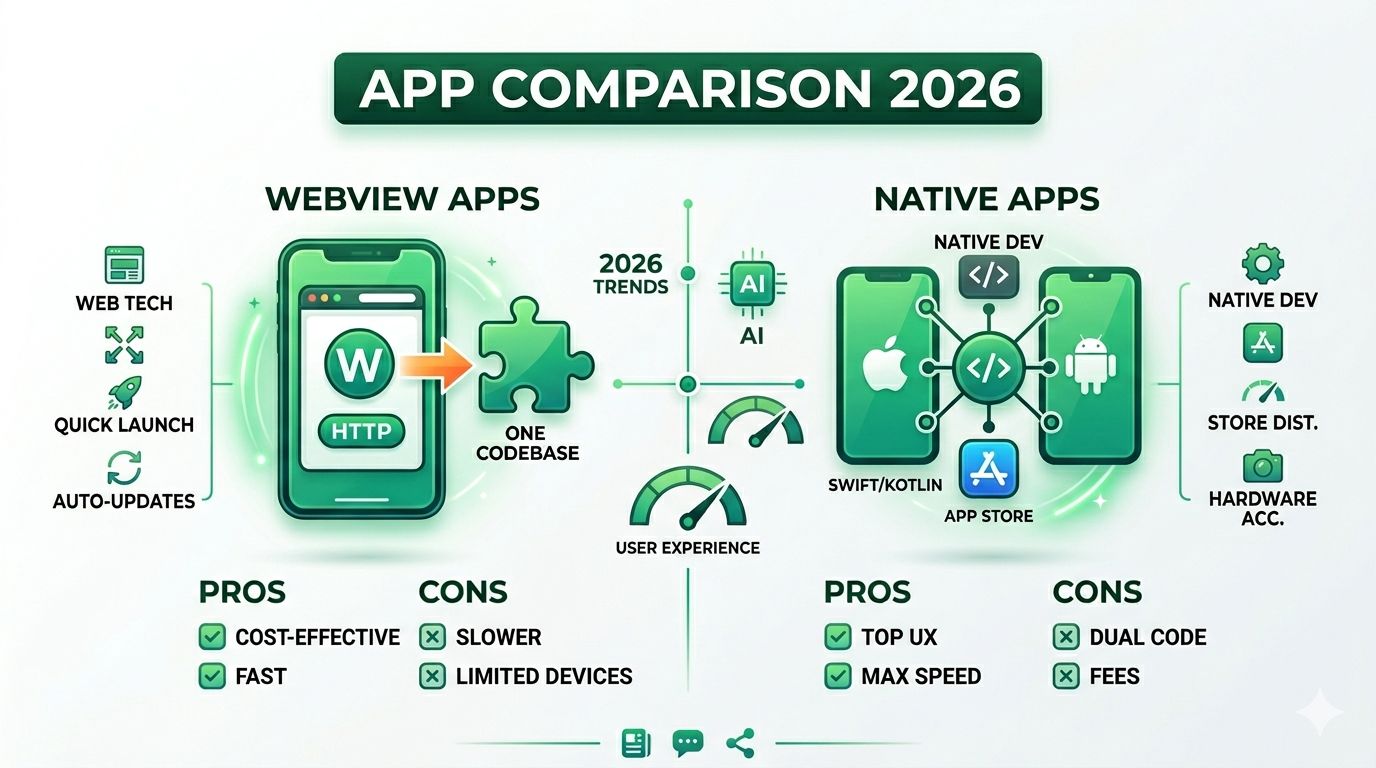
WebView Apps vs Native Apps: Key Differences, Pros & Cons with Real-World Examples (2026)
You're sitting at your desk, staring at two options. On the left: ship an app in a week and get in front of real users. On the right: spend six months and a small fortune building something that feels absolutely buttery-smooth on every device.
Which do you pick?
This is the exact crossroads that founders, product managers, and developers hit when deciding how to build a mobile app. And picking wrong is expensive — not just in money, but in time, morale, and sometimes the whole product.
Most guides give you a features table and call it a day. This one gives you something better: a clear decision framework you can actually use, covering WebView apps, native apps, and the often-overlooked hybrid middle ground (because yes, there is a third option that most people skip straight past).
By the end of this post, you'll know exactly which path makes sense for your situation — whether you're a startup founder validating an idea, a digital agency scoping a client project, or a developer weighing your build options in 2026.
Let's dig in.
1. What Is a WebView App?
The Core Concept, Explained Simply
A WebView app is basically a native app shell with a website living inside it.
Think of it like a picture frame (the app shell) around a live canvas (your website). When someone opens your app, their phone sees a proper native app. But what they're actually looking at is your website, rendered inside an embedded browser called a WebView.
On iOS, that's WKWebView. On Android, it's the Android WebView component (which uses Chromium under the hood). The operating system thinks it's running an app. The user sees your web content. Nobody's lying, exactly — it's more of a creative arrangement.
What a WebView app is NOT:
- It's not a Progressive Web App (PWA) — those live in the browser, not the App Store
- It's not a hybrid app — tools like React Native and Flutter are a different thing entirely (more on that in a bit)
- It's not a fully native build — there's no Swift or Kotlin involved
The Two Types of WebView Apps
Not all WebView apps are built the same way. There are two main approaches:
Rendering-based WebView
Your live website loads in real time inside the app shell. Update your website, and the app updates automatically — no App Store resubmission needed. This is the default approach used by most no-code platforms like WebToNative, AppMySite, and similar tools.
Trade-off: Simple to maintain, but if your site is slow, your app will be slow too.
Syncing-based WebView
Instead of rendering your site directly, the app pulls data from your backend via APIs and builds a mobile UI from it. More control, more native-feeling behaviour — but you're now maintaining sync logic as well.
Trade-off: More work upfront, but a smoother, more app-like result.
How WebView Apps Work Under the Hood
Here's the basic flow when a user opens a WebView app:
- User taps your app icon
- The OS launches the native app shell
- The WebView component initialises
- It loads your web content from a remote server (or a cached bundle)
The interesting bit is the bridge layer — the invisible translator between your web content and the device hardware. When your JavaScript code needs to access the camera or send a push notification, it talks to the native layer through this bridge.
Fig 1: Execution Layers Comparison
One thing worth flagging: network latency directly affects first-load performance. If your user is on a patchy 4G connection, they'll feel it. That's a real difference from native apps, which don't depend on a server to render their UI.
Also worth knowing: since 2020, Apple no longer allows third-party browser engines on iOS. Every iOS app — including yours — must use WKWebView. Android is more flexible, but most WebView apps use the default Chromium-based WebView anyway.
2. What Is a Native App?
Defining Native — Beyond the Buzzword
"Native app" gets thrown around a lot, so let's be precise.
A native app is compiled directly to machine code for a specific operating system. It talks to the device hardware through the OS's official SDKs, with no middleman. The UI isn't rendered by a browser — it's drawn by the OS itself using its own UI toolkit.
On iOS, that's UIKit or SwiftUI. On Android, it's Jetpack Compose or the older XML layout system. This matters because it means animations, gestures, and transitions behave exactly the way the OS expects — because they're literally using the same code Apple and Google use in their own apps.
The two main native languages:
- iOS: Swift (modern) or Objective-C (legacy)
- Android: Kotlin (modern) or Java (legacy)
The Three Flavours of Native Development
iOS-Only Native
Built with Swift/SwiftUI, following Apple's Human Interface Guidelines. Ideal if your audience is iPhone-first and you need features like Face ID, ARKit, Apple Pay, or HealthKit.
Android-Only Native
Built with Kotlin/Jetpack Compose, following Material Design 3. Gives you deep access to Google services, Android widgets, and the broader device ecosystem.
Dual-Platform Native
Two separate codebases, two separate teams, two separate everything. Maximum performance and platform fidelity. Also the most expensive approach by a wide margin — and honestly, overkill for most products.
Worth noting: A lot of companies jump straight to dual-platform native when a well-built hybrid app would get them 90% of the way there at 40–60% of the cost. More on that later.
How Native Apps Work — The Execution Model
Native apps are compiled ahead of time (AOT) into platform-specific binaries. When you run the app, it's running directly on your device's CPU and GPU — no translation, no interpretation, no waiting for a JavaScript engine to wake up.
This is why native apps:
- Run animations at a consistent 60–120fps
- Access the camera with zero lag
- Work offline by default
- Use device memory efficiently (the OS manages it directly)
Features like Bluetooth, NFC, the Secure Enclave (iOS), ARKit, and background location tracking all have direct API access — no plugins, no bridges, no workarounds.
3. WebView Apps vs Native Apps — The Full Comparison
This is where most comparison posts give you a five-row table and move on. We're going deeper.
Performance — The Honest Breakdown
Native apps have a structural performance advantage. They render at the OS level, with no browser engine in the way. Typical frame render time: under 16ms (that's 60fps). Consistent. Predictable.
WebView performance depends on three things:
- Network speed — because content loads from a server
- Your website's code quality — every inefficiency in your CSS and JavaScript shows up in the app
- The device's browser engine version — older Android devices run older WebViews, which may not support modern web APIs
On flagship phones, a well-optimised WebView app can feel nearly native. On mid-range and budget Android devices — where a huge chunk of global users live — the gap becomes obvious during complex animations, infinite scroll feeds, real-time data updates, and map interactions.
⚠️ Watch out: A poorly optimised website wrapped in a WebView actually performs worse than the website in a regular browser. Browsers have hardware acceleration tricks that WebViews don't always inherit. Don't wrap a slow site and expect magic.
User Experience & UI Fidelity
Native apps use the OS's own UI components. That means users get the gestures, haptics, font rendering, and navigation patterns they already know from every other app on their phone.
WebView apps can drift from this. Common tells:
- Scrolling that feels slightly "webby" (different momentum, different rubber-banding)
- Missing swipe-back gesture on iOS
- Keyboard behaviour that feels slightly off
- Text selection behaving like a browser, not an app
You can close most of these gaps with careful CSS and WebView configuration — properties like overscroll-behavior, -webkit-overflow-scrolling: touch, and hiding scrollbars. It takes effort, but it's doable.
One practical note: Apple's App Store reviewers are specifically trained to spot "thin wrapper" apps — apps that are basically just a website with an app icon slapped on top. How polished your UX feels directly affects your odds of getting approved.
Device Hardware & Feature Access
Here's a clean summary of what each approach can actually do:
| Feature | WebView App | Native App |
|---|---|---|
| Camera / Microphone | Via JS bridge or plugin | Full OS-level control |
| GPS / Background Location | Foreground only | Full background access |
| Push Notifications | Supported via native bridge | Native OS support |
| Biometric Auth (Face ID / Fingerprint) | Plugin required | OS-native |
| Bluetooth / NFC | Very limited | Full support |
| ARKit / ARCore | Not supported | Full support |
| Offline Storage | localStorage, IndexedDB | SQLite, CoreData, Room |
| Home Screen Widgets | Not possible | Fully supported |
A few of these deserve extra context:
Background Location is a big one for delivery, logistics, and fitness apps. WebView apps simply can't track location when the app isn't in the foreground. Native apps can.
Offline Storage matters for apps where users need to work without a connection. IndexedDB works in WebView, but it's inconsistent across devices and OS versions. Native databases (SQLite, CoreData) are rock-solid.
Widgets — think iOS Lock Screen widgets or Android home screen widgets — aren't possible at all in a WebView app. If widgets are on your roadmap, native is the only option.
Development Cost & Timeline
Let's talk numbers. Here's a realistic breakdown:
| Approach | Typical Cost | Typical Timeline |
|---|---|---|
| WebView (no-code platform) | $0–$500/year | 1–5 days |
| WebView (custom-built) | $3,000–$15,000 | 2–6 weeks |
| Hybrid (React Native / Flutter) | $20,000–$80,000 | 2–5 months |
| Native (single platform) | $30,000–$100,000+ | 3–6 months |
| Native (both platforms) | $60,000–$200,000+ | 6–12 months |
Estimated Initial Development Cost (USD)
⚠️ Important: These are development costs only. Factor in ongoing maintenance (typically 15–20% of the dev cost per year), QA, design, and App Store fees ($99/year for Apple, $25 one-time for Google). The full cost of ownership is almost always higher than the build cost.
App Store Approval & Compliance Risks
This is where a lot of WebView app projects hit an unexpected wall.
Apple App Store is the tougher gatekeeper. Guideline 4.2 — "Minimum Functionality" — is the most common rejection trigger for WebView apps. Specifically, reviewers will reject apps that:
- Offer nothing beyond what the website already provides
- Have broken or incomplete web content
- Add no meaningful native functionality
The fix? Add at least one native feature that justifies the app existing. Push notifications, biometric login, and offline mode are the three most common ways to cross this line. Make sure your mobile content is responsive and complete. And write an App Store description that clearly explains what the app does differently from the website.
Google Play is more lenient, but it introduced specific policies around WebView apps in 2023 targeting "spam wrapper" apps — apps that add no value over the mobile website. The same principle applies: add something native.
Native apps get rejected too, for the record. Common reasons: crashes on the review device, payment guideline violations, misleading screenshots, or privacy policy issues. Being native doesn't make you immune.
Security Considerations
Security is one area where native apps have a genuine, structural advantage — and it's worth understanding why.
WebView security risks to know about:
- JavaScript injection — malicious scripts injected into your WebView can read data, manipulate UI, or steal tokens
- Insecure local storage — storing auth tokens in
localStorageinside a WebView is a real vulnerability; any injected JavaScript can read it - Mixed content — loading HTTP assets inside an HTTPS app creates attack surface
- Deep link hijacking — poorly validated deep links can redirect users to unexpected screens or trigger unintended actions
How native apps handle security better:
- Secure Enclave (iOS) and StrongBox (Android) store biometric keys in hardware — physically separate from the app's memory
- OS-enforced sandboxing prevents apps from accessing other apps' data
- Certificate pinning is easier to implement at the native layer and harder to bypass
Practical WebView hardening steps:
- Disable
setAllowFileAccessFromFileURLsandallowUniversalAccessFromFileURLs - Enforce HTTPS-only content
- Implement certificate pinning via the native layer (not JavaScript)
- Store auth tokens in the native keychain/keystore via a JS bridge — never in
localStorage
⚠️ Compliance note: If you're building in fintech, healthtech, or any regulated industry, HIPAA, PCI-DSS, and SOC 2 requirements often point toward native by default. Don't assume a WebView approach will satisfy your compliance team without a thorough review.
Maintenance, Updates & Long-Term Scalability
This is where WebView apps quietly shine.
WebView advantage: Update your website, and the app updates. No new build. No App Store review cycle (which can take 1–7 days on iOS). No waiting for users to hit "Update". This is genuinely valuable if your content changes frequently — think news, e-commerce catalogues, support documentation.
Native trade-off: Every feature update means a new build, a new review cycle, and hoping your users actually update before your support team gets swamped with bug reports from people on version 2.1.
The scalability ceiling: As a WebView app grows in complexity, JavaScript bridge calls multiply. Each one has overhead. At some point — and you'll know when you get there because users will start complaining — the performance cost of routing everything through the bridge becomes too high. That's usually the signal to consider migration.
Long-term cost of ownership: WebView is genuinely cheaper, right up until you hit the feature wall. Native compounds in complexity but scales without a ceiling.
4. What About Hybrid Apps?
Hybrid Apps Defined — Not a WebView in Disguise
Before we go further, let's clear up the most common misconception in mobile development:
React Native and Flutter are not WebView apps.
This trips people up constantly. Here's what actually happens:
React Native uses JavaScript for logic, but the UI components it renders are actual native views — UIView on iOS, View on Android. The button you tap in a React Native app is a real iOS button, not an HTML element in a browser.
Flutter goes even further. It compiles Dart code to ARM machine code and renders via its own graphics engine (Skia/Impeller). It doesn't use OS UI components at all — it draws every pixel itself — which is why Flutter apps look identical on iOS and Android.
Ionic (with Capacitor) is the exception — it does use a WebView as its rendering layer, with native plugin access layered on top. Ionic is the true middle ground between WebView and React Native in terms of architecture.
So to be explicit:
- WebView app → renders HTML/CSS in an embedded browser
- Ionic + Capacitor → WebView with native plugins bolted on
- React Native → JavaScript logic + actual native UI components
- Flutter → Dart compiled to native + custom graphics engine
- Native (Swift/Kotlin) → fully compiled, no framework in the way
Hybrid vs WebView vs Native — When Each Wins
Here's the practical decision guide:
Choose WebView when:
- You already have a mobile-responsive website
- You need App Store presence fast (days, not months)
- Your app is content-focused — news, documentation, catalogues
- You're in MVP/validation mode and need to learn before investing
Choose Hybrid (React Native or Flutter) when:
- You need native-feeling performance and UI
- You need to support both iOS and Android
- You have a real product, not just an MVP
- You want to save 40–60% compared to dual-native without sacrificing too much quality
Choose Native when:
- The app is your product, not just a channel for it
- You need platform-exclusive features (ARKit, Secure Enclave, background GPS)
- Performance is a competitive differentiator (real-time camera, gaming, maps)
- You're in a regulated industry with strict security requirements
- You're past product-market fit and need to compete on UX quality
5. Real-World Examples & Case Studies
Companies Using WebView — and Why
Instagram's in-app browser
When you tap an external link inside Instagram, it opens inside a WebView rather than your phone's browser. This keeps you inside the app, preserves tracking continuity, and means Instagram doesn't need App Store approval for the content you see. Security researcher Felix Krause documented this in 2022, including the pcm.js script injection that runs inside it — a fascinating and somewhat unsettling read.
Uber and Ola's help centres
Both apps load their support documentation in a WebView. The help content changes constantly, and updating it via a website means no App Store resubmission. For support docs, this is exactly the right call.
Shopify's merchant admin
Parts of the Shopify merchant app use WebView for content-heavy admin views. The checkout and storefront — where performance matters most — are native. Smart separation.
Companies That Went Fully Native — and the Payoff
Airbnb
Airbnb famously adopted React Native across their iOS and Android apps from 2016 to 2018 — then publicly documented why they walked away from it. The engineering post is required reading for anyone making this decision. The short version: at Airbnb's scale and complexity, the performance and developer experience tradeoffs of React Native outweighed the cross-platform benefits. They returned to native iOS and Android.
Instagram (core app)
Instagram's feed, camera, Reels, and Stories are fully native despite the in-app browser being a WebView. Real-time camera filters and 60fps Reels playback require GPU-level access that only native provides. The lesson: even apps with WebView components for some use cases can — and should — use native for the parts where it matters.
Healthcare apps
Apps like Epic MyChart require HealthKit integration and biometric data access that both legally and technically mandates native implementation for HIPAA compliance. If you're building in healthtech, this isn't really a choice.
Successful WebView-to-Native Migrations
The most common real-world pattern looks like this:
- Ship a WebView app to validate the idea (fast, cheap)
- Get real users, get real feedback
- Hit the performance or feature ceiling
- Migrate to hybrid or native for the screens that need it
The smart way to migrate isn't to throw everything away. There's a well-established software pattern called the "strangler fig" — you replace sections of the WebView app with native screens one at a time, while keeping the stable parts as WebView. You strangle the old system gradually rather than doing a risky big-bang rewrite.
Key signals that it's time to migrate:
- Users consistently complain that the app feels sluggish or "like a website"
- App Store keeps rejecting you for native feature requirements
- You need background processing, real-time hardware access, or deep OS APIs
- You've confirmed product-market fit and UX quality is now a competitive differentiator
6. Common Mistakes & Pitfalls
WebView App Mistakes
Mistake #1: Wrapping a non-mobile-responsive website
This is the most fundamental error, and it happens more than you'd think. A desktop layout stuffed into a mobile app shell is unusable — and App Store reviewers will reject it on sight. Always run your site through a real mobile device before you even think about wrapping it.
Mistake #2: Storing sensitive data in browser storage
localStorage and sessionStorage inside a WebView are readable by any injected JavaScript. Auth tokens, user PII, and anything payment-related must go through the native keychain or keystore via a bridge. Not optional.
Mistake #3: Ignoring App Store Guideline 4.2
Submitting a WebView app with zero native value-add is nearly guaranteed rejection. The bar isn't high — push notifications, biometric login, or a basic offline mode are usually enough — but you have to clear it.
Mistake #4: Not handling deep links properly
Deep links that open the wrong screen, trigger a full reload, or just... do nothing are a UX killer. Test every deep link scenario before you submit.
Mistake #5: No offline error state
If your server is unreachable and you have no fallback, users see a blank white screen or a browser error page. That's not an app — that's a mistake. Even a simple "You're offline" message with a retry button is infinitely better.
Native App Mistakes
Mistake #1: Building native when hybrid would do
Over-engineering an MVP as a full native app is one of the most common ways startups burn their runway. If you don't genuinely need Bluetooth, ARKit, or background GPS right now — you probably don't need native yet. Start smaller.
Mistake #2: Neglecting the other platform
iOS-first teams often ship a noticeably weaker Android experience. Android users have seen this before and will say so in their reviews. Platform parity matters.
Mistake #3: Ignoring platform UX conventions
Using iOS navigation patterns on Android — or Android patterns on iOS — creates subtle friction that users can't always articulate but absolutely notice. Bottom navigation is standard on iOS. Top tab bars are standard on Android. These conventions exist for a reason.
Mistake #4: Skipping certificate pinning
Native apps that don't pin their SSL certificates are vulnerable to man-in-the-middle attacks using tools like Charles Proxy or mitmproxy. For any app handling user data, this isn't optional.
7. Expert Tips & Best Practices
Maximising WebView App Quality
Tip 1: Serve a dedicated mobile URL
Rather than loading your full desktop site, point your WebView at a mobile-optimised route (like m.yourdomain.com or /app). Faster load times, cleaner layout, no need to hide desktop nav elements with CSS tricks.
Tip 2: Wire up a JavaScript bridge early
Even if you don't need native features at launch, add the bridge infrastructure now. Adding it later means resubmitting to the App Store. With the bridge already in place, you can activate new native features instantly via a server-side flag — no App Store wait required.
Tip 3: Add a native splash screen and skeleton loader
WebView content takes time to load. A native splash screen and skeleton UI make that loading time feel intentional and polished, rather than like something broke.
Tip 4: Lock down your WebView security defaults
From day one: disable allowFileAccess, disable allowUniversalAccessFromFileURLs, enforce HTTPS-only content, and set a Content-Security-Policy header on your server.
Tip 5: Test on real mid-range Android devices
The performance gap between WebView and native is most visible on budget and mid-range Android hardware — which is also where a large chunk of global users are. Don't only test on your $1,000 flagship or a simulator.
Native App Best Practices for 2026
Tip 1: Use SwiftUI and Jetpack Compose for new features
Both are production-mature now. SwiftUI on iOS 17+ and Jetpack Compose on Android significantly reduce boilerplate and produce cleaner, more maintainable code than their predecessors (UIKit and XML layouts, respectively).
Tip 2: Build for accessibility from day one
VoiceOver (iOS) and TalkBack (Android) support is now a ranking factor in App Store algorithms and a legal requirement in several markets. Retrofitting accessibility is painful. Build it in from the start.
Tip 3: Explore App Clips (iOS) and Instant Apps (Android)
These let users run a lightweight version of your app without downloading it — perfect for high-intent moments like ordering food, paying for parking, or booking a table. They're underused and surprisingly effective for acquisition.
Tip 4: Profile before every major release
Xcode Instruments and Android Studio Profiler will catch memory leaks and frame drops that are invisible in code reviews. App Store ratings tank fast when real-world performance degrades — and they recover slowly.
The Pragmatic 2026 Decision Framework
Use this as a starting point, not a rigid formula:
- List your must-have features → map them against the hardware access table above. If more than two cells say "Not supported" under WebView, take that seriously.
- Estimate your 12-month active user scale → Under 10,000 daily active users? WebView or hybrid is almost certainly sufficient. Over 100,000 DAU with complex real-time interactions? Native starts making more sense.
- Assess your team's existing skills → A React team can ship a production-quality React Native app in half the time it takes to hire and onboard Swift developers. Skill fit matters enormously.
- Check your compliance requirements → If you're in fintech, healthtech, or any regulated space, assume native until you've specifically validated that your compliance requirements allow otherwise.
8. FAQs
Can a WebView app get approved on the Apple App Store in 2026?
Yes — but not without effort. Apple's Guideline 4.2 requires apps to offer "minimum functionality" beyond what the mobile website already provides. Add at least one genuine native feature: push notifications, biometric login, and offline mode are the most common paths to approval. Make sure your web content is complete and mobile-responsive, and write an App Store description that clearly explains what the app does differently from the website.
Are WebView apps bad for SEO?
The app itself doesn't affect your website's Google rankings — they're separate systems. What WebView apps do affect is your App Store presence, which has its own search algorithm (called ASO — App Store Optimisation). Your app listing's title, description, keywords, and ratings all influence how discoverable you are in App Store and Play Store searches. Think of ASO as SEO for app stores.
What's the real cost difference between a WebView app and a native app?
Development costs range from a few hundred dollars (no-code WebView) to $200,000+ (dual-platform native). But development is only part of the total cost of ownership. Factor in:
- Ongoing maintenance (15–20% of dev cost per year)
- Design and UX work
- QA across devices and OS versions
- App Store fees ($99/year Apple Developer account, $25 one-time for Google Play)
- Backend/API costs if applicable
A $5,000 WebView app with $1,000/year in maintenance is a very different proposition from a $100,000 native app with $20,000/year in ongoing costs.
Is React Native a WebView app?
No — this is one of the most common misconceptions in mobile development. React Native renders actual native UI components, not HTML in a browser. It uses JavaScript for logic, but the interface you see is a real iOS or Android view. Ionic (with Capacitor) is the framework that uses a WebView. They're architecturally very different, even though both are sometimes casually called "hybrid."
When should I migrate from a WebView app to native?
Watch for these four signals:
- Users consistently report the app feeling sluggish or "like a website"
- App Store keeps rejecting you for needing features that require native access
- Your product roadmap now requires features like background location, Bluetooth, or real-time camera processing
- You've confirmed product-market fit and UX quality is now how you compete
Migration doesn't have to be a complete rewrite — you can replace sections incrementally using the strangler fig pattern.
Can a WebView app support offline functionality?
Partially, yes. Service Workers, IndexedDB, and app shell caching can give your WebView app some offline capability. For a content-reading app or a simple form tool, this can be enough. But it's genuinely limited compared to native offline-first architecture (SQLite, CoreData, Room), and behaviour varies across OS versions and devices. If offline is a core feature of your product — not a nice-to-have — native handles it far more reliably.
How do WebView and native apps compare for user retention and ratings?
The pattern is consistent across the App Store: native apps in competitive categories (fintech, productivity, travel) tend to hold higher average ratings than thin WebView wrappers in the same space. The reason isn't the technology itself — it's that UX quality drives retention, retention drives reviews, and reviews drive ratings. A well-built WebView app beats a poorly built native app every time. But the ceiling on UX quality is lower for WebView, and users in competitive categories have high expectations.
9. Conclusion
Key Takeaways
WebView apps are a legitimate strategic choice — not a shortcut or a consolation prize. When your use case fits — content delivery, fast time-to-market, MVP validation, or a tight budget — a well-built WebView app is the right call. The mistake isn't choosing WebView; it's choosing WebView when your product actually needs native.
Native apps aren't universally "better" — they're appropriate for a specific class of products. Performance-sensitive apps, hardware-dependent apps, regulated-industry apps, and long-term core products that compete on UX quality. If that's not your situation right now, you may be over-engineering.
The hybrid middle ground (React Native / Flutter) is the most underused option on the table. It closes roughly 80% of the gap with native at 40–60% of the cost. Most teams jump straight from WebView to native without pausing here — and that's often an expensive skip.
Your Decision — A Simple 3-Question Test
Not sure which way to go? Work through these:
- Do you need Bluetooth, ARKit, background GPS, Secure Enclave, or consistent 60fps graphics? → Native is probably your answer.
- Do you already have a mobile-responsive website and need App Store presence quickly? → WebView is a smart starting point.
- Do you need native-quality UX across both platforms without a six-figure budget? → Look seriously at React Native or Flutter before deciding.
Next Steps
Going WebView? Start by running your site through Google Lighthouse on mobile. If your performance score is below 70, fix that first — wrapping a slow site makes it slower. Then pick your build approach, add at least one native feature for App Store viability, and plan your bridge implementation before you submit.
Going native? Define your MVP feature set ruthlessly — native scope creep is real and expensive. Choose your platform priority based on where your target users actually are (check your website analytics for iOS vs Android split). Start with a design system that follows platform guidelines from day one.
Going hybrid? The Flutter vs React Native decision usually comes down to team language familiarity and animation requirements. React Native suits teams with JavaScript/React experience. Flutter suits teams willing to learn Dart in exchange for more consistent cross-platform rendering.
Building a mobile app in 2026 doesn't require choosing the most expensive option — it requires choosing the right one for where you are right now. WebView apps have launched real companies. Native apps have won App Store awards. Hybrid apps have done both. The best choice is the one that gets a quality product in front of real users as efficiently as possible — and gives you room to evolve when you're ready.