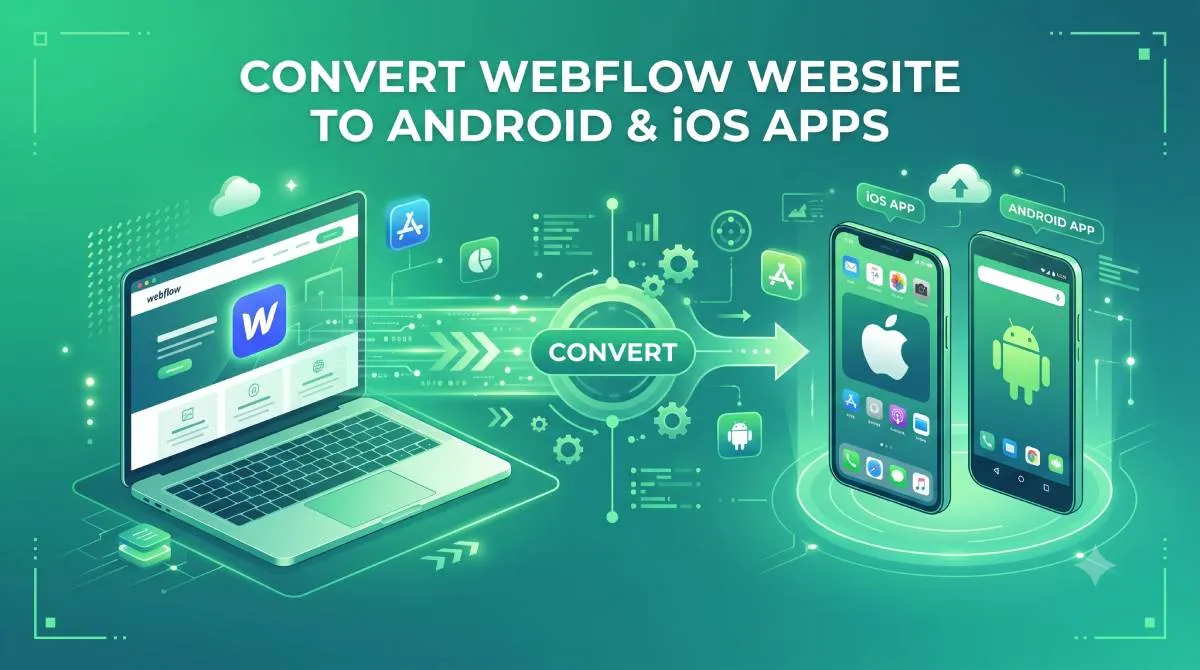
Convert Your Webflow Website to an Android & iOS App (No Code, No Migration, No Compromise)
You've spent real hours in Webflow. Custom interactions, carefully built CMS collections, scroll animations that actually work — the kind of Webflow site that makes a client's jaw drop when they see the desktop preview.
Then someone opens it on their phone.
And it's... fine. It works. But "fine" isn't what you were going for.
Here's the thing: the gap between a responsive Webflow site and a proper mobile app isn't a design problem. It's a platform problem. And there's now a way to close it — without writing a single line of code, without touching your Webflow project settings, and without migrating anything anywhere.
This post explains how to convert your Webflow website to an Android and iOS app, what that actually means for your design work, and why it's a bigger deal for your clients (and your own services) than you might think.
You Built Something Beautiful — So Why Does It Feel Broken on Mobile?
The Webflow designer's frustration: pixel-perfect on desktop, squished on a phone
You know the feeling. You've dialled in every breakpoint in the Webflow Designer. The tablet view looks great. The mobile view looks... acceptable. You've done your job responsibly.
But there's still something off about how it feels on a real phone.
It's not just about layout. It's the browser chrome — that strip of address bar, navigation buttons, and tab interface that sits on top of your work. It's the loading delay when a user switches tabs and comes back. It's the fact that your Webflow site, no matter how beautifully made, is still a website inside a browser, not a purpose-built mobile experience.
The hours you put into the Webflow Designer deserve better than that.
What your audience expects in 2026
Mobile users have been trained by native apps to expect things that mobile browsers simply can't deliver: smooth, full-screen scrolling with no visible browser controls, instant load times, home screen icons, push notifications, offline states.
Major publishers, fitness studios, news outlets, content creators — they've all moved their audiences onto dedicated apps because that's where the experience holds up. And now their audiences expect that standard everywhere.
Your Webflow site is already doing the hard work. The content is there, the design is there, the animations are there. What's missing is the right container to put it in.
Understanding Webflow's Mobile Limitation (And Why It's Not Your Fault)
What makes Webflow exceptional — and where it hits a wall
Webflow is genuinely brilliant at what it does. Pixel-perfect layout control, smooth CSS animations, Interactions, clean output — all without touching code. It's why so many designers and agencies have built their entire workflow around it.
But Webflow is, at its core, a website builder. A very powerful one. And like any website builder, it was designed to output web pages, not native mobile applications.
That's not a criticism — it's just the reality of what the tool is for. The Webflow Designer gives you an enormous amount of control inside that web context. But injecting a native mobile navigation layer, enabling push notifications, or building App Store-ready binaries is simply outside what the platform was designed to do. It's not a gap in Webflow's quality; it's the edge of its scope.
Why "mobile responsive" and "mobile app" are not the same thing
This is the key distinction that's worth being really clear on — especially if you're explaining it to a client.
Responsive design means the same HTML and CSS scales and reflows to fit smaller viewports. Webflow does this well. But it's still the same page, rendered in a browser, on a smaller screen.
A mobile app is a different product entirely. It lives on the device. It has its own icon. It can send push notifications directly to the lock screen. It has native navigation patterns — bottom tabs, swipe gestures — that feel like they belong on a phone rather than a scaled-down desktop.
Webflow's mobile breakpoint is a viewport adjustment. A mobile app is a product. Visitors notice the difference, even if they can't articulate why.
Browser Wrapper vs Native App Container
What this costs you (and your clients)
Bounce rates spike when the mobile experience feels like a desktop site that's been compressed. Users leave faster, engage less, and return less often.
Client expectations are a real issue too. A client who paid for a premium Webflow build expects that quality everywhere their audience shows up — including on a home screen. If competitors are delivering app-native experiences and your client's audience is stuck in a browser tab, that's a gap that reflects on the work.
And then there's push notifications — one of the highest-engagement channels available, and one that's completely off the table for a mobile website. Email open rates have been declining for years. Social reach is algorithmically unpredictable. Push notifications bypass both and land directly on the device. Without an app, that channel simply doesn't exist.
Why a Mobile App Outperforms Even the Best Webflow Mobile Site
Your Webflow Interactions and animations deserve a stage that fits them
This is the question most Webflow designers ask first, and it's worth addressing directly: your Webflow Interactions are preserved in full.
We'll go deeper on this shortly, but the short version is that a properly built app doesn't re-render your Webflow site — it wraps it. Your animations, scroll triggers, and hover effects run exactly as they do in a browser. The difference is what surrounds them.
In a mobile browser, your design competes for space with an address bar, a back button, a tab strip, and whatever notification banners the phone decides to throw up. In a native app, your work fills the entire screen. The way you intended it to look is the way it looks.
| The Feature | Webflow Mobile Website | AppOfWeb Native App |
|---|---|---|
| Device Presence | Buried in browser bookmarks | Icon permanently on Home Screen |
| Direct Communication | Requires Email/Social Media | Direct Push Notifications to Lock Screen |
| User Navigation | Clunky browser UI & Address Bar | Native Bottom Tabs & Full Screen |
| Performance Feel | Standard web page load | Instant Native Splash Screen branding |
Home screen presence changes how audiences relate to a site
There's a meaningful psychological difference between a bookmarked URL and an icon on someone's home screen.
An app icon is always visible. It's one tap away with no typing, no browser history to scroll through, no chance of autocomplete sending them somewhere else. That constant presence drives return visits in a way that a browser bookmark simply doesn't.
For freelancers and agencies managing client Webflow sites: offering an app alongside your standard Webflow build is a genuine value-add that justifies a higher engagement fee. It's a deliverable your client can show off. It's something that lives on their audience's devices. That's a different kind of outcome than a responsive website.
Push notifications — the channel Webflow alone cannot give you
Your client's Webflow site might have a brilliant blog, an active events calendar, or a CMS-driven product catalogue. All of that content is working hard to earn return visits.
But right now, the only way to tell people about new content is email, social posts, or hoping they remember to check. Push notifications change that completely.
A message that appears directly on someone's lock screen — "New article just dropped" or "Your order has shipped" — has a fundamentally different engagement rate than an email competing with 47 others in an inbox.
This channel is closed to every Webflow site that lives only in a browser. It opens the moment your client has an app.
USER ENGAGEMENT & OPEN RATES (Industry Averages)

Push Notifications [█████████████████████████] 60-80%
Marketing Emails   [██████░░░░░░░░░░░░░░░░░░░] 15-20%
Social Organic     [██░░░░░░░░░░░░░░░░░░░░░░░]  <5%

* A native app unlocks the highest engagement tier directly to the lock screen.
Professionalism signals that matter to your client's audience
App Store and Google Play presence does something that's hard to manufacture any other way: it signals that a business is serious.
Visitors who find a brand in an app store are already in a higher-trust frame of mind. The presence of an app — and especially positive ratings — builds credibility before they've read a single page of your Webflow project.
Users who download and install an app also convert at higher rates and return more consistently than mobile-web visitors. They've made an active choice to put that brand on their device. That intent shows up in the numbers.
How AppOfWeb Converts Your Webflow Site Into a Real App — Without Touching Your Code
The short answer: yes, your Webflow Interactions are fully preserved
Let's deal with the big concern head-on, because it's the right question to ask.
Will converting your Webflow site to an app break your custom animations and Interactions?
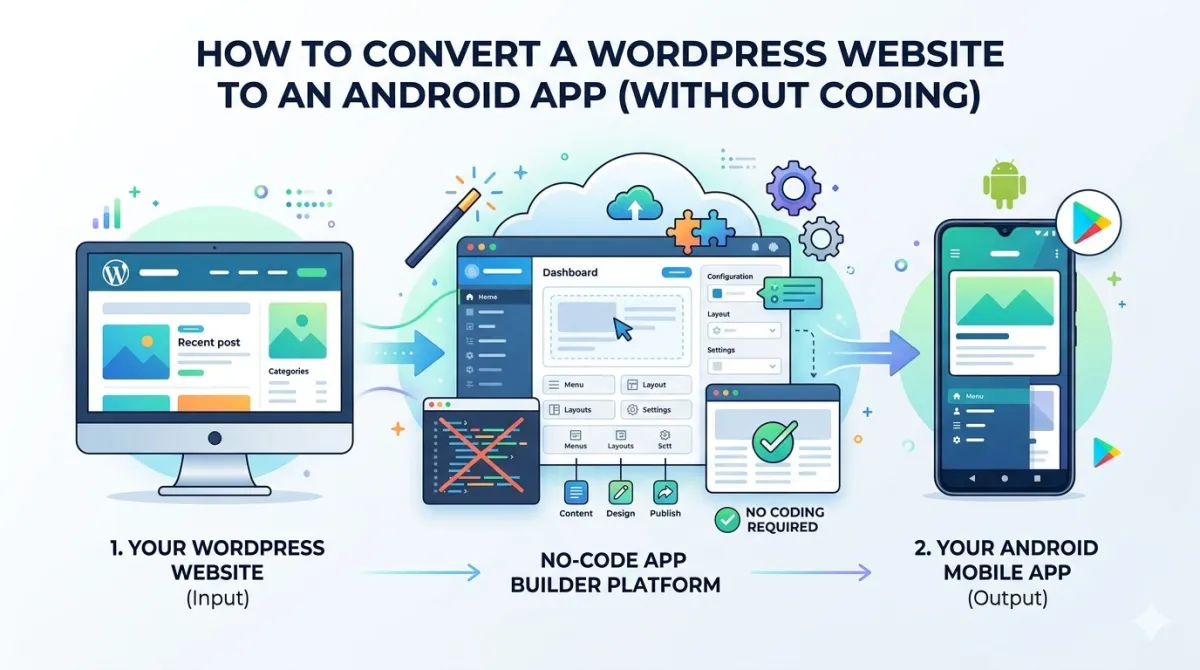
No. Here's why: AppOfWeb doesn't re-build, re-import, or re-render your Webflow site. It wraps your live Webflow URL in a native app shell. The app uses your actual published Webflow site as its content source, exactly the way a browser does — the difference is that the app shell is native to the device, not a browser window.
Every animation you've built in the Webflow Designer, every Interaction triggered by scroll or click, every CMS collection driving your dynamic content — it all runs exactly as it does today. Nothing is stripped, simplified, or touched.
And when you update your Webflow site? The app reflects it automatically. Publish a new CMS collection item, update a page's copy, change a design element in the Designer — the app shows the change immediately, with no separate update, no re-submission, no anything.
What "fully managed" actually means for a Webflow designer
The phrase "fully managed" can mean different things. Here's what it means specifically for this process:
- You do not write code
- You do not migrate content out of your Webflow project
- You do not touch your Webflow project settings
- You do not manage developers
You provide your live Webflow site URL and your branding assets. AppOfWeb handles all development, configuration, and submission to the App Store and Google Play.
If you've published a Webflow site, you already know everything you need to know to get started.
Estimate how much a custom mobile development agency would cost vs instantly converting your Webflow site.
Traditional Developer Cost
$8,000(Upfront + maintenance)
AppOfWeb Managed Cost
$0 Upfront(Standard straightforward pricing)
Who this is built for
AppOfWeb's Webflow-to-app conversion is specifically useful for:
- Freelance Webflow designers who want to offer app delivery as a premium add-on to a standard project scope
- Agencies looking to add app publishing to their service menu without hiring a mobile development team
- Webflow site owners — businesses, creators, studios — who want a genuine mobile product for their audience, not a workaround or shortcut
If any of those descriptions fit, the rest of this post is going to be very relevant.
AppOfWeb Features — What Your Webflow App Gets Out of the Box
These aren't checkbox features included to pad a marketing page. Each one solves a real gap between what a Webflow mobile site can offer and what a native app delivers. Here's what your Webflow app includes:
App Icon & Splash Screen
Your app's first impression on the device. Upload the same logo assets you're already using in your Webflow project — the icon that appears on the home screen, and the splash screen that bridges the moment between app launch and your Webflow content loading.
The splash screen is more important than it sounds. Without it, users see a blank white screen while content loads. With it, they see your brand. That gap, even a fraction of a second, shapes how polished the whole experience feels.
Customizable Bottom Tabs
Browser navigation — a back button, an address bar, forward and backward arrows — is designed for browsing the web. It's not designed for using an app.
Bottom tabs are the navigation pattern mobile users expect from a native application. They replace browser-style controls with a persistent nav bar at the bottom of the screen that maps directly to your Webflow site's primary page structure.
If your Webflow project uses a multi-page architecture — a home page, a services section, a blog powered by CMS collections, a contact page — bottom tabs translate that structure directly into a navigation experience that feels like it belongs on the device.
Share App
A built-in sharing feature that lets users send the app to others directly from within the app itself. Particularly useful for client Webflow sites with community elements, membership areas, or content your audience wants to pass around — without you needing to manage a separate referral system.
Rate App
Prompts users to leave a review on the App Store or Google Play at an appropriate moment in their experience. Social proof in an app store works exactly the way it works on a well-built Webflow portfolio: it builds trust before the first tap, and it compounds over time.
Pull To Refresh
The instinctive gesture mobile users reach for when they want the latest content — pull down from the top of the screen to reload.
For Webflow sites driven by CMS collections — blogs, event listings, product catalogues, directories — this ensures visitors always see current data without hunting for a reload button.
Status Bar Customization
Control whether the phone's system status bar (battery indicator, time, signal strength) appears in light or dark mode. It's a small detail, but it's the kind of detail that separates an app that looks polished from one that looks like a generic wrapper. You can match it to your Webflow project's color palette so the whole experience feels intentional.
Page Loader
A branded loading animation displayed while pages transition inside the app. Keeps the experience feeling considered and consistent — especially important for Webflow projects that use page load animations or entrance effects. Instead of a blank moment between pages, your brand fills the gap.
Pinch To Zoom
Optional zoom control for content-heavy Webflow pages — portfolios, case studies, image galleries — where a user might want to zoom in on details. Can be enabled or disabled depending on the type of Webflow site you're converting.
No Internet Screen
When a user loses connectivity, the app shows a custom-branded offline message rather than a generic browser error page. It's a small thing, but maintaining your client's brand voice even in edge cases is the mark of a well-built product.
App Syncing With Your Webflow Site
Worth repeating clearly: the app stays in permanent sync with your live Webflow project. Update a CMS collection, publish a new page, change your site's design in the Webflow Designer — the app reflects all of it immediately. No manual sync. No re-submission. No notification to AppOfWeb required.
For agencies managing client sites on an ongoing basis, this is significant. The app doesn't become a second thing to maintain. It stays current automatically.
Customize Package Name
Set a professional package identifier — something like com.yourclientbrand.app — for both Android and iOS. This is particularly relevant for agencies delivering white-label app builds under a client's own brand, where the package name needs to reflect their identity rather than a generic default.
Unlimited Revisions
Request changes to your app's configuration, navigation structure, branding, or feature settings as your Webflow project evolves. There are no per-revision fees — which matters a lot for designers who iterate frequently with clients. As the Webflow site grows, the app grows with it.
Push Notifications (Addon)
Send targeted messages to app users without routing through a third-party email platform or competing with social algorithms. Connect directly with the audience your Webflow site has built.
This is particularly high-value for content-driven Webflow projects: blogs, coaching sites, studios, agencies with a news or updates section. The moment new content goes live in your Webflow CMS, you can put a notification directly on your subscribers' lock screens.
Publishing to App Stores (Addon)
Full submission to the Apple App Store and Google Play, including all required metadata, screenshots, descriptions, and compliance steps. AppOfWeb manages the entire process.
For Webflow designers who have never shipped a native app, the submission process is the most technically daunting part of the whole project. App Store guidelines are detailed, the review process has specific requirements, and a rejected submission can mean days of back-and-forth. This addon removes all of that from your plate.
From Webflow URL to Live App — The Step-by-Step Process
No assumed technical knowledge here. This is exactly how it works.
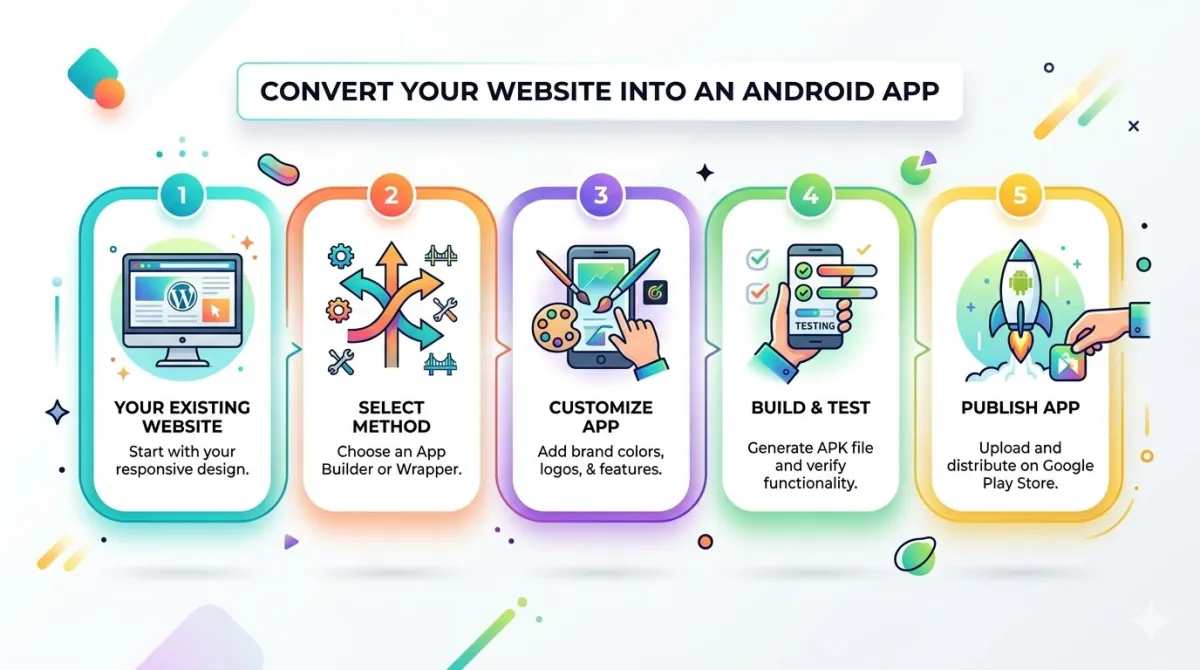
Step 1 — Submit your Webflow site URL
Go to appofweb.com and enter your live Webflow site URL.
No credentials needed. No Designer access required. No API keys, no Webflow account sharing, nothing like that. Just the URL of your published Webflow site.
Step 2 — Choose your features and configuration
Select the features you want enabled: bottom tabs, pull to refresh, push notifications, and so on. Upload your branding assets — app icon, splash screen image, color preferences. If you're doing a white-label build for a client, specify your custom package name here.
This is the closest this process gets to a design decision, and it's not complicated. If you can upload images to Webflow's asset manager, you can do this.
Step 3 — AppOfWeb builds your app
The AppOfWeb team configures and builds your Android and iOS app using your live Webflow site as the content source.
You don't review code. You don't receive a GitHub repository. You don't need to understand anything technical about what's happening. You receive the finished app experience to test on your device.
Step 4 — Review and request revisions
You'll get a preview build to test on your phone. Try the navigation. Check that your Webflow Interactions run as expected. Test the bottom tabs against your site's page structure.
If anything needs adjusting, request it. The unlimited revisions policy means you iterate until it meets the standard your Webflow work demands. There's no pressure to approve something that isn't right.
Step 5 — Publish to the App Store and Google Play (Addon)
Once you're happy with the app, it's submitted to both stores on your behalf. AppOfWeb manages the submission, including any compliance requirements and metadata.
Your Webflow site keeps running exactly as normal throughout all of this. The app simply reflects it in real time.
Honest Answers to the Questions Every Webflow Designer Actually Asks
"Will the app break my Webflow Interactions and animations?"
This is the most common concern, and it's completely fair — Webflow's Interactions system is often what makes a site distinctive. Clients pay for those effects. You've spent time getting them right.
Because AppOfWeb uses your live Webflow URL as the content source rather than exporting, re-rendering, or rebuilding, all CSS animations, Webflow Interactions, and scroll-triggered effects load exactly as they do in a browser. Nothing is stripped, simplified, or re-coded on the way in.
The app shell is native. The content is still your Webflow site, doing what it already does.
"What happens when I update my Webflow site?"
This is one of the most important things to understand about how this works.
The app is always connected to your live Webflow project. Publish a change in the Designer, update a CMS collection item, add a new page — the app reflects it immediately. No app update. No re-submission to the App Store or Google Play. No message to AppOfWeb.
For agencies managing client Webflow sites on a retainer, this means the app stays current on its own. One update, everywhere.
"Do I need to know how to code or manage a developer?"
No. The process is specifically designed for designers who work entirely within Webflow's visual tools and have no interest in writing code or managing a development relationship.
You submit a URL and make design decisions about your app's branding and features. AppOfWeb handles everything technical.
If you've published a Webflow site — gone through the Designer, set up CMS collections, clicked Publish — you already know everything required to work with AppOfWeb.
"Can I offer this as a service to my own Webflow clients?"
Yes, and many freelancers and agencies do exactly this.
AppOfWeb's white-label configuration — custom package names, your client's branding throughout — makes it straightforward to deliver the app under your client's identity. This positions the app as a premium add-on to a standard Webflow project engagement, one that commands a higher rate and gives the client something genuinely impressive to show their audience.
You're not reselling a product. You're adding a deliverable that most Webflow designers and agencies can't offer.
Frequently Asked Questions
Yes. The app reads from your live published Webflow site, so any CMS change you publish in Webflow is immediately visible in the app. No manual sync, no re-submission required.
Yes — because the app renders your actual live Webflow site, all typography, spacing, brand colors, and design assets appear exactly as they do in a browser. The app doesn't touch your Webflow project's visual output.
Scroll-based Interactions work as expected within the app's scrollable content view. Hover states behave as they naturally do on a touch device — a tap triggers the interaction in place of a hover.
Yes. Each Webflow project URL is treated as a separate app build. Agencies can manage multiple client app builds independently, each with its own branding, configuration, and package name.
You'll need accounts for App Store and Google Play publication if you're going the store submission route. Apple charges $99 per year; Google charges a one-time $25 fee. Both are required for you to own and control your published app — AppOfWeb handles all submission steps on your behalf, but the store accounts remain yours.
Minor design changes (colors, fonts, copy, layout updates) are reflected automatically since the app reads from your live Webflow site. Significant structural changes — a new navigation architecture, renamed pages, added sections — may need a configuration update, which is covered under the unlimited revisions policy at no extra cost.
Yes, significantly. A home screen shortcut via "Add to Home Screen" still opens your Webflow site inside a browser tab. The browser chrome is still visible. There's no access to push notifications. There's no App Store or Google Play listing.
An AppOfWeb app is a genuine native application listed on the App Store and Google Play, with branded navigation, push notification capability, and device-level performance. The two experiences aren't comparable.
Your Webflow Site Deserves a Home Screen, Not Just a Browser Tab
A quick summary of what we covered
The gap between a Webflow mobile site and a mobile app isn't about design quality — your Webflow work is already excellent. The gap is about the container it lives in.
A mobile browser wraps your Webflow site in chrome, limitations, and friction that you didn't design. A native app removes all of that, adds push notifications and home screen presence, and delivers your Webflow design the way you actually built it: full screen, intentional, and on the device.
AppOfWeb makes that conversion fully managed. No code. No migration. No disruption to your existing Webflow project or workflow. Your Webflow site and your app stay in sync automatically — one publish in the Designer updates both.
Three things to take away from this post
- Your Webflow design is already app-ready. The content, the animations, the CMS structure — it's all there. What's been missing is the native container around it.
- Your Webflow site and your app run in sync. One update in the Webflow Designer or CMS reflects everywhere, immediately, with nothing extra required from you.
- This is a service you can offer your clients. An app alongside a Webflow build is a meaningful deliverable that commands a premium and gives your clients something their competitors probably don't have yet.
Your next stepVisit appofweb.com and submit your Webflow site URL. No technical knowledge required. No developer needed. The Webflow work you've already done is the hard part — AppOfWeb handles the rest.