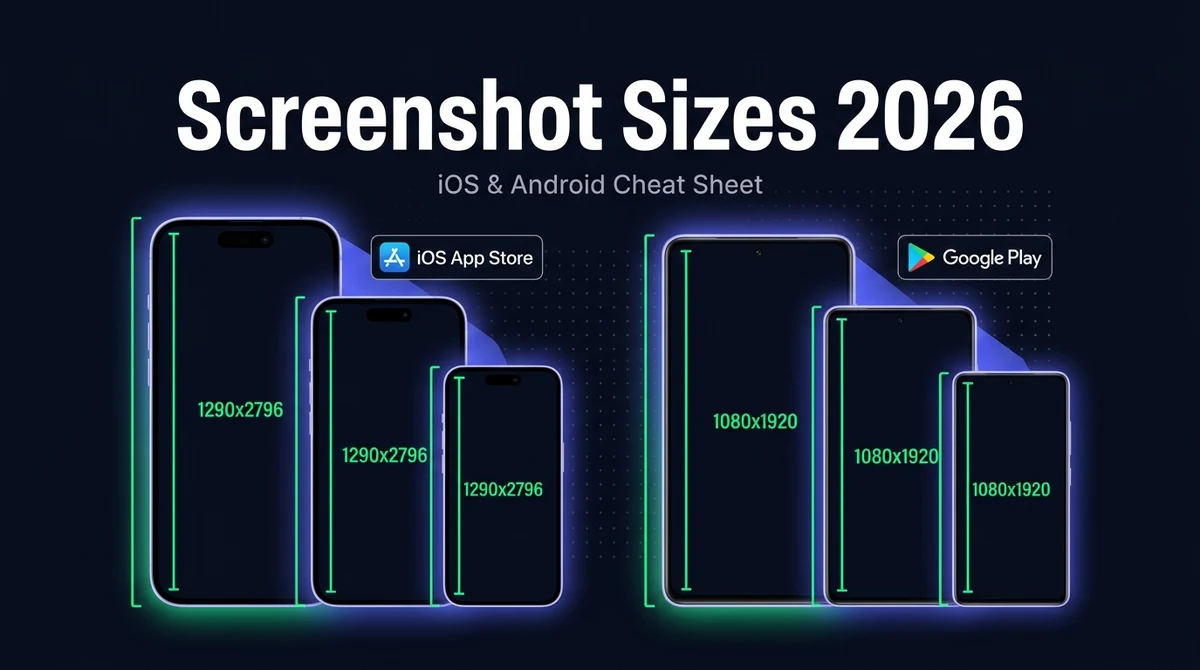
App Store Screenshot Sizes 2026: iOS & Android Cheat Sheet
You’ve built the app. The code works, the UI is polished, and you’re ready to submit. Then App Store Connect throws back an error: “Wrong screenshot size for this display.” The upload fails, the clock is ticking, and suddenly you’re re-exporting at 1 AM.
This guide exists so that doesn’t happen to you. Here are the exact pixel dimensions required for every device slot on the iOS App Store and Google Play in 2026 — with the required versus optional slots clearly marked, what changed this year, and the most common mistakes that cause rejections and hurt your conversion rate.
Bookmark this page. It’s the only reference you’ll need.
Why Screenshots Are the Most Important Asset You Upload
Screenshots determine whether someone installs your app. They are the first visual a user sees in search results, and on many devices they appear even before your app’s name finishes rendering.
App store optimization (ASO) studies consistently find that screenshots are the single biggest driver of install conversion — outperforming your app icon, your description, and even your star rating for first-time visitors. A user who doesn’t like what they see in the first screenshot will not scroll to see the rest.
Getting the size right is step zero. Wrong dimensions mean the upload fails, which means the app doesn’t go live on time. Getting the design right is step one. That’s where conversion happens. This guide covers both.
What Changed in 2025–2026
Apple added a new recommended display size and updated its device lineup — the biggest shift to screenshot requirements in several years.
The 6.9-inch Slot Replaced the Old Required Sizes
Apple simplified iPhone screenshots dramatically. The 6.9-inch slot (1320×2868 px) — iPhone 16 Pro Max, 16 Plus and newer — is now the primary iPhone slot, and Apple scales that one set down for every smaller iPhone automatically.
This retired the old two-slot requirement. You no longer need a separate 6.7-inch (1290×2796 px) set, and the 5.5-inch (1242×2208 px) slot that blocked submissions for years is gone entirely. One iPhone set is now enough. If you have no 6.9-inch artwork, App Store Connect accepts a 6.5-inch (1242×2688 px) set in its place.
If you last shipped an app before this change, this is the single biggest thing to re-check — most older guides and templates still tell you to build the 5.5-inch set.
Google Play’s Adaptive Preview Cards
Google introduced adaptive preview cards in 2025 — a display format in search results that shows a cropped square or portrait crop of your first screenshot depending on query context. Your images still need to meet the standard dimension requirements, but the composition of your first screenshot now matters more. Keep the key message in the upper 60–70% of the frame so it’s visible in cropped previews.
iPad Screenshots Became Mandatory for Universal Apps
Apple tightened its validation in 2025: if your app is marked as Universal (supporting both iPhone and iPad), App Store Connect now requires at least one set of iPad screenshots. Previously this was strongly recommended but not always enforced at submission. Today a missing iPad screenshot set can block review.
Feature Graphic Deprecated on Google Play
Google officially deprecated the Feature Graphic — the wide 1024×500 px banner that used to appear at the top of store listings. It is no longer displayed in the store UI. You can still upload it without harm, but it has no visible effect. Focus your energy on your first two screenshots instead.
iOS App Store Screenshot Sizes (2026)
Apple organises screenshots by display size, not device model. One set of correctly-sized images covers every iPhone or iPad with that display size, regardless of which specific model the user owns.
iPhone Screenshot Requirements
| Display Size | Device Examples | Portrait (px) | Landscape (px) | Status |
|---|---|---|---|---|
| 6.9″ | iPhone 16 Pro Max, 16 Plus | 1320×2868 | 2868×1320 | Required |
| 6.5″ | iPhone 11 Pro Max, XS Max | 1242×2688 | 2688×1242 | Alternative |
| 6.7″ | iPhone 14 Plus, 15 Plus, 16 | 1290×2796 | 2796×1290 | Retired |
| 5.5″ | iPhone 8 Plus, 7 Plus, 6s Plus | 1242×2208 | 2208×1242 | Retired |
| 4.7″ | iPhone SE (2nd/3rd gen), iPhone 8 | 750×1334 | 1334×750 | Optional |
| 4.0″ | iPhone SE (1st gen), iPhone 5s | 640×1136 | 1136×640 | Optional |
“Alternative” means App Store Connect accepts it in place of the required slot — you do not need both. “Retired” means Apple no longer asks for it at all.
Minimum viable iPhone set: one set at 1320×2868 px (6.9″). Apple scales that set down for every smaller iPhone automatically, so it is the only iPhone slot that blocks submission if missing. If you have no 6.9″ artwork, App Store Connect also accepts 1242×2688 px (6.5″) in its place — but you do not need both, and you no longer need the old 5.5″ or 6.7″ sets at all.
iPad Screenshot Requirements
| Display Size | Device Examples | Portrait (px) | Landscape (px) | Status |
|---|---|---|---|---|
| 13″ (M4) | iPad Pro 13″ (M4) | 2064×2752 | 2752×2064 | Required |
| 12.9″ (6th gen) | iPad Pro 12.9″ (6th gen) | 2048×2732 | 2732×2048 | Alternative |
| 11″ | iPad Pro 11″, iPad Air (M2) | 1668×2388 | 2388×1668 | Optional |
| 10.9″ | iPad Air (4th/5th gen), iPad 10th gen | 1640×2360 | 2360×1640 | Optional |
| 8.3″ | iPad mini (6th gen) | 1488×2266 | 2266×1488 | Optional |
| 9.7″ | iPad (older), iPad mini (2/3/4) | 1536×2048 | 2048×1536 | Optional |
For Universal apps, uploading the 12.9-inch (6th gen) 2048×2732 px set covers the iPad requirement. Apple scales these down for smaller iPads. The newer 13″ M4 at 2064×2752 px is optional but recommended for apps targeting current iPad Pro users.
File Format Requirements (iOS)
- Format: PNG (recommended) or JPEG
- Colour space: sRGB or P3 (wide colour)
- Maximum file size: 500 MB per screenshot (practically keep under 5 MB)
- Maximum count: 10 screenshots per display slot
- No alpha transparency: App Store Connect flattens alpha on upload
Google Play Screenshot Sizes (2026)
Google Play uses boundary rules rather than fixed pixel dimensions. You have more flexibility, but there are still minimum standards that every screenshot must meet.
Google Play Dimension Rules
| Rule | Value |
|---|---|
| Minimum side length | 320 px |
| Maximum side length | 3840 px |
| Aspect ratio range | Between 1:2 and 2:1 (not too tall, not too wide) |
| Recommended phone portrait | 1080×1920 px |
| Recommended phone landscape | 1920×1080 px |
| Format | PNG or JPEG (no GIF, no WebP) |
| Maximum file size | 8 MB per screenshot |
| Minimum count | 2 screenshots |
| Maximum count | 8 screenshots per device type |
Google Play Device Types
Google Play lets you upload separate screenshot sets for:
- Phone — required if your app runs on phones
- 7-inch tablet — optional; recommended if you target tablets (1200×1920 px)
- 10-inch tablet — optional; recommended (1600×2560 px)
- Chromebook — optional; for apps targeting Chrome OS
- Android TV — required if your app targets Android TV (1920×1080 px, landscape only)
- Wear OS — required if your app targets Wear OS (1–8 square screenshots)
Tablet screenshots on Google Play are not optional if you want tablet visibility. Apps without tablet-specific screenshots get deprioritised in tablet search results. Uploading dedicated tablet screenshots can meaningfully improve discovery on large-screen Android devices.
Step-by-Step: Preparing and Uploading Screenshots
For the iOS App Store
- Identify your required device slots. Log into App Store Connect, open your app, go to App Store > iOS App, and scroll to the App Previews and Screenshots section. The required slots are marked. At minimum you need one 6.9-inch iPhone set, plus a 13-inch iPad set if your app supports iPad.
- Export at the correct pixel dimensions. Design your screenshots at the exact sizes in the table above. A screenshot that is 1 pixel off will be rejected. Do not resize an existing screenshot — start from the correct canvas size in Figma, Sketch, or Photoshop.
- Organise your files before uploading. App Store Connect does not care about file names, but a clear naming convention (e.g.
iphone-67-screen1.png) saves you from uploading to the wrong slot. - Upload to the correct slot. Drag files into the device-specific section or click the upload icon. App Store Connect validates dimensions immediately — an error appears before you save if anything is wrong.
- Review the preview. App Store Connect renders a real-time preview of how your screenshots appear in search results and on the product page. Check that text is legible, branding is consistent, and the first screenshot communicates your app’s value immediately.
- Save and attach to your version. Click Save. Screenshots are attached to the current app version in review. If you have a live version and want to update screenshots without a new binary, use the “Add for Review” option on the existing version metadata.
For Google Play
- Open Google Play Console. Navigate to your app › Store presence › Store listing. The screenshot uploader is in the Graphics section.
- Prepare your phone screenshots. Use 1080×1920 px (portrait) or 1920×1080 px (landscape). Export as PNG or JPEG, file size under 8 MB. Prepare at least 2 and at most 8 images.
- Upload phone screenshots. Drag your files into the Phone screenshots field. Google validates against its boundary rules. If you get a rejection, check your aspect ratio first — this is the most common cause.
- Add tablet screenshots (recommended). Scroll down to the 7-inch tablet and 10-inch tablet sections. Upload dedicated screenshots at 1200×1920 px and 1600×2560 px respectively. These appear on tablet search results and improve ranking on large-screen devices.
- Save and publish. Click Save. Store listing updates publish immediately if your app is already live — no new app review is needed just for screenshot changes.
Screenshot Design Tips That Actually Move Conversion
The right size gets you past the upload gate; the right design gets you the install. Four principles that consistently improve conversion across both stores:
Lead with the outcome, not the feature
Most developers put the UI on screenshot one. Most users care about what the UI does for them. Screenshot one should answer: “What does this app give me?” Show the result — the completed task, the saved time, the solved problem — not the interface that achieves it.
Use caption text on every screenshot
A screenshot without a caption is a missed opportunity. Three to five words of bold text overlaid on each screenshot dramatically increases the information density of your store listing. Keep it to a single line per image — users scan, they don’t read.
Match the screenshot to the search intent
If someone searches “expense tracker,” your first screenshot should show the expense tracking feature — not your onboarding screen or your settings page. On Google Play, you can run store listing experiments to A/B test which screenshot order performs best for different keyword groups.
Keep orientation consistent within a set
Mixing portrait and landscape screenshots in the same set causes unpredictable rendering on both stores. Pick one orientation per device type and stick to it.
Portrait screenshots display as a scrollable row in App Store search results. Landscape screenshots display as a large single card — very effective for games and media apps, but it wastes space if your app is primarily portrait.
Common Mistakes That Cause Rejections or Hurt Conversion
Mistake 1: Building the wrong iPhone size from an outdated guide
The 6.5-inch (1242×2688 px), 6.7-inch (1290×2796 px) and 6.9-inch (1320×2868 px) sizes look almost identical but are not interchangeable, and App Store Connect validates them exactly. Build the 6.9-inch set — it is the current primary slot, and Apple scales it down for everything smaller.
Mistake 2: Still producing the retired 5.5-inch set
The 5.5-inch slot (1242×2208 px) was mandatory for years, and most guides still say so. Apple has retired it — producing it now is wasted design work. The same applies to the separate 6.7-inch set. One 6.9-inch set covers every iPhone.
Mistake 3: Forgetting iPad screenshots for Universal apps
If your app info page says “iPhone + iPad,” you need iPad screenshots. Starting in 2025, Apple enforces this at submission. Upload 2048×2732 px iPad screenshots, or remove iPad from your supported device list in your build settings.
Mistake 4: Wrong aspect ratio on Google Play
Google Play’s 1:2 to 2:1 rule means a very tall thin screenshot (like 720×2400 px — a 1:3.3 ratio) will be rejected. If you get a dimension error on Google Play and the resolution looks fine, check your aspect ratio first.
Mistake 5: Scaling phone screenshots up for tablets
Scaling a 1080×1920 px phone screenshot up to 1600×2560 px for tablets looks poor and signals you haven’t designed for the tablet experience. Design tablet screenshots at native tablet dimensions with tablet-appropriate layouts.
Mistake 6: Designing at logical resolution and exporting at the wrong size
A common Figma/Sketch mistake: you design at 390×844 px (logical resolution) and export without scaling up. App Store Connect expects physical pixel dimensions. For iPhone 14 Pro, the physical pixel resolution is 1179×2556 px — not 390×844 px. Always export at the physical pixel size listed in the tables above.
FAQs
One set at 1320×2868 px — the 6.9-inch slot used by iPhone 16 Pro Max, 16 Plus and newer. That is the only iPhone size App Store Connect requires, and Apple scales it down for every smaller iPhone automatically. If you have no 6.9-inch artwork, a 6.5-inch set (1242×2688 px) is accepted in its place. The old 6.7-inch (1290×2796 px) and 5.5-inch (1242×2208 px) requirements have been retired. Apple accepts portrait or landscape; just swap width and height for landscape.
No. App Store Connect treats iPhone and iPad as separate display targets. If your app supports iPad, you must upload a separate set of screenshots at iPad dimensions (2048×2732 px for 12.9-inch, 1668×2388 px for 11-inch, or 2360×1640 px for the iPad mini). If you skip iPad screenshots, Apple will not display any screenshots on iPad product pages, which hurts conversion for iPad users browsing the store.
Google Play does not enforce a single required pixel size. Instead, it sets minimum and maximum boundaries: each side must be between 320 px and 3840 px, and your aspect ratio must stay within 1:2 and 2:1. In practice, 1080×1920 px (portrait) is the widely recommended standard. File size must stay under 8 MB and format must be PNG or JPG. You can upload between 2 and 8 screenshots per device type.
App Store Connect will reject the upload immediately with an error message like “Wrong screenshot size for this display.” The submission will not proceed until you upload correctly sized images. Apple does not crop or resize your screenshots automatically. If you upload a 1242×2208 px image where 1290×2796 px is required, the system simply rejects it. Always export at the exact pixel dimensions for each device slot you are targeting.
No — one set covers every iPhone. App Store Connect requires a single 6.9-inch set (1320×2868 px) and scales it down for all smaller displays automatically. You no longer need the separate 6.7-inch or 5.5-inch sets that older guides describe.
On the iOS App Store, you can upload a minimum of 1 and a maximum of 10 screenshots per device display size. Apple recommends 3–5 screenshots that tell a clear visual story of your app. On Google Play, you can upload between 2 and 8 screenshots for phones, and separately for 7-inch tablets and 10-inch tablets. More is not always better — 4 well-designed screenshots consistently outperform 10 generic ones.
It depends on your app. Portrait screenshots (tall, vertical) are standard for most apps. Landscape screenshots (wide, horizontal) work well for games, video apps, or apps with horizontal layouts. On the App Store, portrait screenshots display as a horizontal scrollable row in search results; landscape screenshots display larger as full-width cards, which can capture more attention. All screenshots in a single device slot must share the same orientation. On Google Play, the first screenshot shown in search results is especially important for conversion.
Key Takeaways
Screenshot requirements are not complicated once you have the reference. Here’s the short version:
- iOS requires exact pixel dimensions — one 1320×2868 px (6.9″) iPhone set is mandatory, and Apple scales it down for smaller iPhones.
- Google Play uses boundary rules (320–3840 px per side, aspect 1:2 to 2:1) — 1080×1920 px is the practical standard.
- Universal iOS apps now require iPad screenshots — upload 2048×2732 px at minimum.
- The 6.9-inch slot (1320×2868 px) is new in 2026 — optional but recommended for full coverage.
- Google’s Feature Graphic is deprecated — put that design effort into your first two phone screenshots instead.
- Wrong dimensions = immediate rejection on iOS, and a vague error on Google Play. Check aspect ratios on both.
- The first screenshot is the highest-leverage asset in your store listing. Treat it like an ad, not a UI walkthrough.
If you’re building a mobile app from a website and want to skip the manual app-building process entirely, AppOfWeb converts any website into a native iOS and Android app — and the onboarding guides you through every submission step, including screenshots.
Turn Your Website Into an App — Today
AppOfWeb converts any website into a native iOS and Android app without code. One-time payment, no subscriptions, ready for both stores.
Get Started Free