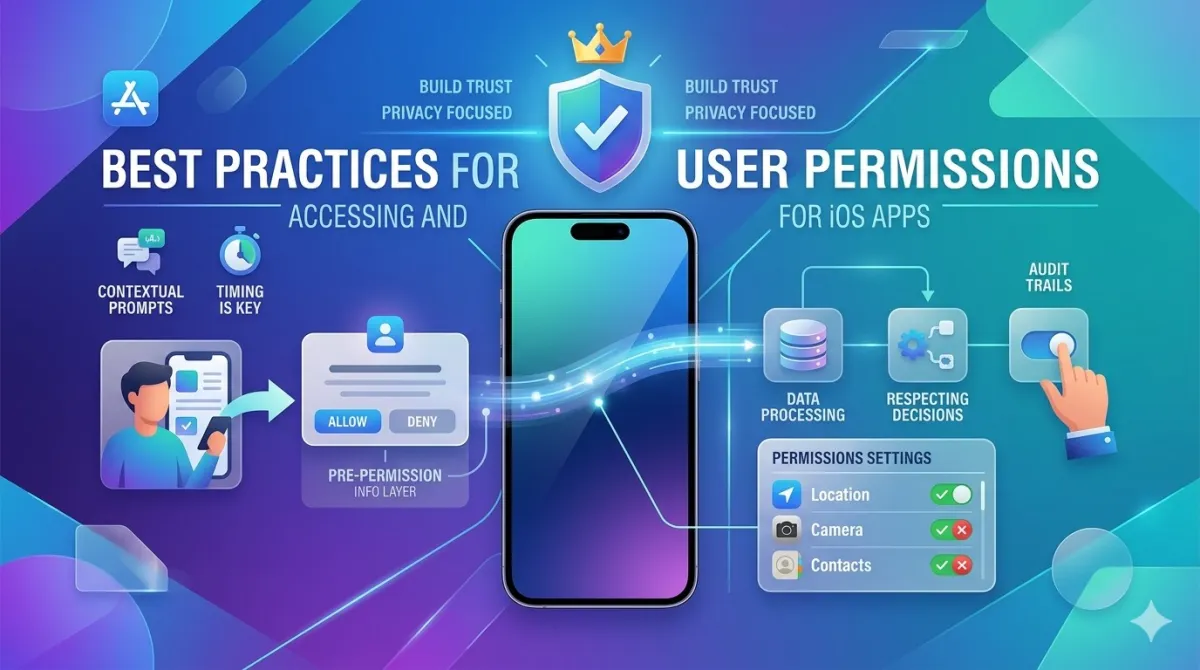
Best Practices for Accessing and Handling User Permissions for iOS Apps
Why iOS Permissions Can Make or Break Your App
Picture this: a user downloads your app, opens it for the very first time, and — boom — a permission prompt appears before they've even seen the home screen. They tap "Don't Allow" on instinct. And that's it. That user will almost certainly never enable that permission again.
It sounds dramatic, but it's one of the most common self-inflicted wounds in iOS development. A single clumsy permission request can permanently close a door that no amount of clever UX can re-open.
Here's the uncomfortable truth about iOS permissions: when a user denies a request, the OS locks you out for good. Your app cannot re-trigger that prompt. The only way back is the user manually digging through Settings — which approximately zero percent of annoyed users will do.
This guide covers everything you need to get permissions right, from the technical plumbing (Info.plist keys, entitlements, Privacy Manifests) to the UX strategy that separates apps with 80% grant rates from those with 30%. We're covering changes through iOS 18, including things most other guides completely skip — PHPickerViewController, provisional notifications, the restricted state, App Tracking Transparency, and the iOS 17 Privacy Manifest requirement that's been quietly rejecting App Store submissions since 2024.
Let's dig in. (Building a hybrid or WebView app with camera, file upload, or location needs? Read our 2026 guide on handling camera, file uploads, and geolocation in WebView apps.)
Understanding How iOS Permissions Actually Work (Under the Hood)
Before touching a single line of code, it helps to understand what's actually happening when a permission prompt appears — and why iOS handles it differently than you might expect.
The iOS Permission Architecture — Runtime vs. Installation-Time
iOS uses a runtime permission model. Unlike Android (before version 6.0) where users were asked to accept a list of permissions at install time, iOS never grants anything at installation. Every permission is requested live, in context, while the app is running.
The system tracks four possible states for each permission:
| State | What It Means |
|---|---|
| Not Determined | The user hasn't been asked yet |
| Authorized | The user said yes |
| Denied | The user said no — and you can't ask again |
| Restricted | A parental control, Screen Time policy, or MDM is blocking access — the user can't grant this even if they want to |
That last one — Restricted — is critically important and almost universally ignored by developers. More on that later.
One more key thing to burn into your memory: the OS permission prompt fires exactly once per app
per permission. If the user denies it, your code calling
requestAuthorization() again does absolutely nothing. No prompt appears. You're done.
Pro tip: Always check the current authorization status before requesting. Calling
requestAuthorizationwhen the status is already.deniedis a silent no-op — it wastes the opportunity and confuses your flow.
Entitlements vs. Info.plist — What's the Difference?
These are two separate mechanisms that often get conflated, and mixing them up causes real problems.
Entitlements live in your app's .entitlements file and represent
compile-time capabilities that Apple must approve. Think HealthKit, iCloud, Push Notifications, and
HomeKit. If the entitlement isn't present, calling the API will crash your app — full stop — regardless
of what the user has consented to.
Info.plist Usage Description keys are the strings you see in the OS permission prompt
(things like NSCameraUsageDescription or NSLocationWhenInUseUsageDescription).
These are required for every privacy-sensitive API. Without them, your app crashes at runtime the moment
the permission flow is triggered.
One nasty gotcha: Xcode will not always warn you at compile time if an
NSUsageDescription key is missing. It crashes silently at runtime. Always
cross-check every permission you're using against Apple's full list of privacy-sensitive APIs.
Here's a quick reference for the most common ones:
| Permission | Info.plist Key | Status Enum |
|---|---|---|
| Camera | NSCameraUsageDescription |
AVAuthorizationStatus |
| Microphone | NSMicrophoneUsageDescription |
AVAuthorizationStatus |
| Photo Library | NSPhotoLibraryUsageDescription |
PHAuthorizationStatus |
| Location (When In Use) | NSLocationWhenInUseUsageDescription |
CLAuthorizationStatus |
| Location (Always) | NSLocationAlwaysAndWhenInUseUsageDescription |
CLAuthorizationStatus |
| Contacts | NSContactsUsageDescription |
CNAuthorizationStatus |
| Face ID | NSFaceIDUsageDescription |
LABiometryType |
| Bluetooth | NSBluetoothAlwaysUsageDescription |
CBManagerAuthorization |
Privacy Manifests — The iOS 17+ Requirement Most Developers Miss
This one has been catching developers off guard since Apple started enforcing it in May 2024.
Starting with Xcode 15 / iOS 17, apps that use Required Reason APIs — a specific list of
system APIs Apple considers fingerprinting risks — must include a PrivacyInfo.xcprivacy
file in their project. This file declares what data your app collects, how it uses it, and why
it accesses certain system APIs.
Required Reason APIs include things you'd never think twice about: NSUserDefaults, file
system free space APIs (NSFileSystemFreeSize), and NSProcessInfo.systemUptime.
Use any of these without a Privacy Manifest and your App Store submission gets rejected.
Here's what makes this extra painful: every third-party SDK you embed — analytics, crash reporters, ad networks — must also have its own Privacy Manifest. You're responsible for verifying they do. An SDK without one can sink your entire submission.
To add a Privacy Manifest in Xcode: File → New → File → App Privacy. Apple's developer documentation has the complete list of Required Reason APIs and the valid reason codes you can declare.
The Complete iOS Permission Type Reference
Location Services
Location is the permission users are most suspicious of, and for good reason. Here's what you need to know.
There are four authorization levels: whenInUse, always, denied,
and restricted. Here's the critical rule iOS developers often get wrong: you cannot
jump straight to requesting .always permission. iOS 13+ automatically
downgrades a direct .always request to .whenInUse. You have to earn it — get
whenInUse granted first, then ask for always upgrade separately, and only when
the user is actively engaging with a feature that genuinely needs background location.
iOS 14 introduced approximate location
(CLAccuracyAuthorization.reducedAccuracy). Many apps don't actually need GPS-level
precision. If your feature just needs to know what city someone is in, approximate location is more
privacy-respecting — and users tend to trust it more.
If you only need precise location for one specific task (like turn-by-turn navigation or a delivery
confirmation), iOS 14+ lets you request temporary full accuracy using
requestTemporaryFullAccuracyAuthorization(withPurposeKey:) — great for apps that mostly run
at reduced accuracy but occasionally need the real thing.
iOS 15 added CLLocationButton, a special UI control that provides one-time location
access without any permission prompt at all. The user taps a button (arrow icon + "Use my
location"), location is shared for that one interaction, and that's it. If you only need location for
things like "find my nearest store" or "deliver to my current location," this eliminates the permission
prompt entirely and is dramatically lower friction.
Camera and Microphone
Both permissions use AVCaptureDevice.requestAccess(for:) — .video for camera,
.audio for microphone. They are completely separate permissions. Granting
camera does not imply microphone. Don't assume.
One important nuance: AVAuthorizationStatus.restricted applies when Screen Time or a
parental policy has blocked camera access entirely. Your app must handle this differently from a plain
denial — the user physically cannot enable it, so "go to Settings and turn it on" is just going to
frustrate them.
UX tip: don't request camera and microphone at the same time. Ask for camera first when the user taps record. Only ask for microphone when they actually try to use audio. Fewer prompts at once = higher acceptance rate.
Photo Library — And Why PHPickerViewController Changes Everything
This is the section most permission guides skip entirely, and it's arguably the most important change in photo-related permissions in the last five years.
Since iOS 14, you can let users pick photos and videos from their library without requesting any
permissions at all. The secret is PHPickerViewController. Apple runs the
picker in a sandboxed system process — your app never touches the photo library directly. Selected
assets are handed over as results, with no NSPhotoLibraryUsageDescription required, no user
prompt, and no permission state to manage.
If your app just needs users to select an existing photo — for a profile picture, to attach to a
post, to share — PHPickerViewController should be your default approach. Full stop.
You only need PHPhotoLibrary authorization (and the corresponding Info.plist key) when you
need to:
- Save photos or videos to the library
- Read metadata or access library information directly
- Browse all assets programmatically
When you do need library authorization, iOS 14 introduced Limited Access mode, where
users can grant access to only selected photos rather than their entire library. Your app gets
.limited authorization status and can only see that subset. You must handle this gracefully
— never assume full library access. Use
PHPhotoLibrary.shared().presentLimitedLibraryPicker(from:) to let users modify their
selection.
Also note: .addOnly access (requestAuthorization(for: .addOnly)) is narrower
than .readWrite and only allows saving — not reading. Use it if that's all you need.
Narrower scope signals better intent and tends to get higher acceptance rates.
Heads up:
UIImagePickerControllerstill works but is heading toward deprecation. Migrate toPHPickerViewControllerto future-proof your app.
Push Notifications and Provisional Authorization
UNUserNotificationCenter.requestAuthorization(options:) is how you ask for notification
permission, and the options you pass matter.
The common options: .alert, .badge, .sound. But there's a powerful
one most developers never use: .provisional.
Provisional authorization (iOS 12+) is a game-changer. Request it and you get quiet notification delivery to Notification Center immediately — no user prompt required. Provisional notifications don't appear on the lock screen or show banners. They sit quietly in Notification Center. The user sees them there and later decides whether to keep getting them (which upgrades to full authorization) or turn them off. It's a "show, don't tell" approach — instead of asking users to trust that your notifications will be useful, you demonstrate it first.
A few hard rules about notification permission:
Never request notification permission on cold launch. A user who just installed your app has no idea what value they'll get from your notifications. They will deny it. Wait until they've experienced the product, completed a meaningful action, and have a reason to care.
Always use a custom pre-permission screen (more on that pattern below) to explain specifically what you'll notify about. "Send you daily reminders" is weak. "Remind you 30 minutes before your next workout" is compelling.
When permission is denied, deep-link to Settings using UIApplication.openSettingsURLString
so users can re-enable without hunting through their phone.
Contacts and Calendars
Contacts is a permission Apple scrutinizes heavily during review — and for good reason. When someone grants contacts access, they're sharing information about other people who never consented to being in your database. Your usage description needs to be crystal clear about why you need it.
Good: "Allow access to your contacts to find friends who are already using the app." Bad: "Needed for app functionality."
iOS 17 split the calendar permission into two scopes: write-only access (add events but
not read) and full read/write access. Use the minimum you need. If you're just adding
"Save event to calendar" functionality, requestWriteOnlyAccessToEvents is the right call —
asking for full access when you only need to write raises red flags with users and reviewers.
Bluetooth and Local Network
Bluetooth permission has been required since iOS 13 (NSBluetoothAlwaysUsageDescription). One
testing note: Bluetooth authorization status cannot be properly tested in Simulator —
use a real device.
The local network permission (iOS 14+) surprises a lot of developers. Any app using Bonjour,
multicast, or direct IP connections on the local network triggers a separate system prompt
— NSLocalNetworkUsageDescription. If your app connects to devices on the local Wi-Fi
network (smart home gadgets, printers, game consoles), you need this. Many developers only discover they
need it when their App Store review fails.
Face ID / Touch ID (Biometric Authentication)
Biometric auth uses LAContext.evaluatePolicy(_:localizedReason:). The
localizedReason string you pass in IS the message the user sees in the prompt — not
something from Info.plist. Make it specific and human: "Authenticate to view your saved payment methods"
is better than "Confirm your identity."
You do need NSFaceIDUsageDescription in Info.plist for Face ID specifically. Touch ID
doesn't require it.
Handle these three LAError cases separately — each one needs different UI treatment:
- biometryNotAvailable — device doesn't have biometric hardware
- biometryNotEnrolled — user hasn't set up Face ID/Touch ID
- biometryLockout — too many failed attempts, biometry is locked
Security note: biometric auth is a local-device-only signal. Never use it as the sole gate for sensitive server-side operations. Pair it with a server-side session token.
App Tracking Transparency (ATT)
ATT is how you ask for permission to track users across apps and websites. Without it, the IDFA (Identifier for Advertisers) returns all zeros.
ATTrackingManager.requestTrackingAuthorization(completionHandler:) must be called on the
main thread. The completion block fires on an arbitrary background thread — dispatch back to main for
any UI updates.
Apple's definition of "tracking" is specific and matters for compliance:
- Requires ATT: Linking data about users from your app with data from other companies' apps for targeted advertising
- Does NOT require ATT: First-party analytics within your own app suite
If you're building an ad-supported app, pair the ATT prompt with a custom pre-permission screen that honestly explains the value exchange: "Ads help keep this app free. Relevant ads require this permission — without it, you'll still see ads, just less relevant ones." Transparency here actually increases grant rates.
When ATT is denied, SKAdNetwork provides privacy-preserving attribution as a fallback for measuring ad campaign performance.
HealthKit, HomeKit, and Motion
HealthKit is unique in requiring both an entitlement AND runtime authorization. It goes further than most permissions: each individual health data type (steps, heart rate, sleep analysis, etc.) requires its own authorization. Users can say yes to some and no to others. Your app must gracefully handle partial authorization — never assume that because a user granted steps access, they also granted heart rate access.
HomeKit uses the HomeKit entitlement. Access is managed through the Home app; your app receives delegated permissions.
Core Motion (CMMotionActivityManager): requires
NSMotionUsageDescription. Only request it if step counting or activity detection is
actually a core feature — not just a "nice to have."
Speech Recognition (SFSpeechRecognizer): requires
NSSpeechRecognitionUsageDescription. Note that speech data may be sent to Apple's servers
for processing. Disclose this in your privacy policy.
Writing Permission Descriptions That Actually Work
The usage description string is your one shot to explain why you need a permission before the OS takes over. Make it count.
The Anatomy of a High-Performing Usage Description
A great usage description answers three questions in one sentence: 1. What data are you accessing? 2. Why do you need it? 3. What does the user get from allowing it?
Use this formula: [App feature] needs [resource] to [user benefit].
Examples:
| ❌ Bad | ✅ Good |
|---|---|
| "Camera access required." | "Allow camera access so you can scan barcodes and instantly look up product prices." |
| "We use your location for app features." | "Allow location access to show restaurants, cafes, and shops near you on the map." |
| "Notification permission." | "Allow notifications so we can remind you 30 minutes before your workout starts." |
| "Contacts needed." | "Allow contacts access to find friends who are already using the app." |
Apple reviewers read these strings. Vague descriptions are grounds for rejection in the App Store Review Guidelines.
Localizing Permission Strings for Global Apps
Add an InfoPlist.strings file to each .lproj language folder in your project
and localize every NS*UsageDescription key. Failing to localize permission strings is a
common rejection reason for apps targeting international markets.
Don't just auto-translate. Permission language is about trust. Have a native speaker review it for the right tone — legal-sounding phrasing that works in English might come across as corporate or suspicious in another language.
Test by changing your device language in Settings and re-triggering the permission flow.
Designing the Permission Flow — UX Patterns That Increase Grant Rates
The Pre-Permission Screen Pattern
Before triggering the OS prompt, show your own in-app screen that: - Explains what the feature is - Shows what the user gets from enabling it - Has a clear "Continue" button that then triggers the real OS prompt - Includes a secondary "Not Now" option
Why does this work? Users who engage with your explanation and tap "Continue" have already mentally said yes. The OS prompt that follows feels like a confirmation, not a cold ask.
A few design guidelines: - Don't make it look like the OS dialog. Use your app's visual language — your brand's colors, typography, and illustrations. The goal is your screen first, then the system prompt. - Use an icon or illustration that visually represents what the permission enables (camera icon, location pin, bell for notifications). - Include the "Not Now" path. Users who feel trapped are more likely to deny on the real prompt. A polite exit reduces anxiety and paradoxically increases grant rates.
Contextual Trigger Points — When to Ask
The best time to request a permission is exactly when the user first needs it. Not a second before.
| Permission | Right time to ask |
|---|---|
| Camera | User taps "Take Photo" or "Scan" |
| Location | User taps "Find Nearby" or "Deliver to my location" |
| Notifications | After user completes a meaningful first action (first order, first save) |
| Contacts | User taps "Invite Friends" or "Import Contacts" |
| Microphone | User actually tries to speak or record |
Anti-pattern: Queuing multiple permission requests back-to-back during onboarding. It feels like an interrogation. If multiple permissions are necessary during onboarding, space them across different steps — ideally tied to feature demonstrations, not consent forms.
Use your analytics data to find the session depth where users are most engaged, and trigger non-critical permission requests at that point.
Handling Denied Permissions Gracefully
So the user denied. Here's how to handle it without killing the experience:
- Check the status first — detect
.deniedbefore triggering a feature. Don't call the API and let it fail silently. - Show a helpful explanation — "Camera access is turned off. Turn it on in Settings
to scan barcodes." Include a CTA that deep-links directly there:
UIApplication.open(URL(string: UIApplication.openSettingsURLString)!) - Offer a fallback — manual location entry instead of GPS, a file picker instead of camera capture, etc. The user should still be able to accomplish their goal, just with slightly more effort.
Never try to re-trigger the OS prompt after denial. It won't appear, and Apple may flag repeated attempts.
Handling the "Restricted" State — The Case Everyone Forgets
.restricted is not the same as .denied. When the status is restricted:
- A parental control, Screen Time policy, or MDM configuration is blocking access at the OS level
- The user cannot grant this permission, even if they want to
- Telling them to "go to Settings and enable it" is useless and frustrating
Instead, show a message like: "This feature isn't available on this device." That's it. No Settings link. No instructions. Just a clear, honest explanation.
This affects students, children's apps, and enterprise deployments far more than you'd expect.
Implementing Permissions in Swift — Technical Deep Dive
Checking Authorization Status Before Requesting
Always check status before requesting. Here's the pattern for camera:
switch AVCaptureDevice.authorizationStatus(for: .video) {
case .authorized:
    // Good to go — show the camera
    startCameraSession()

case .notDetermined:
    // Haven't asked yet — now's the time
    AVCaptureDevice.requestAccess(for: .video) { granted in
        DispatchQueue.main.async {
            granted ? self.startCameraSession() : self.showCameraPermissionDenied()
        }
    }

case .denied:
    // User said no — guide them to Settings
    showSettingsPrompt(message: "Camera access is turned off. Enable it in Settings to use this feature.")

case .restricted:
    // Can't grant this — parental control or MDM
    showRestrictedMessage()

@unknown default:
    break
}
Consider creating a reusable PermissionManager class that centralizes status checks and
request calls for every permission type your app uses. It makes the logic testable and keeps your view
controllers clean.
Requesting Permissions Asynchronously
Most permission APIs are asynchronous. Critically: the completion block fires on an arbitrary background thread. Any UI update must be dispatched to the main queue — the example above shows this pattern.
Using Swift concurrency (iOS 15+) makes this cleaner:
// Notification permission with async/await
let center = UNUserNotificationCenter.current()
do {
    let granted = try await center.requestAuthorization(options: [.alert, .sound, .badge])
    // Already on a usable thread — update your state
    updateNotificationUI(granted: granted)
} catch {
    // System error (different from user denial)
    print("Notification request error: \(error)")
}
Distinguish between user denial (expected, handle gracefully) and system errors (unexpected, log for debugging).
Observing Permission Changes at Runtime
Permissions can change at any time. A user can open Settings while your app is backgrounded and revoke access. When they return, your app should react gracefully.
- Location: Implement
CLLocationManagerDelegate.locationManagerDidChangeAuthorization(_:)— it fires automatically when status changes - Notifications: In
applicationDidBecomeActive, callUNUserNotificationCenter.current().getNotificationSettings(completionHandler:)to re-check the current state - Photos: Use
PHPhotoLibrary.register(_:)to observe library permission changes
The pattern to aim for: a PermissionObserver (an ObservableObject or
@Observable class in iOS 17+) that tracks current permission statuses and drives your app's
UI reactively. When a permission is revoked, feature buttons disable automatically. No silent failures.
Security and Data Handling After Permission Is Granted
Getting the permission is only half the job. What you do with the access matters.
The Principle of Minimum Necessary Access
A permission grant is not a blank check. Access data only at the moment it's needed for the specific feature, and stop as soon as you're done.
- Don't run continuous
CLLocationManagerupdates if you only need a one-time fix — userequestLocation()which delivers a single result and stops automatically - Use
PHPickerViewControllerto receive only the specific assets the user selects, rather than holding open broad library access - Don't request
.readWritephoto library access if.addOnlycovers your use case
Apple's App Store Review Guidelines (Section 5.1) require that data use be consistent with the stated purpose. Violating this isn't just an ethical issue — it's a rejection risk.
Encrypting and Storing Permission-Sourced Data Securely
Data you obtain through permissions — contact names, location history, health records — needs to be stored securely.
- Use the iOS Keychain for credentials and tokens
- Use
NSFileProtectionfor files containing sensitive data - For highly sensitive data (health, financial), use
.completefile protection — the data becomes inaccessible when the device is locked (the defaultcompleteUntilFirstUserAuthenticationis less strict)
Warning: Logging sensitive permission-sourced data — location coordinates, contact names, health values — to analytics or crash reporting platforms can be a privacy violation and an App Store violation. Be careful about what ends up in your debug logs and crash reports.
Respecting Permission Revocation in Real Time
applicationDidBecomeActive is your checkpoint. Every time the app comes back to the
foreground:
- Re-check synchronous statuses (camera, microphone)
- Rely on delegate callbacks for location
- Update your UI state to reflect current permission status
When a permission is revoked, don't fail silently. Show a banner or disable the feature button with a clear explanation. The user revoked it on purpose — acknowledge that reality in your UI.
Common iOS Permission Mistakes That Hurt Your App Store Rating and User Trust
Requesting Permissions on Cold Launch
Probably the single most common mistake. A brand new user opens your app and is immediately asked for camera, microphone, and notification access. They have no idea what your app does or why it needs any of this. They tap "Don't Allow" three times and either fumble through a broken experience or just uninstall.
Fix: Gate every permission request behind a user-initiated action that logically requires it.
Forgetting to Handle the ".restricted" State
Most permission flows only handle .authorized and .denied. When the status is
.restricted, your error message telling users to "go to Settings" is actively misleading —
they can't do anything there.
Fix: Add a distinct .restricted branch that says the feature isn't
available on this device. That's the whole fix.
Using PHPhotoLibrary When PHPickerViewController Suffices
Requesting NSPhotoLibraryUsageDescription for photo selection has been unnecessary since iOS
14. PHPickerViewController requires zero permissions, runs in a sandboxed process, and is
actually less code to implement.
Fix: Audit your photo access flows. Migrate selection to
PHPickerViewController. Only keep PHPhotoLibrary authorization where you
genuinely need broad library access.
Missing the Privacy Manifest for iOS 17+
Since Apple started enforcing Privacy Manifests for App Store submissions in 2024, apps using Required
Reason APIs without a manifest face rejection. The most commonly missed Required Reason APIs:
NSUserDefaults, file system APIs, and active keyboard API.
Fix: In Xcode 15+, add a Privacy Manifest via File → New → File → App Privacy. Declare all APIs, data types, and reasons. Then check every third-party SDK you embed for their own manifest.
Vague or Misleading Info.plist Descriptions
Apple reviewers test apps and verify that the stated permission reason matches actual behavior. "App requires camera access" will fail review. So will descriptions that reference future features not yet in the build.
Fix: Write descriptions tied to a specific, currently-implemented feature. Be concrete. Be honest.
Not Providing a Fallback for Denied Permissions
Blocking an entire screen because one permission is denied is a UX failure. It also generates reviews that say "this app doesn't work."
Fix: Design every permissioned feature with a graceful fallback. The goal is that users can still accomplish their task — just with slightly more friction.
Requesting `.always` Location Permission Upfront
Always location requires documented justification in your App Store review notes, and
attempting to request it without a whenInUse grant first is technically blocked by iOS 13+
anyway — you'll only get whenInUse.
Fix: Request whenInUse first. Upgrade to always only for a
specific background location feature, and only prompt for it when the user is actively engaging with
that feature.
Expert-Level Strategies for iOS Permission Optimization
A/B Test Your Pre-Permission Screens
* Demonstrating context beforehand dramatically shifts user behavior.
Your custom pre-permission screen is the only part of the permission flow you fully control. It's worth treating it like any other conversion funnel.
Test variations of: - Headline copy (benefit framing vs. loss aversion framing) - Illustration style (icon vs. screenshot vs. animation) - CTA wording ("Enable Location" vs. "Continue" vs. "Find Stores Near Me")
The key metric: the grant rate on the OS prompt — users who tapped Continue on your screen and then tapped Allow on the system dialog.
Even a 10% improvement in notification grant rate compounds significantly over time. It's worth running these experiments.
Use Analytics to Identify Permission Drop-off Points
Instrument your permission flows end-to-end: - Screen shown - CTA tapped - OS prompt appeared - Granted / Denied
Then segment denied users by: first-time vs. returning users, OS version, device type, and acquisition source. High denial rates at a specific step usually point to poor pre-permission context, bad timing, or a trust deficit.
Here's an uncomfortable truth worth internalizing: users who deny on first request almost never re-engage with that feature. Invest in getting it right the first time rather than building elaborate re-request flows.
Implement a "Permission Health Check" in Your App Settings
Add a screen in your app's settings that shows the current status of every permission and provides a one-tap link to Settings for anything disabled. Many apps skip this entirely, leading to user confusion and reviews that say "the app stopped working."
Label statuses clearly: - Enabled ✅ - Disabled — tap to enable in Settings - Restricted by device policy
This single screen can meaningfully reduce support tickets and improve ratings.
Audit Third-Party SDKs for Permission Creep
Ad networks, analytics SDKs, and social login libraries sometimes request permissions on your app's behalf — without you knowing. Use Xcode's Privacy Report (Product → Archive → Distribute → generate privacy report) to get a full list of APIs your app and its embedded frameworks access.
Warning: An SDK requesting background location without your knowledge can get your app flagged for privacy violations even though you didn't write that code. Audit all SDKs annually, and especially when updating to a new major version — permission behavior can change between releases.
Plan for iOS Version Differences
Key permission changes across iOS versions that affect your code:
| iOS Version | Notable Permission Change |
|---|---|
| iOS 13 | .always location requires two-step grant; Bluetooth permission added |
| iOS 14 | PHPickerViewController, limited photo access, local network permission,
approximate location |
| iOS 15 | CLLocationButton — one-time location without a permission prompt |
| iOS 16 | Improved pasteboard privacy (banner shown when clipboard is accessed) |
| iOS 17 | Privacy Manifests enforced; separate calendar write-only access API |
| iOS 18 | Limited contacts access (select specific contacts, similar to limited photo access) |
Use if #available(iOS 17, *) availability checks and test on multiple OS versions in your
CI/CD pipeline.
How Leading Apps Handle Permissions — What You Can Learn
Airbnb — Contextual Location with a Clear Value Proposition
Airbnb doesn't ask for location on app launch. It waits until you open the search screen, then makes the connection obvious: location = better nearby results. The pre-permission framing is directly tied to what the user is about to do.
Lesson: Delay + context + a benefit that's immediately relevant = high grant rates for location.
Duolingo — Notification Permission After Demonstrating Value
Duolingo lets you complete your first lesson before asking for notification permission. By the time the prompt appears, you've experienced the product and understand exactly why streak reminders would help you. The Duo mascot delivers the ask in a way that feels personal, not corporate.
Lesson: If users have experienced your product's value before you ask, they're far more likely to say yes.
Apple's Own Apps — Using CLLocationButton for One-Time Location
In apps like Maps, Apple uses CLLocationButton for one-time location sharing. The user taps
an arrow-labeled "Use my location" button, location is shared for that interaction only, and there's no
permission prompt at all.
Lesson: For single-use location needs (shipping address, find nearest store),
CLLocationButton eliminates the permission prompt entirely.
Frequently Asked Questions About iOS App Permissions
What happens if I forget an NSUsageDescription key in my Info.plist?
Your app crashes immediately at runtime when code first tries to access the corresponding API. It's not a
graceful failure — it's an NSException. Xcode may not warn you at compile time, and App
Store review catches missing keys with automated scanning, resulting in immediate binary rejection.
Can I ask for a permission again after the user denies it?
No. Once a user taps "Don't Allow," the OS will not show that prompt again. Your only path is guiding the
user to Settings → Privacy & Security → [Permission Type] → [Your App] and asking
them to toggle it on. Use
UIApplication.open(URL(string: UIApplication.openSettingsURLString)!) to deep-link there.
Do I need ATT permission for my own app's analytics?
No. ATT permission is only required when tracking users across apps and websites owned by different companies, or sharing data with data brokers. First-party analytics tracking how users interact with your own app doesn't require ATT consent. However, if your analytics SDK aggregates data across multiple apps, that may qualify as tracking under Apple's definition — check the SDK's documentation.
What's the difference between "Limited" and "Full" photo library access?
Introduced in iOS 14, Limited Access lets users grant access to only specific photos rather than their
entire library. Your app receives PHAuthorizationStatus.limited and can only see the
selected subset. Users can add or remove photos from the granted set at any time. For selection use
cases, skip this complexity entirely and use PHPickerViewController — no permission
required.
What is a Privacy Manifest and does my app need one?
A Privacy Manifest (PrivacyInfo.xcprivacy) is an Xcode file that declares the data types
your app collects, how they're used, and the reasons you access certain system APIs. Required for all
App Store submissions since May 2024. If you use any Required Reason APIs without a manifest, your
submission gets rejected. Third-party SDKs you embed must also have their own manifests. Generate one
via File → New → File → App Privacy.
How do I handle permissions in a SwiftUI app?
SwiftUI doesn't have its own permission APIs — you use the same UIKit/Foundation frameworks
(AVFoundation, CoreLocation, etc.), just wrapped in SwiftUI views. Use
@State or @ObservableObject (or @Observable in iOS 17+) to track
permission status and drive your UI reactively.
@Observable
class PermissionManager {
    var cameraStatus: AVAuthorizationStatus = AVCaptureDevice.authorizationStatus(for: .video)

    func requestCamera() async {
        let granted = await AVCaptureDevice.requestAccess(for: .video)
        cameraStatus = granted ? .authorized : .denied
    }
}
Will requesting too many permissions hurt my App Store ranking?
Indirectly, yes. Permission denials mean features don't work, which leads to lower engagement, negative reviews, and higher uninstall rates — all signals that affect algorithmic ranking. Directly, unnecessary permissions can result in App Store rejection if your privacy labels don't match actual behavior. Apps with minimal, well-justified permission footprints are also more likely to be featured by Apple, which actively promotes privacy-respecting apps.
Building Permission-First iOS Apps — Summary and Next Steps
Getting iOS permissions right isn't just about technical correctness. It's about respecting your users, earning their trust one interaction at a time, and making sure the features you worked hard to build are actually usable.
Here's the short version of everything covered:
- Only request what you actually use. Every unnecessary permission increases denial risk, user suspicion, and App Store scrutiny
- Timing is everything. Feature-triggered requests in context outperform cold-launch prompts every single time
- Your pre-permission screen is your real pitch. Win users over with your own explanation before the OS takes over
- Know all four states.
.notDetermined,.authorized,.denied, and.restrictedeach need different handling — never collapse them into one path - iOS keeps evolving. Privacy Manifests, limited photo and contacts access, and
CLLocationButtonare all relatively recent. Build a habit of reviewing permission-related changes at every WWDC - Security doesn't end at grant. Handle permission-sourced data with encryption, minimization, and runtime revocation support
Your Pre-Submission Checklist
- [ ] Every
NS*UsageDescriptionkey is present, specific, and accurately describes the feature - [ ] Photo selection flows migrated to
PHPickerViewController - [ ]
PrivacyInfo.xcprivacymanifest added and all embedded SDKs verified - [ ]
PermissionManagerclass built with status-check-first logic for every permission type - [ ] Pre-permission screens designed and A/B tested for camera, notifications, and location
- [ ] "Permission Health" screen added to app settings
- [ ] All denial and restricted states tested on a real device
- [ ] Privacy Labels reviewed and verified against actual data collection behavior before App Store submission