What Is a WebView App? How to Make It Good Enough for the App Store?
You spent weeks turning your website into a mobile app. You packaged it up, submitted it to the App Store, and then… rejection. The feedback? "Your app is primarily a WebView of your website." Ouch.
Here's the good news: WebView apps are completely legitimate, and both Apple and Google approve them every single day. The trick is knowing the rules — and building accordingly. This guide covers everything you need to know, from what a WebView actually is to exactly how to get your app approved and keep it running smoothly after launch.
1. Understanding WebView Apps — The Foundation
1.1 What Exactly Is a WebView?
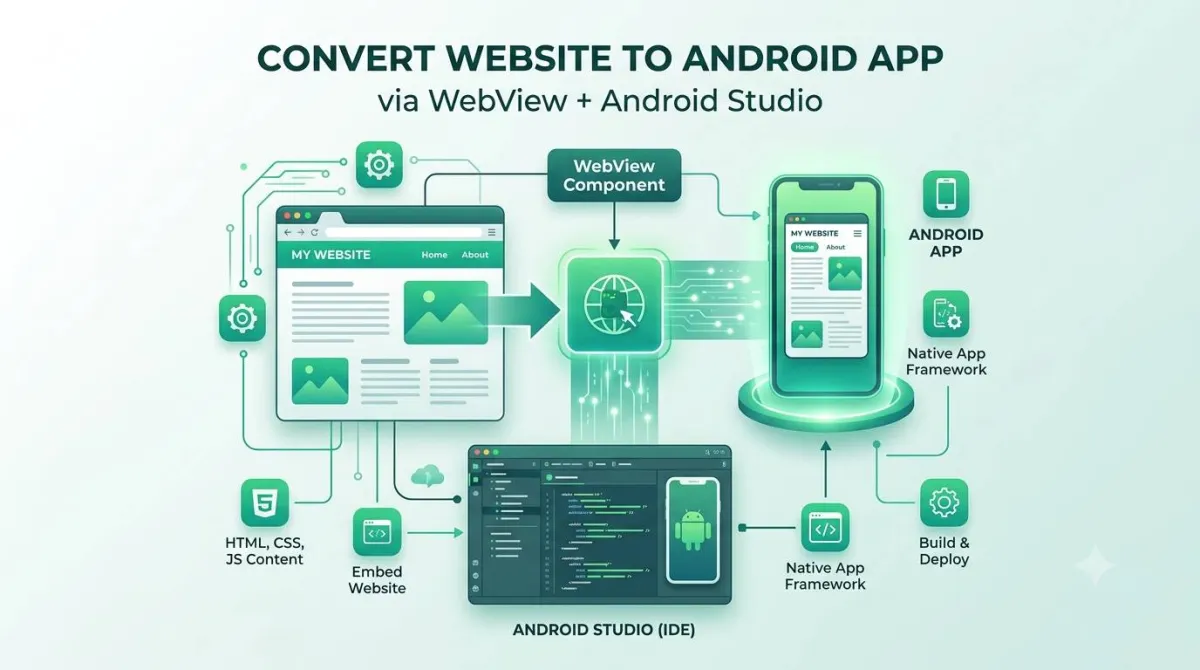
Think of a WebView as a mini web browser that lives inside your app. It has no address bar, no tabs, no back button in the corner — none of the browser "chrome" you're used to. It's just a window that renders web content, sitting quietly inside a native app shell. If you're weighing this against building fully native, see our side-by-side comparison of WebView apps vs. native apps — and if you haven't decided you need an app at all yet, start with mobile app vs. mobile website.
Crucially, WebView isn't a library you install. It's a system component built into Android and iOS, always available, always up to date (more on that in a moment). The simplest analogy: imagine taking a tab from Chrome or Safari and dropping it directly into your app's UI. That's basically what's happening.
1.2 How a WebView App Works — Step by Step
When a user opens a WebView app, here's what happens under the hood:
- The native shell launches — the app opens like any other app.
- The WebView component initialises — the OS spins up the embedded browser engine.
- Content is requested — either from a remote server or bundled assets on the device.
- The page renders — HTML, CSS, and JavaScript are processed just like they would be in a browser.
- The user interacts — and any interactions that need device features (camera, GPS, notifications) pass through a JavaScript bridge that connects the web layer to native device APIs.
The specific engine powering the WebView depends on which platform you're on:
- Android:
android.webkit.WebView— Chromium-based, updated automatically through Google Play Services. - iOS:
WKWebView— WebKit, tied to the iOS version on the device.
Think of the architecture as three layers stacked on top of each other: native shell → WebView component → web content. The native shell is what gets distributed through the store. The web content is what the user sees. The WebView is the translator in the middle.
1.3 A Brief History of WebView Apps (And Why They Got a Bad Reputation)
WebView apps haven't always been this well-regarded. The early days were rough.
On iOS, the original component was called UIWebView. It was slow, memory-hungry, and prone to crashes. Android's early WebView wasn't much better. Developers used these tools because they had to, not because they were good.
Then in 2014, Apple introduced WKWebView with iOS 8, and everything changed. It ran in a separate process, used significantly less memory, and was genuinely fast. Around the same time, the PhoneGap/Cordova era brought WebView development mainstream — suddenly, web developers could ship mobile apps without learning Swift or Kotlin.
Today, WebView is mature, performant, and widely used by apps you trust with your bank details. The reputation problem is mostly a relic of the past — as long as you build it properly.
2. WebView App vs. Native App vs. Hybrid App — Cleared Up
This is one of the most Googled comparisons in mobile development, and it's genuinely confusing. Here's the plain-English breakdown.
2.1 Native Apps
Native apps are built using the platform's own language and tools — Swift or Objective-C for iOS, Kotlin or Java for Android. They talk directly to the OS, which means they get full access to every device API and the highest possible performance ceiling.
The downside? You're essentially building two separate apps. That means two codebases, two teams (ideally), and a much higher development cost. Native is the right call when your app is graphics-intensive, requires real-time sensor data, or when animation smoothness is a core part of the experience.
2.2 Pure WebView Apps
A pure WebView app is your existing website (or a version of it) loaded inside a native shell. It's the fastest path from "we have a web app" to "we're in the store."
The limitations are real but manageable. Without extra work, you don't get offline support. Device features like the camera require a JS bridge. And if the web content is poorly optimised, it will feel slow.
That said, for the right use cases — internal tools, content-heavy apps, MVPs — a WebView app is not just acceptable, it's often the smartest choice.
2.3 Hybrid Apps (React Native, Flutter, Ionic, Capacitor)
Hybrid is where things get nuanced. "Hybrid" covers a spectrum:
- Ionic / Capacitor: Still WebView at the core, but with a rich plugin ecosystem for accessing device APIs. Your UI is HTML/CSS/JS; the native wrapper gives you the hooks to the rest of the device.
- React Native: Uses native rendering components, not a WebView, for most UI. It's much closer to native than it looks, with occasional WebViews for specific screens.
- Flutter: Renders everything through its own graphics engine. Almost no WebView at all.
Capacitor is the sweet spot for web developers who want to ship a store-ready app without going full native. It's actively maintained, well-documented, and widely used. If your frontend is already built — Vue.js, React, or plain HTML — you can skip the Capacitor setup entirely and wrap the deployed URL directly; see converting a Vue.js web app into Android and iOS apps without a rewrite for what that looks like in practice.
Quick Comparison Table
| Factor | Native | WebView | Hybrid |
|---|---|---|---|
| Performance | ★★★★★ | ★★★ | ★★★★ |
| Dev Speed | ★★ | ★★★★★ | ★★★★ |
| App Store Approval | Easy | Harder (rules apply) | Moderate |
| Device API Access | Full | Limited (bridge needed) | Near-full |
| Maintenance Cost | High | Low | Moderate |
| Offline Support | Full | Needs work | Partial |
Move the slider to estimate the resources needed to launch your app natively from scratch vs using a WebView approach for an existing web app.
From Scratch (Native)
$45,000WebView Approach
$2,5003. Legitimate Use Cases for WebView Apps
Before diving into the rules and the how-to, it's worth taking a moment to validate the choice. WebView apps aren't a compromise — for a lot of scenarios, they're the right answer.
3.1 When a WebView App Makes Business Sense
- Internal enterprise tools where users are known and controlled — no need to impress the App Store review team with flash.
- Content-consumption apps — news readers, documentation portals, knowledge bases. If the core value is reading content, WebView delivers it cleanly.
- MVPs and market validation — test your idea in the store without committing six months to native development.
- Apps that mirror a well-built PWA — if you've already invested in a great progressive web app, a WebView shell gives it a store presence with minimal extra work.
- Multi-platform deployment from a single codebase — one web codebase, two store listings. The maths on developer time usually works out well.
3.2 Real-World Categories That Rely on WebView
You might be surprised how many mainstream apps use WebView for significant portions of their UI:
- E-reader and documentation apps
- Banking and fintech apps (often hybrid shells with WebView for web-rendered account screens)
- E-commerce apps using embedded web checkout flows
- News and media aggregators
- Customer-support chat widgets embedded inside otherwise native apps
If it's good enough for the apps handling your money, it's probably good enough for yours.
3.3 When You Should NOT Build a WebView App
WebView has real limits. Don't reach for it when:
- The app is a game or anything graphics-intensive.
- Real-time sensor data is core — AR apps, health monitoring, anything where microsecond latency matters.
- Offline-first with complex data sync is a core requirement.
- Animation smoothness is a key differentiator — no amount of CSS optimisation fully closes the gap with native rendering for complex animations.
If any of these apply, go native or Flutter. The list isn't long, but it's firm.
4. App Store Rules for WebView Apps — What You Must Know
This is the section that determines whether your app gets approved or rejected. Read it carefully.
4.1 Apple App Store Guidelines — The Specific Rules
Apple's guidelines don't ban WebView apps. What they ban is laziness. The key rules:
- Guideline 4.2 — Minimum Functionality: Apps must be more than a repackaged website. The exact language Apple uses: apps that "merely display a website without additional native features" will be rejected.
- Guideline 2.3.7 — Accurate Metadata: Your app must do what you say it does in the listing. Screenshots must show what users actually see.
- Guideline 4.0 — Design: Your app must meet Apple's Human Interface Guidelines, even if the UI is web-rendered. Apple reviewers will judge whether it feels like a real app.
- Guideline 3.1 — Payments: This one trips people up. If you sell digital goods or subscriptions, you cannot route payments through a web screen that bypasses Apple's in-app purchase system. (Physical goods and services — think takeaway delivery or ride-hailing — are exempt.)
The Golden Rule of Approval
When a reviewer picks up your app, they're asking one question: does this feel like an app, or does it feel like a browser tab with an icon?
4.1.1 The "Minimum Functionality" Test — How Reviewers Think About It
The difference between a "wrapper" (rejected) and a "value-added shell" (approved) comes down to the native features you've added. Things that genuinely change the reviewer's perception:
- Native navigation bars and tab bars
- Push notifications
- Offline support — even a basic "you're offline" screen
- Biometric authentication (Face ID, Touch ID)
- Native share sheets, contact pickers, or camera access
- A custom loading state, not a blank white screen
You don't need all of these. But you need some of them, implemented well.
4.2 Google Play Store Guidelines — The Specific Rules
Google's equivalent of Apple's Guideline 4.2 is their Spam and Minimum Functionality policy. The principle is the same: WebView apps are fine, but they must clearly add value for the user.
A few important differences from Apple:
- Google is more permissive on paper — the policy language is less prescriptive than Apple's.
- Enforcement is partly algorithmic — Google's systems can flag and remove apps at scale, sometimes without a human reviewer in the loop. This means policy violations can result in swift, automated bans.
- The same rules apply in spirit — even if Google is more lenient today, building an app that genuinely serves users (rather than just wrapping a URL) is always the right call.
4.3 Common Reasons WebView Apps Get Rejected
Here are the rejection messages you're most likely to see, and what they actually mean:
"Your app is primarily a WebView of your website"
Translation: you haven't added enough native functionality. Add push notifications, native navigation, and offline handling before resubmitting.
"Minimum functionality not met"
Same root cause. The app doesn't do enough as an app. Go back to Section 5.2 and add at least three native features.
"App does not comply with Human Interface Guidelines"
Usually means the app looks or feels wrong — no native navigation, clunky transitions, or text that doesn't respect the system font size. Fix the UX issues.
"In-app purchase policy violation"
You're selling digital goods or subscriptions through a web payment screen. Route those purchases through Apple's or Google's IAP system instead.
"App crashes or has critical bugs"
Often a JavaScript bridge failure or an unhandled error state in the WebView. Test on real devices before submitting.
On appeals: If you've been rejected, respond professionally and specifically. Reference the guideline number. Describe the native features you've implemented. Attach screenshots. Vague appeals ("we believe our app meets all guidelines") rarely work; specific, evidence-based appeals sometimes do.
5. How to Build a WebView App That Passes Review
Now for the practical part. Here's how to build a WebView app that reviewers approve and users actually enjoy.
5.1 Choose the Right WebView Implementation
Start with the right foundation:
- iOS: Always use
WKWebView. The olderUIWebViewwas deprecated in 2020, and Apple will auto-reject any app that still uses it. There is no exception to this rule. - Android: Use
WebViewwith hardware acceleration enabled. For flows where you want a more browser-like experience (opening external links, for example), considerCustom Tabsinstead.
Framework options for the native wrapper:
- Capacitor — the recommended choice for most web developers. Actively maintained, excellent plugin ecosystem, clean API. If you're starting fresh, start here.
- Cordova — mature and stable, but aging. Decent for existing projects that already use it; harder to justify for new ones.
- Raw native WebView — the right call if you have native iOS/Android developers who want full control and no abstraction overhead.
5.2 Add Genuine Native Features — The Core Strategy
This is the single most important thing you can do. Native features are what separate approved apps from rejected ones.
5.2.1 Push Notifications
Implement native push using APNs (Apple Push Notification service) for iOS and FCM (Firebase Cloud Messaging) for Android. A single well-implemented push notification feature dramatically changes how a reviewer perceives your app — it's an unmistakably native capability that a website simply cannot replicate. For a step-by-step breakdown, read our guide on how push notifications work in WebView apps.
5.2.2 Offline Support and Caching
Service Workers can work inside a WebView, but iOS has historically been more restrictive about their capabilities than Android. A more reliable approach:
- Store critical assets natively inside the app bundle, so the initial shell loads instantly.
- Implement a native "no connection" screen that appears when the WebView fails to load — much better than the default browser error page.
- For Android, native caching via
WebView.setWebChromeClientgives you fine-grained control.
For a detailed breakdown of caching strategies, Service Workers, and offline fallback pages, read our guide on how WebView apps work offline.
5.2.3 Biometric Authentication
Adding Face ID or Touch ID as a gate before the WebView loads is a clean, convincing demonstration of native integration. The web content never sees the authentication logic — it lives entirely in the native layer, which is exactly where reviewers expect it to be.
5.2.4 Native Navigation and UI Chrome
Don't let your app look like a browser tab:
- Add a native navigation bar at the top (or tab bar at the bottom) rather than relying entirely on web-based navigation.
- Implement pull-to-refresh natively — it's a small detail that reads as very "app-like."
- Use a proper native splash screen — it's not just branding, it tells reviewers (and users) that something real is loading.
- Handle failed page loads with a native error state, not a raw browser error.
5.2.5 Deep Linking and Universal Links
Set up Universal Links on iOS and App Links on Android. This lets your app handle URLs that point to your domain — so when a user taps a link in an email, your app opens instead of the browser. It's a feature that genuinely improves the user experience and demonstrates real native integration. For a comprehensive walkthrough on implementing this, check out our complete developer guide to deep links in WebView apps.
5.2.6 Camera, Contacts, and Other Device APIs via JS Bridge
To expose device APIs to your web content:
- iOS: Use
WKScriptMessageHandlerto set up a message channel between your web content and native code. - Android: Use
addJavascriptInterfaceto expose a Java/Kotlin object to JavaScript.
One important principle: only expose what you need. Each exposed API is a potential attack surface. Keep the bridge lean and document what's available.
5.3 Performance Optimization — Make It Feel Native
A technically approved app that feels sluggish will still get bad reviews. Here's how to close the gap.
5.3.1 Initial Load Time
- Pre-warm the WebView before it's displayed — initialise the WebView component in the background while the splash screen is showing, so it's ready when the user needs it.
- Bundle critical assets natively — your core HTML, CSS, and JS can ship inside the app binary. The initial render becomes instant; dynamic content loads over the network as needed.
- Use skeleton screens — a native loading state that matches your content's layout feels far better than staring at a white screen.
5.3.2 Scroll and Animation Performance
- On iOS, enable
allowsInlineMediaPlaybackandallowsBackForwardNavigationGestureson yourWKWebViewinstance. - On Android, ensure hardware acceleration is enabled (it usually is by default, but worth verifying).
- In your web content, avoid layout thrashing — reading and writing DOM properties in the same JavaScript frame is a common performance killer.
- Use CSS
will-changeandtransform: translateZ(0)judiciously for animated elements. They work inside WebView, but overuse creates memory pressure.
5.3.3 Memory Management
WebView memory leaks are common and painful:
- On Android, always call
webView.destroy()when the containing Activity or Fragment is destroyed. Skipping this is the most common cause of memory leaks in Android WebView apps. - Limit the number of simultaneous WebView instances. Each one carries a significant memory overhead.
- On iOS,
WKWebViewhandles memory reasonably well, but watch for retain cycles if you're using the WebView in complex view hierarchies.
5.3.4 JavaScript Bridge Performance
The JS bridge is convenient, but it's not free. Each call across the bridge carries overhead:
- Batch bridge calls — instead of making 10 small calls, make one call that carries all the data.
- Use async patterns — avoid synchronous bridge calls that block the UI thread. Always prefer callbacks or Promises.
5.4 Security Best Practices
Security issues can get your app pulled after launch, not just rejected during review.
- Disable file access — unless your app specifically needs to read files from disk, disable
allowFileAccessFromFileURLsandallowUniversalAccessFromFileURLs. The latter should always befalse. - Certificate pinning — pin your server's certificate in the native networking layer so that even if a user is on a compromised network, your WebView can't be fed manipulated content.
- Prevent mixed content — if your web content is HTTPS, make sure no resources are loaded over HTTP. WebView will warn about this; your users' data depends on you taking it seriously.
- Content Security Policy — implement CSP headers on your server. They interact with WebView the same way they interact with a browser, providing a meaningful additional layer of protection.
- Handle custom URL schemes carefully — deep links that trigger native actions are a common attack vector. Validate every URL before acting on it.
5.5 UX Requirements to Pass Human Interface Guidelines
Apple's reviewers are experienced — they notice when an app doesn't feel right. Common UX issues that cause rejections:
- Safe area — respect the iOS safe area on devices with a notch, Dynamic Island, or home indicator. Web content that runs edge-to-edge without accounting for these areas looks unfinished.
- Dark Mode — support it. Use the
prefers-color-schememedia query in your CSS to switch themes, and make sure the native chrome matches. - Dynamic Type — users can increase the system font size in Accessibility settings. Your web content should respect this, not override it.
- Gesture conflicts — if your web app uses swipe gestures, they may conflict with iOS's swipe-back navigation. Resolve these conflicts explicitly; don't leave them for users to discover.
- Text selection — in content areas (not input fields), consider disabling unwanted text selection callout menus. They make an app feel like a browser.
- Keyboard handling — when a user taps an input field inside the WebView, the keyboard must not obscure the field. This is a surprisingly common bug and a guaranteed red flag during review.
5.6 App Store Submission Best Practices
The review process starts before anyone touches your app — it starts with your metadata.
- Write metadata that describes what the app does, not just what your website is about. Highlight the native features: "Get push notifications for breaking stories" beats "Read the latest news."
- Screenshots should show native UI elements prominently. If your screenshots look like a mobile browser, that's a problem. Show the native navigation bar, the tab bar, the notification prompt — the things that make it look like an app.
- App Preview video — if you make one, use it to demonstrate native interactions. Show a push notification arriving, biometric auth working, the pull-to-refresh in action.
- Privacy manifest (iOS 17+) — Apple now requires a
PrivacyInfo.xcprivacyfile declaring what data the WebView collects and why. Don't skip this; it's mandatory and missing it will get you rejected. - Export compliance — if your WebView loads content over HTTPS (it does), you'll need to declare encryption use in your submission. This sounds scary; it's actually a quick checkbox for most apps.
6. Testing Your WebView App Before Submission
Skipping proper testing is the fastest way to get rejected for reasons that have nothing to do with your app concept.
6.1 Device and OS Coverage Testing
- Support the last two major iOS versions as a minimum. Apple recommends it, and it covers the vast majority of active devices.
- On Android, aim for API level 24 (Android 7.0) and above — again, covers the vast majority of real-world devices.
- Test on physical devices. WebView behavior on simulators and emulators is not always representative. There are timing issues, memory behaviors, and touch event handling edge cases that only show up on real hardware.
Key scenarios to test:
- Low-memory devices (older phones)
- Slow network connections (throttle to 3G in developer tools)
- Interrupted sessions — what happens when a user takes a phone call mid-session?
- App backgrounding and foregrounding
6.2 Testing Tools and Techniques
- Safari Web Inspector — connect a real iOS device, enable Web Inspector in Safari settings, and debug your
WKWebViewcontent from your Mac. This is the only reliable way to catch iOS-specific WebView bugs. - Chrome Remote Debugging — connect an Android device via USB, navigate to
chrome://inspectin Chrome on your computer, and get a full DevTools panel for your Android WebView. - Network throttling — available in both tools above. Simulate slow connections to see how your app handles delayed loads and partial responses.
- Simulate JS bridge failures — test what happens when a bridge call fails or times out. Your app should handle this gracefully, not crash or freeze.
6.3 Pre-Submission Checklist
Run through this before every first submission (and ideally before re-submissions too):
7. Maintaining and Updating a WebView App Post-Launch
Congratulations — your app is live. Here's how to keep it that way.
7.1 The Update Advantage of WebView Apps
This is one of the genuinely underrated benefits of the WebView approach. Your web content can be updated on your server at any time, with no app update required and no review process. Fixed a bug in your JavaScript? Pushed a new article template? Those changes go live immediately for all users.
What does require a store update and re-review:
- Changes to native code or app configuration
- Adding new native permissions
- Significant changes to functionality that would affect how the app was described in its metadata
Apple's Guideline 3.3.2 covers "significant functionality changes" — in practice, if you're adding a meaningfully new capability (not just fixing bugs or updating content), assume a re-review is needed and submit one proactively.
7.2 Monitoring and Crash Reporting
- Set up Firebase Crashlytics or Sentry for native crash reporting on both platforms. These tools catch crashes in the native layer — vital for diagnosing JS bridge failures and WebView initialisation issues.
- Forward JavaScript errors to your native reporter. Add a global
window.onerrorhandler in your web content that sends error details across the JS bridge to your native crash reporter. Errors that happen inside the WebView are otherwise invisible to native monitoring. - Watch your WebView-specific performance metrics — Time to Interactive inside the WebView is a meaningful indicator of user experience quality.
7.3 OS Update Compatibility
Every iOS and Android major release can break WebView behavior. New OS versions bring changes to WKWebView and Android WebView that can affect rendering, JavaScript API support, and security policies. This is not hypothetical — it has broken real production apps repeatedly.
- Build a regression test suite specifically for WebView interactions — cover your core user flows and run it against every major OS beta before the public release.
- Subscribe to WKWebView release notes (via Apple's developer documentation) and Android WebView release notes (via the Chromium blog). Changes are announced; you just need to be paying attention.
8. Frequently Asked Questions
Will Apple reject my app if it's just a WebView wrapper?
If it's only a WebView wrapper — your website, nothing else, no native features — yes, very likely. Apple's Guideline 4.2 targets apps that have no purpose beyond displaying a website, not WebView as a technology. The distinction reviewers make is between a "thin wrapper" (your website in a frame) and a "value-added shell" (your website plus push notifications, native navigation, biometric auth, offline handling, and so on). The latter passes. The former doesn't. For complete compliance strategies, see our guide on passing Apple Guideline 4.2 review for WebView apps.
What is the difference between WKWebView and UIWebView?
UIWebView is Apple's original iOS WebView component, deprecated in 2018 and forbidden in App Store submissions since April 2020. If your app uses it, it will be automatically rejected — no review required. WKWebView replaced it: it runs in a separate process (better security and stability), uses significantly less memory, and is substantially faster. There is no reason to use UIWebView in any new code. If you're maintaining an older app that still uses it, migration to WKWebView is urgent.
Can a WebView app access the device camera or GPS?
Yes — via a JavaScript bridge. The pattern is: the native app requests the device permission (camera, location, etc.), the native code accesses the API, and the data is passed to your web content through the bridge. Certain HTML5 APIs — getUserMedia for camera, the Geolocation API — also work natively inside WKWebView when the host app holds the correct entitlements, which simplifies implementation considerably.
Is a WebView app the same as a Progressive Web App (PWA)?
No, and this is a genuinely common confusion. A PWA runs in the browser — it can be added to the home screen as a shortcut, but it never goes through the app store and it runs in the browser's process. A WebView app is a native binary distributed through the App Store or Google Play that renders web content internally. The differences in practice: WebView apps appear in store search, can use native device features more reliably, and don't depend on browser permission models. PWAs have no store presence but also no store rules to worry about. If you are actively choosing between the two, our guide to PWA vs WebView app for business works through store access, push and cost side by side.
How can I make my WebView app load faster?
The three highest-impact techniques are: (1) pre-warm the WebView — initialise it before it's displayed, so it's ready when the user needs it; (2) bundle critical assets natively — ship your core HTML, CSS, and JS inside the app binary so the initial render is instant; (3) use a native skeleton screen instead of a white loading state. The combination of these three typically eliminates the perception of slowness even on slower networks. Section 5.3 covers these in detail.
Can I monetize a WebView app through in-app purchases?
Yes, with an important distinction. Physical goods and services — things like food delivery, ride-hailing, or e-commerce — are exempt from Apple's and Google's in-app purchase requirements. You can process those payments however you like. Digital goods and subscriptions — premium content, app feature unlocks, in-app currency — must use Apple's StoreKit or Google's Billing Library. Routing these through a web payment screen instead is a direct violation of both stores' payment policies and will result in rejection (or removal after launch).
What frameworks are best for building WebView apps in 2025?
Capacitor is the recommended choice for most teams — it's actively maintained, has an excellent plugin ecosystem, and is built specifically for web developers who want to ship store-ready apps. Cordova is still alive and usable, especially for existing projects, but harder to justify for new development given how the ecosystem has shifted. Raw native WebView (UIKit on iOS, Android SDK on Android) is the right call for teams with native developers who want full control and minimal abstraction overhead. React Native and Flutter use WebView only as a component, not as the primary renderer — they're not really in the same category.
9. Conclusion
Summary
WebView apps are not second-class citizens. They're a legitimate, widely-used architectural choice that both Apple and Google support — when built properly.
The path to App Store approval isn't mysterious. It comes down to building an app that genuinely serves users as an app, not just as a browser tab with an icon. That means adding meaningful native features, respecting platform design guidelines, testing on real devices, and submitting honest metadata.
Key Takeaways
- Use
WKWebViewon iOS —UIWebViewwill get you auto-rejected, full stop. - Native features are non-negotiable — at minimum: push notifications, native navigation, and offline handling.
- App Store review is a UX review — if it looks and feels like a browser tab, it will be rejected.
- Google Play is more permissive algorithmically, but the same principles apply — build for the user, not just for the policy.
- Update web content freely; update the native shell deliberately — understand what triggers re-review before you push a change.
- Test on real devices — WebView behavior in simulators and emulators is not always representative of what users will experience.
- Monetize in the native layer, not the WebView — if you plan to run ads, add AdMob to the native shell rather than injecting ad code into your website's HTML.
Your Next Steps
- Audit your existing web app against the minimum functionality checklist above.
- Choose a WebView framework — Capacitor is the right starting point for most teams.
- Add at least three native features before your first submission.
- Run through the pre-submission checklist in Section 6.3.
- If you've already been rejected, re-read the reviewer's feedback carefully and match it against Section 4.3 to identify the exact gap.
Building a WebView app that passes review the first time comes down to one principle: make something that feels like a real app, because that's what it should be. The technology is the easy part.