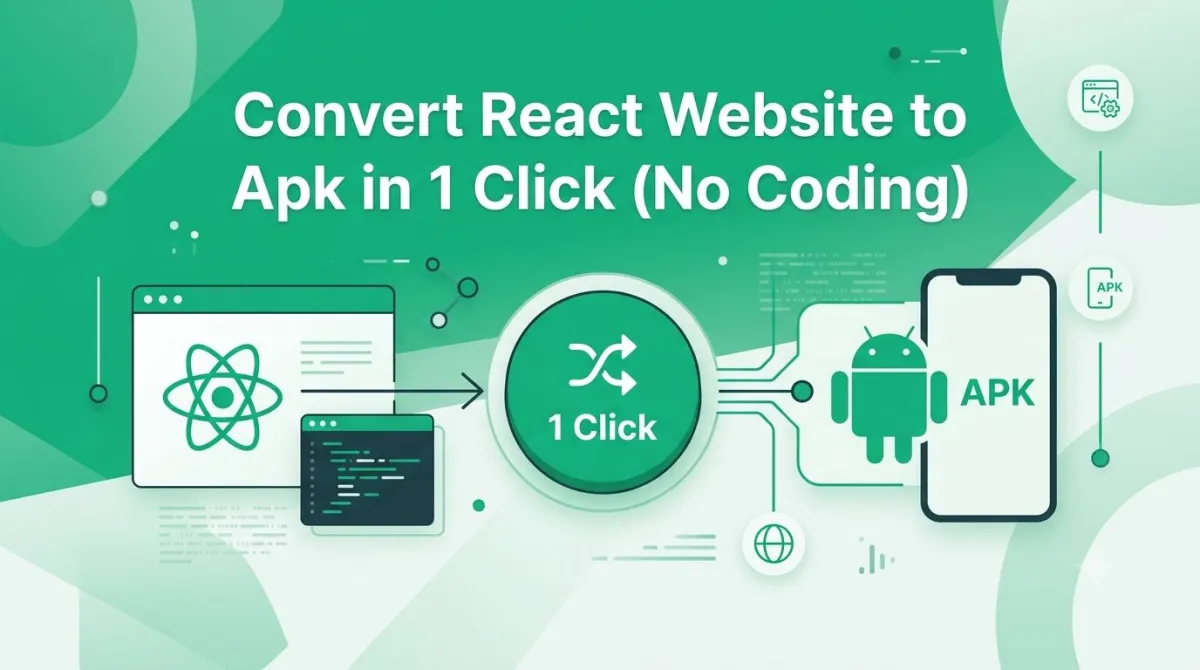
Convert React Web App to Android APK in 1 Click (No Coding Required)
You've built a React app. It loads fast, looks great, and works perfectly in the browser. You're proud of it — and you should be.
But then your users start asking: "Is there an app for this?"
And suddenly you're staring down the barrel of learning Kotlin, setting up Android Studio, wrestling with Gradle build files, or hiring a developer for a project that might take months. None of that sounds fun. None of it is cheap either.
Here's the good news: you don't have to do any of it. If your React app already runs in a browser, you're most of the way to having a real Android APK. This post walks you through exactly how to get there — no new code, no complicated setup, no drama.
Why Convert Your React Web App to an Android App?
The Gap Between "Web App" and "Mobile App" in User Behaviour
People behave differently on phones than on desktops. When someone wants to use an app regularly, they want it on their home screen — not buried in a browser tab they'll forget about in 20 minutes.
A proper Android app gives you:
- Home screen presence — your icon lives right next to Instagram and WhatsApp
- App store discoverability — people find you by searching the Play Store, not just Google
- Trust signals — an app listing makes your product feel established and legit
- Push notifications — you can reach users even when they're not actively using your site
- Offline behaviour — show a branded screen instead of a dead browser error
Mobile traffic now accounts for the majority of web visits across most industries. If your users are mostly on phones, an app isn't a "nice to have" — it's table stakes.
Why Not Just Use a PWA (Progressive Web App)?
PWAs are great in theory. In practice, they come with a bunch of friction that most users quietly ignore.
- Users have to manually tap "Add to Home Screen" — and most never do
- There's no Play Store listing by default, so discoverability takes a hit
- Push notification support is patchy depending on the browser and Android version
- Some browsers handle PWA caching and offline modes differently, leading to weird bugs
An APK bypasses all of that. It installs like a real app, appears in search results on the Play Store, and behaves exactly the way users expect.
Why React Developers Specifically Should Care
Here's something that often surprises people: your React app is already really well-suited for wrapping into an Android APK.
React apps are component-based, URL-routed, and designed to run in a browser — which means they render smoothly inside a native Android WebView. You don't have to rewrite anything in React Native. You don't have to touch your existing codebase at all. One public URL is all the "source code" a conversion service needs.
If you've already built the thing, the hard part is done.
What Is a "1-Click" React to Android APK Converter?
How Managed App Conversion Services Work
The concept is simpler than it sounds. Here's the basic idea:
- You submit your website URL
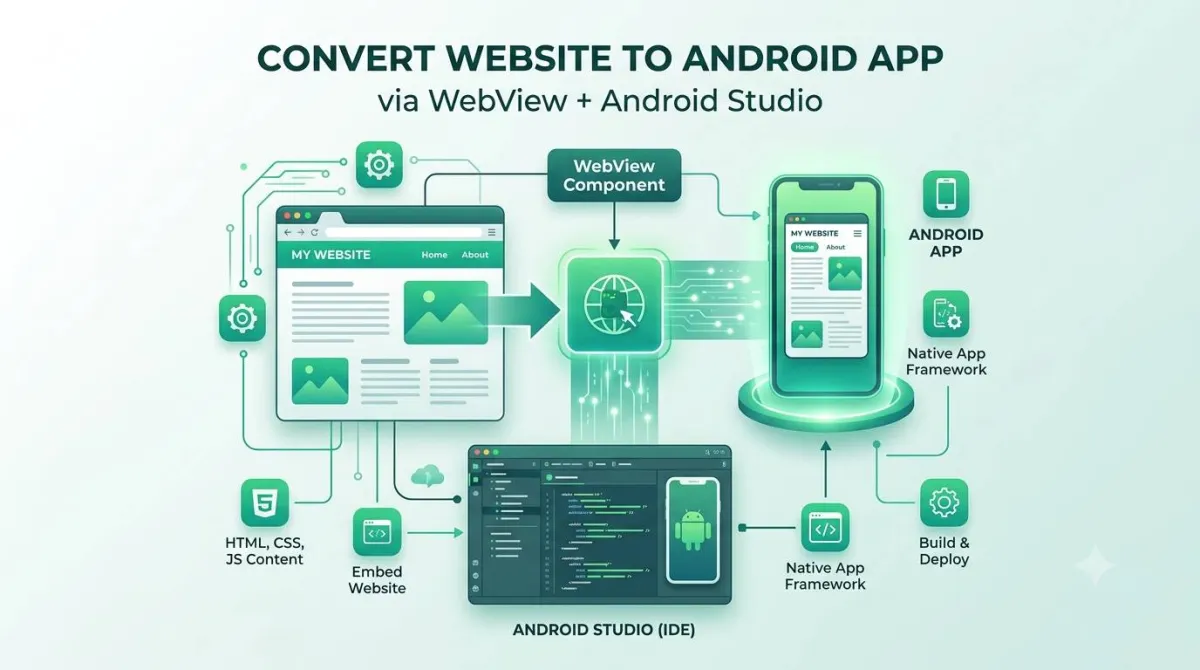
- The service wraps your web app inside a native Android WebView shell
- You configure your branding (icon, splash screen, navigation, colours)
- A properly signed APK is generated and sent back to you
- You test it, request tweaks, and publish when you're happy
No Android Studio. No SDK downloads. No signing keystores to manage by hand. The whole build environment lives in the cloud.
AppOfWeb.com — The Fully Managed Approach
AppOfWeb is built specifically for this use case. You paste your React site's URL, configure your app's look and feel, and they handle the rest.
It's aimed squarely at business owners, SaaS founders, solo developers, and e-commerce operators who want a real Android app without hiring a mobile developer or learning a new tech stack. The service includes unlimited revisions, which means you can keep tweaking things until they're exactly right — without paying extra each time.
How It Compares to DIY Tools Like Capacitor or Cordova
If you want to go the DIY route, tools like Capacitor and Cordova can technically get you there. But "technically" is doing a lot of work in that sentence.
Here's an honest comparison:
| Factor | DIY (Capacitor / Cordova) | AppOfWeb.com |
|---|---|---|
| Setup Time | Hours to days | Minutes |
| Coding Required | Yes | No |
| Build Environment | Your machine | Managed cloud |
| Revisions | Manual rebuilds each time | Unlimited, included |
| Play Store Publishing | You handle everything | Available as an add-on |
| Debugging Build Errors | Stack Overflow adventure | Not your problem |
If you enjoy setting up build toolchains, go DIY. If you want an APK so you can focus on your actual product, a managed service makes a lot more sense.
Comparison Calculator: DIY vs Managed Cost
Enter your estimated hourly rate to see the true cost of wrestling with Android Studio yourself.
DIY Hidden Cost
Time lost configuring build tools.
AppOfWeb Approach
Zero hours wasted. Done in minutes.
Step-by-Step: How to Convert Your React Website to an Android APK
This is the part you're here for. Let's go through it.
-
Step 1 — Prepare Your React Web App URL
Before you submit anything, make sure your app is ready:
- It must be publicly accessible. Hosting on Vercel, Netlify, or your own server is fine.
localhostwon't work. - Test it in mobile view first. Open Chrome DevTools, switch to responsive mode, and simulate a 375px screen. Fix any layout issues before converting — they'll look worse inside a WebView.
- Check your routing. Every route in your React app should work when accessed directly by URL, not just by navigating from the homepage. Deep link support matters.
- HTTPS is non-negotiable. Android 9 and above blocks unencrypted HTTP traffic inside WebView apps by default. If your site runs on HTTP, sort that out first.
The good news: you don't need to change a single line of your React code for this step.
- It must be publicly accessible. Hosting on Vercel, Netlify, or your own server is fine.
-
Step 2 — Submit Your URL to AppOfWeb.com
Head to appofweb.com, enter your site URL, and fill in the basics:
- App name — what users will see under your icon on their home screen
- Package name — something like
com.yourbrand.app— this becomes your app's permanent unique identifier on Android
Choose the package name carefully. It can't be changed after you publish. More on that later.
-
Step 3 — Customise Your App's Look and Feel
This is where your app starts feeling like a real product. You'll configure:
- App icon — upload a 512×512 PNG. This is the first thing users see, so make it clean.
- Splash screen — displayed while your app loads. Covers the initial WebView load time so users see your brand instead of a blank white flash.
- Bottom navigation tabs — add tabs for your key sections (Home, Shop, Account, etc.) with custom labels and icons
- Status bar colour — match it to your brand or page theme
- Page loader style — choose how the loading indicator looks while your React bundle initialises
None of these require design software skills. If you have a logo and know your brand colours, you're set.
-
Step 4 — Configure App Behaviour Settings
These settings control how your app feels to use day-to-day:
- Pull to refresh — lets users swipe down to reload content, just like native apps
- Pinch to zoom — useful for image-heavy or catalogue-style apps
- No internet screen — a custom branded message when the user goes offline, instead of a jarring browser error
- App syncing with Play Store — keeps version metadata consistent when you push updates
- Share App and Rate App prompts — built-in prompts that encourage users to spread the word and leave reviews
These are toggles and text fields, not code. Takes about five minutes to go through them.
-
Step 5 — Request Your Build and Download the APK
Once everything is configured, you submit the build request. AppOfWeb handles the actual compilation. When it's ready, you'll get your APK file.
Download it, and move on to testing before you do anything else.
-
Step 6 — Test the APK Before Going Live
Don't skip this step. Seriously.
To install the APK on your Android device:
- Go to Settings → Apps → Install Unknown Apps (exact path varies by Android version)
- Allow your file manager or browser to install APKs
- Open the APK file and install it
Then test everything:
- Navigate through every section of your app
- Submit a form
- Log in and out if your app has authentication
- Check the splash screen timing
- Drop your Wi-Fi and confirm the offline screen appears
- Verify your bottom tabs take you to the right places
If something needs adjusting, request a revision. AppOfWeb includes unlimited revisions, so use them.
Full Feature Breakdown — What You Get with AppOfWeb
Each feature listed here does a specific job. Here's what they actually mean in practice.
App Icon & Splash Screen
Your icon is your app's face. A well-designed icon gets tapped; a blurry or generic one gets ignored. The splash screen bridges the gap between tapping the icon and the app actually being ready — it hides the WebView's load time behind something that looks intentional.
Customisable Bottom Tabs
Native apps have bottom navigation bars. Users expect them. Adding tabs for your main sections (Home, Shop, Account, and so on) makes your wrapped web app feel like it was built for mobile — because in every way that matters to users, it was.
Share App & Rate App Prompts
Word of mouth still works. The Share prompt gives users a one-tap way to send your app to a friend. The Rate App prompt, triggered after a few sessions when the user is already engaged, pushes them toward leaving a Play Store review. Reviews directly affect your ranking in Play Store search results.
Pull to Refresh
For apps with dynamic content — dashboards, product listings, news feeds — users expect to be able to pull down to refresh. This adds that gesture natively.
Status Bar Customisation
A small detail that makes a big difference. Matching your status bar colour to your brand keeps the experience visually consistent. You can also set light or dark icon mode so the battery and signal icons are readable against your colour.
Page Loader
Your React app's JavaScript bundle takes a moment to load on first launch. Without a loader, users see a white screen and wonder if the app crashed. The page loader fills that gap with something on-brand.
Pinch to Zoom
Disabled by default in most WebView apps. Enable it if your app has content users might want to zoom into — product images, maps, documents, and so on.
No Internet Screen
Without this, users going offline see a generic Android browser error inside what looks like a native app. That's a trust-killer. A custom offline screen keeps things branded and clear: "No internet connection — please check your network."
App Syncing With the Play Store
When you update your React website, the app reflects those changes automatically — no Play Store resubmission needed for content updates. This sync feature keeps your app's version metadata aligned with the store listing.
Customisable Package Name
Your package name (e.g., com.brandname.app) is your app's permanent identity on Android. It cannot be changed after publishing without creating an entirely new app listing and losing all your reviews and download history. Set it correctly from the start.
Unlimited Revisions
Most fixed-price services charge per build. AppOfWeb includes unlimited revisions, which means you can iterate on icon sizing, splash screen timing, tab layout, and colour choices without watching a cost counter tick upward.
Optional Add-Ons Worth Knowing About
Push Notifications
Push notifications are one of the highest-ROI features in mobile. You can send messages directly to users' devices even when the app is closed — abandoned cart reminders, flash sale alerts, shipping updates, new content drops.
This is available as an add-on through AppOfWeb, and it includes the backend integration needed to make it work. Not something you'd want to set up from scratch.
Publishing to the Play Store
If you've never published on Google Play Console before, the submission process involves signing your APK, preparing store listing assets (screenshots, feature graphic, descriptions), setting content ratings, and navigating review queues. It's doable, but it takes time to learn.
AppOfWeb offers a fully managed publishing add-on that handles the entire process. Worth considering if this is your first app.
Who Is This For? (And Who Should Look Elsewhere)
Perfect Fit — Use AppOfWeb If You:
- Have a React web app that already works well on mobile browsers
- Want an Android APK without hiring a developer or writing native code
- Run an e-commerce store, SaaS product, service business, or content platform
- Want to test mobile app demand before investing in a full React Native build
- Need to move quickly — days, not months
Consider Alternatives If You:
- Need deep device API access (Bluetooth, NFC, AR, hardware sensors)
- Are building a graphics-intensive game or real-time 3D app
- Need complex offline-first functionality with a local database that syncs when reconnected
- Require an iOS build (check AppOfWeb's current offering directly — capabilities expand over time)
The WebView approach isn't right for every app. But for the vast majority of business apps, SaaS products, and e-commerce stores, it's more than capable. The same wrapping approach works whatever frontend framework you're actually on — if your stack is Vue instead of React, our guide to converting a Vue.js app into Android and iOS apps walks through the identical process — and if you're on Laravel with Blade or Livewire, see our guide to converting a Laravel app into Android and iOS apps with no rebuild.
Common Mistakes to Avoid When Converting React Apps to APK
Learn from the people who did these things so you don't have to.
Not Testing Your Site in Mobile Viewport First
Responsive design issues that look minor in the browser become glaring inside a WebView. Test at 375px width before you submit anything. Fix the layout breaks first.
Using a Non-HTTPS URL
Android 9 and above blocks plain HTTP inside WebView apps by default. If your URL starts with http://, your app will show a blank or broken screen. HTTPS first, always.
Ignoring Deep Link Routing
If your React Router setup only handles client-side navigation and breaks when you hit a route directly, in-app navigation will behave unexpectedly. Test every route by loading it directly in a browser before converting.
Skipping the No-Internet Screen Configuration
Leaving this blank means your users see a raw browser network error inside what looks like a native app. Set a clear, branded offline message — it takes two minutes and saves a lot of confused support messages.
Choosing the Wrong Package Name
This one bites people. Your package name is permanent. Once published, it cannot be changed without creating a brand new app and starting your review count from zero. Plan it carefully: com.companyname.appname is the standard format.
FAQs — Answers to the Questions People Actually Search
Do I need to know how to code to use AppOfWeb?
No. The whole process is managed. You need your React app's public URL, a logo file, and your brand colours. That's it.
Will my React app look and function the same inside the APK?
In the vast majority of cases, yes. The APK uses a native Android WebView, which renders your React app exactly the way a modern mobile browser would. If you rely on any browser-specific APIs that behave differently in WebView, you'll catch those during testing. That's what the testing step is for.
How long does it take to get my APK?
Turnaround depends on AppOfWeb's current queue and your configuration. Check appofweb.com directly for current delivery estimates — they'll have the most accurate information.
Can I update my app after it's published without resubmitting to the Play Store?
For content updates — yes. Because the app loads your live React website, any update you push to your site appears in the app instantly. No resubmission needed.
For app-level changes — a new build is required. This includes things like a new app icon, updated splash screen, or changes to the package name (which, again, you can't change after publishing).
Is the APK suitable for Play Store submission?
Yes. AppOfWeb generates a properly signed APK or AAB. The optional publishing add-on covers the full Play Store submission process if you'd rather not handle it yourself.
What if my React app uses authentication or protected routes?
Login flows and authenticated sessions work exactly as you'd expect. The WebView handles cookies and session tokens the same way a mobile browser does. Your users can log in, access their dashboards, and use protected features without any issues.
Can I add push notifications to my existing app later?
Yes. Push notifications are available as an add-on and can be added to an existing AppOfWeb project. You don't have to start the whole process over.
Conclusion — Your React App Deserves to Be on Mobile
Let's recap what we covered:
- Why converting your React app to an Android APK makes business sense — app store presence, push notifications, home screen discoverability
- Why PWAs fall short in practice, and why a proper APK solves those gaps
- How managed conversion services like AppOfWeb work, and how they compare to DIY tools
- A full step-by-step walkthrough from URL to tested APK
- Every feature you get in your build and what each one actually does
- Add-ons worth knowing about (push notifications, Play Store publishing)
- Who this approach is right for — and the honest cases where it isn't
- Common mistakes and how to avoid them before they cost you time
The five things to take away:
- You don't need to learn Android development or write a single line of native code
- Your existing React website URL is all the "source code" the service needs
- Features like push notifications, bottom tabs, splash screens, and offline screens are included or available as add-ons
- The APK is production-ready and suitable for Play Store submission
- Unlimited revisions mean you can get it right without paying per iteration
What to Do Right Now
- Open your React app in a mobile browser and check how it looks at 375px width
- Confirm your site is live on HTTPS
- Gather your branding assets: logo (512×512 PNG), brand colours, app name, and your preferred package name
- Visit appofweb.com, paste your URL, and start your build
- Download the APK, side-load it on your Android device, and test everything yourself
Your React app is already 90% of the way to being a real Android app. AppOfWeb closes the gap — no code, no developer, no waiting.
Ready to take it further? Once your APK is live, explore push notifications to re-engage users — it's one of the highest-ROI features available for mobile apps.