Google Play 12 Tester Closed Testing Requirement Explained (2026 Guide)
You've spent weeks (maybe months) building your Android app. You've polished the UI, squashed the bugs, uploaded your APK, and you're ready to go live. Then Google stops you with a message that basically says: "Not so fast — you need 12 testers for 14 days first."
If that's where you are right now, take a breath. This isn't as painful as it sounds — but there are some tricky rules that trip up a lot of developers. Get them wrong and you'll waste 14 days, restart the clock, or worse, get rejected even after completing the test.
This guide covers everything: what the 12-tester rule actually is, who it applies to, how to set up closed testing step by step, where to find real testers, and what to do after the 14 days are up. By the end, you'll know exactly what Google wants — and how to give it to them.
What Is Google Play Closed Testing? (And Why It Exists)
Before we get into the nitty-gritty of the 12-tester rule, it helps to understand how Google Play's testing system is set up and why this requirement landed in the first place.
The Three Testing Tracks in Google Play Console
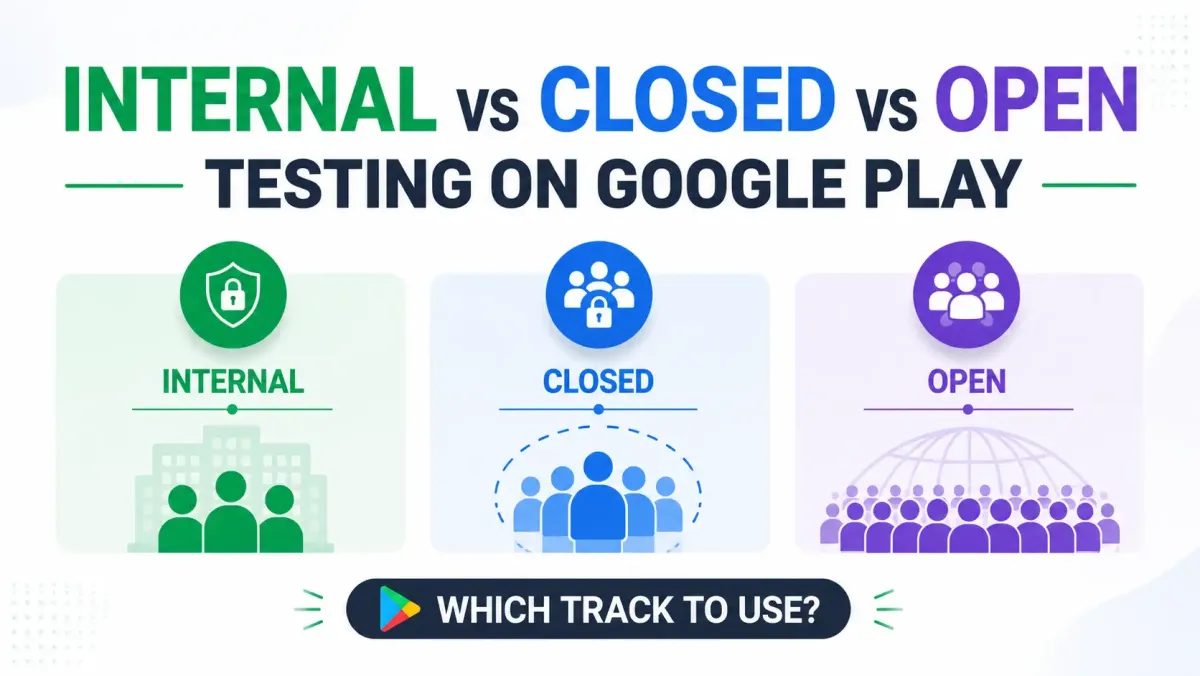
Google Play Console has three distinct testing tracks, and they are not interchangeable:
- Internal Testing — No minimum testers, no Google review, and it's fast to set up. Great for testing within your own team. The catch? It does absolutely nothing toward unlocking production access.
- Closed Testing (Alpha/Beta) — This is the mandatory one. For new personal accounts, you must run a closed test with real opted-in testers before you can publish publicly. This is what this entire guide is about.
- Open Testing — A public beta where anyone can join. Sounds exciting, but you can only access it after you already have production access. So it's a post-launch thing.
The key takeaway: only the Closed Testing track unlocks production access for new personal developer accounts. Internal testing, no matter how thorough, won't count.
Why Google Introduced This Requirement
Google rolled out this requirement on November 13, 2023, and the stated goal was pretty straightforward: stop low-quality apps, spam, and policy-violating submissions from reaching the public Play Store without any real-world testing.
Makes sense, really. Before this change, someone could create an account, upload a barely-functional app, and go live the next day. This requirement forces at least a minimum level of genuine testing — meaning real people, on real devices, actually trying the app — before it goes public.
There's also a secondary goal: developer accountability. Google wants some signal that the person publishing an app is a genuine, engaged developer — not someone mass-producing junk apps.
The Policy Timeline at a Glance
| Date | What Changed |
|---|---|
| November 13, 2023 | Requirement introduced — 20 testers for 14 days |
| December 11, 2024 | Tester count reduced from 20 to 12 (14-day window unchanged) |
| 2026 (current) | 12 testers, 14 consecutive days — policy is stable |
Good news: the requirement got easier. It started at 20 testers and dropped to 12 in late 2024. There's no indication it'll change again soon, so 12 is the number to plan around.
One more thing worth noting: organization accounts registered under a legal business entity have always been exempt from this requirement entirely. More on that in the next section.
Who Does the 12-Tester Rule Apply To?
Not every developer on Google Play has to do this. Before you dive into recruiting testers, make sure this actually applies to you.
Personal Developer Accounts Created After November 13, 2023
If you created your Google Play Console personal account after November 13, 2023, the 12-tester requirement applies to you. Full stop.
It's worth noting this is a per-account requirement, not a per-app requirement. Once you've completed closed testing and gained production access for your account, you won't have to repeat the full 14-day process for every new app you publish from that same account.
Who Is Exempt
- Organization accounts — If your account is registered under a legal business entity and you've provided a DUNS number, you're completely exempt. You can go straight to publishing.
- Personal accounts created before November 13, 2023 — If your account is older than the cutoff date, you're not subject to this policy. Lucky you.
If you haven't created your developer account yet and you have access to a registered business, it's worth considering whether an organization account makes more sense. The $25 registration fee is the same, but you skip this entire process.
How to Check If Your Account Is Affected
Not sure whether your account is affected? Here's how to check:
- Log in to Google Play Console
- Go to your Dashboard
- If you see a "Production access" application prompt or the Production track is locked, the requirement applies to you
- The console will also show your closed testing progress and eligibility status right there on the dashboard
The Core Requirement — What "12 Testers for 14 Days" Actually Means
This is the section most developers skim too quickly — and then get confused when things don't go as expected. Let's go slow here because the details genuinely matter.
The Exact Rule in Plain English
You need:
- At least 12 testers who are opted in to your closed test
- Those 12+ testers must stay opted in for 14 consecutive days
- The 14-day countdown only starts when both of the following are true at the same time:
- Your closed testing release has been approved by Google
- 12 or more testers have actively opted in
Both conditions must be true simultaneously. If your release is approved but only 8 testers have opted in, the clock isn't running. If 15 testers have opted in but Google hasn't approved your release yet, the clock isn't running. They both have to be true at the same time.
What "Opted In" Actually Means
This one catches people out. "Opted in" doesn't just mean you sent someone a link. It means:
- The tester received your unique opt-in link
- They opened that link on an Android device logged into a Google account that matches the email you added to the tester list
- They clicked "Become a Tester" on the page that opened
- They then installed the app from the Play Store
"Invited but not installed" does not count. "Sent them the link and they said sure" does not count. They have to go through the full opt-in process on a real device.
And yes — emulators, bots, and duplicate accounts are detected and disqualified by Google. Don't even think about it.
What Happens If a Tester Uninstalls the App
Here's a counterintuitive one: uninstalling the app does not remove a tester from opt-in status. A tester can only formally leave the test by visiting the opt-in link and clicking "Opt out."
That sounds reassuring, but here's the practical reality: testers who uninstall the app almost never re-engage with it. And while they're still counted as "opted in," they're not actually using the app — which creates a low engagement signal that can trigger a rejection when you apply for production access. More on that shortly.
What Happens If Your Tester Count Drops Below 12
If a tester formally opts out and your count drops below 12, your consecutive-day progress can be impacted. This is exactly why building a buffer is so important.
Aim for 15–20 testers, not exactly 12. You want a cushion for the inevitable drop-outs. If your count falls below 12 at any point, you'll need to recruit new testers and get back above 12 before the 14-day window can complete successfully.
Interactive Testing Track Buffer & Risk Calculator
Plan your track configurations below to see if your strategy flags risk metrics parameters.
Does the App Need to Be Used Every Day?
Testers don't need to open the app every single day — but they do need to actually use it during the 14-day period. Google evaluates engagement, not just opt-in status, when reviewing your production access application.
Testers who install the app and never touch it again send an "inauthentic testing" signal. This is one of the most common reasons developers get rejected even after successfully completing 14 days with 12+ testers.
Best practice: Ask your testers to open the app at least a few times across the 14 days. Give them something specific to test so they have a reason to engage.
Step-by-Step: How to Set Up Closed Testing in Google Play Console
Right, enough theory. Here's how to actually do it.
Step 1 — Prepare Your App and Store Listing
Before you upload anything, make sure you have:
- A complete store listing — title, description, screenshots, icon, content rating, and privacy policy
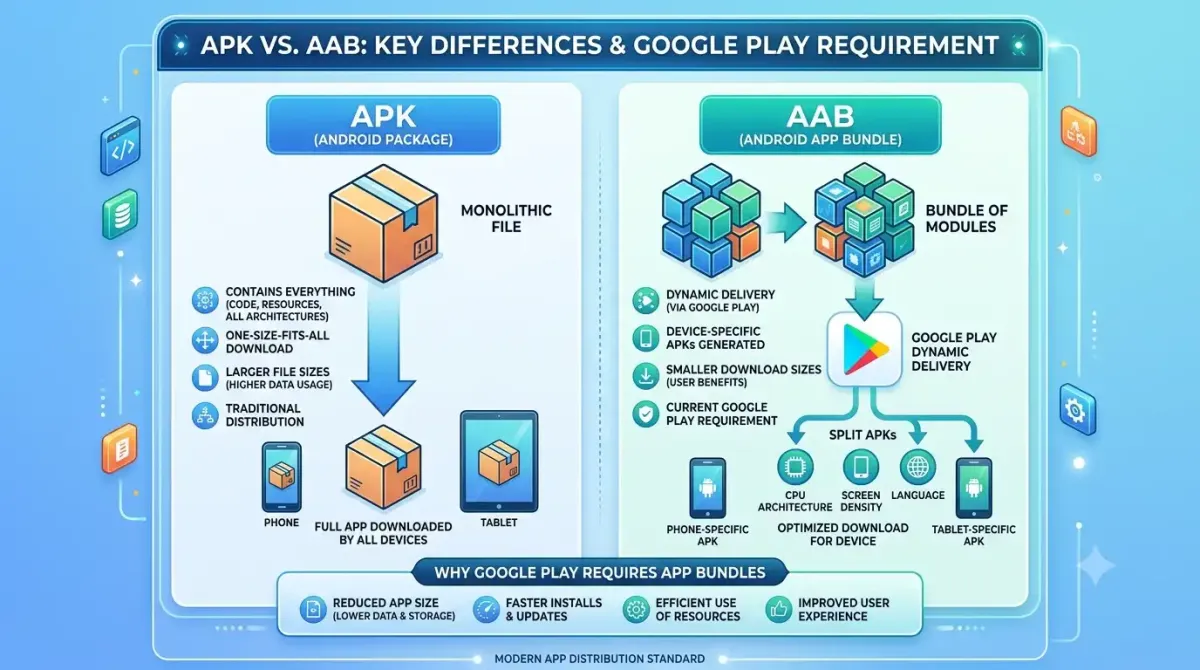
- A signed AAB (Android App Bundle) — not an APK. Google now requires AAB format for new apps
- Your app targeting a supported API level — new apps must target API 36 from August 31, 2026 (more on this later)
- A quick self-check against Google Play's Developer Program Policies to catch any issues early
Don't skip the store listing step. You need a complete listing before you can submit to any testing track.
Step 2 — Create a Closed Testing Track
- In Play Console, go to Testing → Closed testing
- Click Create new track (or use the default Alpha track)
- Upload your signed AAB, write your release notes, and select your target countries
- Make sure you include the countries where your testers are located — if your testers are in India and you only target the US, they won't be able to install the app
- Submit for review — Google typically approves closed testing releases within 24 hours
Step 3 — Add Testers and Generate the Opt-In Link
- Under your closed testing track, go to the Testers tab
- Add tester email addresses individually, or upload a CSV list if you have a bunch of them
- Click Save — this generates your unique opt-in link
- This link is what you send to testers. They must open it on an Android device, click "Become a Tester," and then install the app from the Play Store
Step 4 — Share the Opt-In Link and Onboard Testers
When you send the link, don't just paste it into a message. Give your testers clear instructions:
- What you want them to test (be specific — "try creating an account and adding your first item")
- How to give feedback (a simple Google Form works great)
- The most important instruction: do not opt out until you tell them to
Set a shared start date so everyone begins at the same time. And send reminder messages — Day 2, Day 7, and Day 13 are good checkpoints to make sure no one has quietly drifted away.
Step 5 — Monitor Progress in Play Console
Go to Play Console → Testing → Closed testing → your track to track your progress. The dashboard shows:
- How many testers are currently opted in
- How long the 14-day window has been running
- Any testers who have dropped out
Check this every couple of days. Don't wait until Day 13 to discover you dropped to 10 testers on Day 4.
Step 6 — Iterate Your App During the Testing Period
This is the step most solo developers skip — and it really shouldn't be skipped. Google expects you to actively improve the app during the 14 days.
A good pattern is:
- Release 1: Initial closed testing version
- Release 2: An update based on tester feedback (bug fixes, UI tweaks)
- Release 3: A final pre-production version with any remaining polish
Publishing 2–3 updates during the 14-day window is a clear positive signal when Google reviews your production access application. It shows you were actually paying attention to feedback, not just clock-watching.
Finding 12 Real Testers — Your Options Compared
This is honestly the hardest part for most solo developers. Here are your real options.
Option 1 — Friends, Family, and Personal Network
The most accessible starting point, and totally valid. The challenges:
- Not everyone you know has an Android device with a Google account
- Commitment fatigue over 14 days is real — people say yes and then forget
- Feedback quality is usually low ("it looks nice!")
Tips: Keep the ask simple. Tell them exactly what to do, step by step. Give them something specific to find or test so they feel useful. And follow up — don't assume they did it just because they said they would.
Option 2 — Developer Communities and Forums
Reddit communities like r/androiddev, r/mobileapps, and r/PlayStoreDevHelp have active threads where developers exchange testing help. Discord servers and Facebook developer groups are also worth checking.
The typical arrangement is mutual: "I'll test yours if you test mine." Response quality varies, but the community is generally friendly. Just follow up regularly to keep people engaged.
Option 3 — Google Play Testing Exchange Groups
There are dedicated WhatsApp groups, Telegram channels, and Facebook groups specifically for Play Store closed testing exchanges. A quick search for "Google Play closed testing exchange" or "12 testers 14 days group" will surface several active ones.
The upside: you can recruit quickly. The downside: testers in these groups are doing it as a favour exchange, so engagement with your actual app is usually minimal. Fine for meeting the opt-in count; risky if you need strong engagement signals.
Option 4 — Paid Professional Testing Services
Services like PrimeTestLab, TestersCommunity, 20AppTester, and ClosedTestHelp offer managed testers — typically starting around $15–$30 for a package.
The benefits are real: testers are available within hours, engagement is usually higher, and opt-in reliability is strong.
Important: Only use services that provide real testers on real devices with genuine Google accounts. Services that use bots, emulators, or fake accounts violate Google's policies and can get your developer account suspended. If a price looks suspiciously cheap, that's a red flag.
Paid services are worth considering if you've been rejected before, you're on a tight timeline, or you have a commercial app where getting this right the first time is worth paying for.
Comparison Matrix: Tester Acquisition Channels
| Channel | Relative Cost | Setup Speed | Engagement Reliability | Suspension Account Risk |
|---|---|---|---|---|
| Friends & Family | Free | Slow | Low-Medium | None / Completely Safe |
| Dev Communities | Time-Exchange | Medium | Medium | Low |
| Exchange Rings | Free | Fast | Very Low | Medium (High Bot Risk) |
| Verified Services | $15 - $30 Premium | Instant | High | Low (If Real Devices Only) |
Building Your Own Tester List for Future Apps
Every app you publish adds to your network. Consider starting an email list of beta testers from your social channels or existing user base. A pool of 20–30 reliable people who genuinely engage with your apps is a long-term asset that pays for itself many times over.
The Production Access Application — What Happens After 14 Days
A lot of developers treat the 14-day completion as the finish line. It's not. It's the gate to the actual finish line.
Before you push to production, make sure the rest of your store listing is compliant too — a common last-minute blocker is an incomplete or inaccurate Google Play Data Safety form, which Google now cross-checks against your app's actual behaviour.
How to Apply for Production Access
Once 14 consecutive days with 12+ opted-in testers are complete:
- Go to Play Console → Dashboard
- A prompt to "Apply for production access" will appear
- Click it and complete the three-section application
- Google states the review typically takes 7 days or fewer
What the Production Access Questionnaire Asks
The questionnaire has three main sections:
- Your testing process — how did you recruit testers, what were you testing for?
- Feedback received — what bugs or issues did testers report?
- Changes you made — what did you actually update in response to that feedback?
These answers matter a lot. Vague or dismissive responses are one of the leading causes of rejection even after a clean 14-day run. "The app worked fine" is not an acceptable answer.
How to Write Good Questionnaire Answers
Be specific. Name actual bugs. Describe actual fixes. Here's the difference:
"Testers found a few issues and we fixed them."
"Three testers reported that the login screen crashed on Android 12 devices when the keyboard was open. We identified a layout measurement bug causing a null pointer exception and fixed it in v1.0.2. Two testers also noted that the onboarding flow was unclear, so we added progress indicators between each step."
The second answer demonstrates that real testing happened and that you, as a developer, actually responded to it. That's exactly what Google is looking for.
Common Reasons Production Access Gets Rejected
- Insufficient testing engagement — testers installed but rarely opened the app
- Vague questionnaire answers — not describing concrete feedback or specific changes
- App crashes or ANRs in the Pre-Launch Report — even minor crash rates can trigger rejection
- Policy violations — content, permissions, or metadata that violates Play Developer Program Policies
- No iterative releases — uploading one version and making zero updates during 14 days signals inauthentic testing
What to Do If Your Production Access Is Denied
First, read the rejection email carefully. Google gives you a reason — use it.
Then:
- Address every issue cited before reapplying
- If the reason is "more testing required," restart with a new batch of engaged testers
- Strengthen your questionnaire answers with more specific detail
- Fix any crashes or policy issues flagged in the Pre-Launch Report
- Check the Pre-Launch Report in Play Console for crash data and compatibility issues
There's no fixed waiting period before you can reapply. Fix the issues and submit again.
2026 Updates — What Else Has Changed for New Developers
The 12-tester rule isn't the only thing to be aware of in 2026. Here are the other policy changes that could affect your app's path to production.
API Level 36 Requirement (August 31, 2026)
From August 31, 2026, new apps submitted to the Play Store must target API level 36 (Android 16). If your targetSdkVersion in your build configuration is lower than 36 after that date, your app will be blocked from new submissions to the production track.
Check your build.gradle or `build.gradle.kts` file now and update it if needed. This is a hard deadline, not a soft recommendation.
Android Developer Verification Program
Launched for all developers in March 2026, this is a separate identity-based requirement distinct from closed testing. Personal developers must verify their legal name, address, email, and phone number. Organization accounts also provide a DUNS number and verify their website.
Enforcement begins September 30, 2026 in Brazil, Indonesia, Singapore, and Thailand, with a global rollout expected in 2027.
This is not a substitute for closed testing — both requirements are independent. Check your verification status on the Play Console Home page. Most existing developers are already verified; if you haven't seen a prompt, you're probably fine.
Limited Distribution Accounts (August 2026)
Google introduced a new account type aimed at students and hobbyists — no fee and no government ID required. The catch: it's capped at 20 device installs and isn't suitable for public Play Store distribution or commercial apps.
It's worth knowing this option exists if you're in the early experimentation phase, but if you're planning a public app, you'll need a standard paid personal or organization account.
Frequently Asked Questions
Does the 12-tester requirement apply to organization accounts?
No. The closed testing requirement applies exclusively to personal Google Play developer accounts created after November 13, 2023. Organization accounts registered under a legal business entity with a DUNS number are fully exempt. If you have or can register a business, an organization account skips this step entirely.
Does the 14-day timer reset if a tester uninstalls the app?
Uninstalling the app alone does not reset the timer or remove a tester from opted-in status. A tester only formally exits the test by visiting the opt-in link and clicking "Opt out." That said, testers who uninstall rarely re-engage with the app, which produces low engagement signals that can hurt your production access application. Remind testers to keep the app installed for the full 14 days.
Can I use fake accounts or emulators to meet the tester requirement?
No — and this can't be stated strongly enough. Google's systems detect emulators, bots, duplicate accounts, and inauthentic behaviour. Using these methods violates Google's Developer Program Policies and can result in your developer account being suspended or permanently banned. You need 12 real people on real Android devices with genuine Google accounts, genuinely using the app.
What exactly is Google looking for in the production access questionnaire?
Google wants evidence that real testing happened and that you acted on the feedback. The questionnaire asks you to describe your testing process, summarise the feedback you received, and explain the specific changes you made in response. Vague answers like "the app worked fine" are a leading cause of rejection. Be specific: name actual bugs discovered, describe concrete changes made, and explain how you verified the fixes.
How long does Google take to review the production access application?
Google states the review typically takes 7 days or fewer. In practice, some developers hear back in 2–3 days, while others wait the full week. If you receive a rejection, there's no fixed waiting period — address the issues cited and reapply.
What's the difference between internal testing and closed testing for this requirement?
Internal testing is an optional, fast-track tool for your immediate team. It has no tester minimum, no Google review, and does not count toward production access eligibility. Only 12+ opted-in testers across 14 consecutive days in a closed testing track will satisfy Google's requirement. Running internal testing alone, no matter how thorough, will not let you apply for production access.
I completed 14 days with 12 testers but got rejected — what went wrong?
Meeting the tester count and time window is necessary but not sufficient. Common reasons for rejection after a successful 14-day run include:
- Testers who installed the app but barely opened it (low engagement)
- Vague or unhelpful answers in the production access questionnaire
- App crashes or ANRs visible in the Pre-Launch Report
- Policy violations in app content, permissions, or metadata
- Only uploading one version with no iterative updates during the 14 days
Wrapping Up
The Google Play 12-tester closed testing requirement sounds intimidating at first, but once you understand what Google actually wants, it's a navigable process. Here's the quick version of everything covered in this guide.
Summary
- The 12-tester requirement applies to all personal Google Play developer accounts created after November 13, 2023
- You need 12 real, opted-in testers who remain opted in for 14 consecutive days — with both conditions (release approved + 12 testers opted in) true simultaneously for the timer to start
- Organization accounts are exempt; the requirement was reduced from 20 testers to 12 in December 2024
- Finding testers is often the hardest part — your options range from personal networks and developer communities to paid testing services
- Completing 14 days is the gate, not the guarantee — Google also evaluates engagement quality and your production access questionnaire answers
Key Takeaways
- Recruit 15–20 testers, not exactly 12 — you need a buffer against opt-outs
- The 14-day timer only starts when both conditions are true — release approved AND 12 testers opted in
- Engagement matters — testers who never open the app can trigger rejection
- Publish 2–3 iterative releases during the testing period to show active development
- Write specific, detailed questionnaire answers — this is where many developers lose approval even after a clean 14-day run
- Check your API level and verification status — both are 2026 requirements that can block production access independently of the testing requirement
Your Next Steps
- Check your account type — confirm whether the requirement applies to your account in Play Console
- Set up your closed testing track — upload your signed AAB and configure the Alpha track
- Recruit your testers — choose the method that fits your timeline and budget
- Launch the test — share the opt-in link and confirm 12+ testers are active before your clock starts
- Iterate during the 14 days — fix bugs, push updates, and collect real feedback
- Write your production access application carefully — treat the questionnaire as a review, not a formality
- Apply and monitor — submit your application and track the outcome in Play Console
If you're launching a new Android app and need to pass Google Play's closed testing requirement, the clearest path is to understand the rules before you start — not after a rejection. Set up your closed testing track today and give yourself more than 14 days of buffer time before your planned launch date. Future-you will be grateful.
Last updated: July 2026 | Based on official Google Play Console documentation and current policy enforcement