Internal vs Closed vs Open Testing on Google Play: Which Track to Use
Last updated: July 2025 — verified against the current Google Play Console UI.
The wrong testing track can delay your launch by days — or expose a buggy build to millions of users before you're ready. Google Play gives you three pre-launch options, and they're not interchangeable. Each serves a different development stage, audience size, and tolerance for public visibility.
This guide covers what each track does, how they compare, what changed in 2025–2026, a setup walkthrough, and the mistakes that consistently trip developers up.
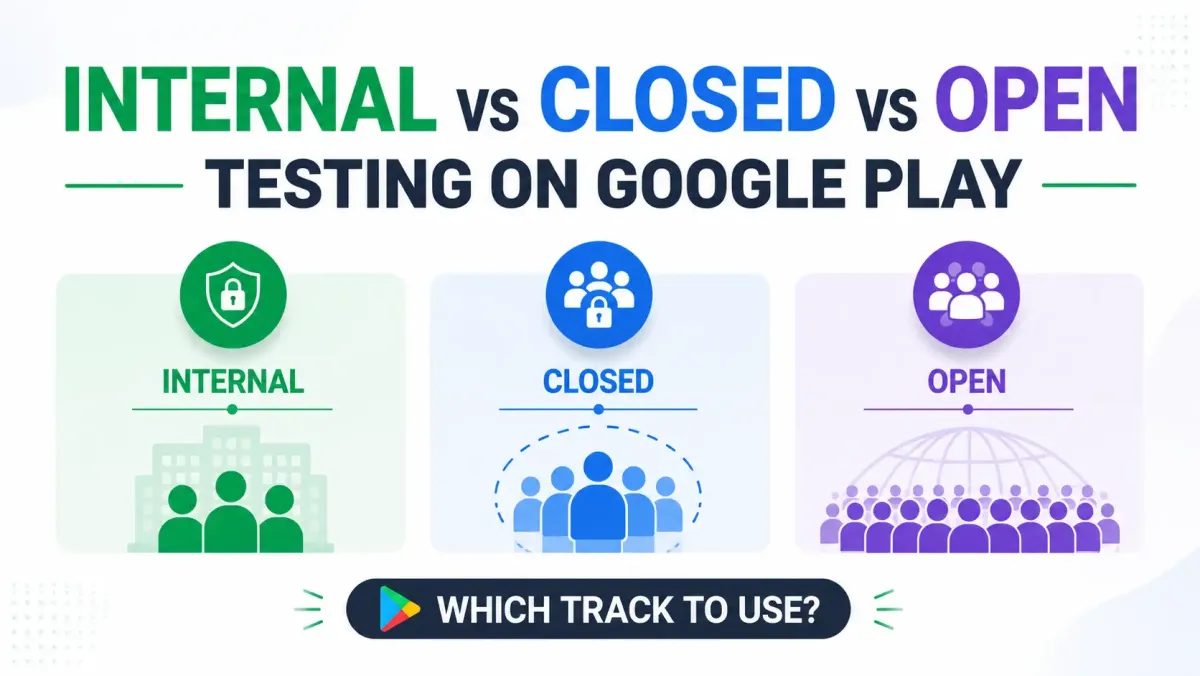
Quick answer:Google Play offers three pre-launch testing tracks. Internal testing is for up to 100 trusted testers with instant publishing — no review. Closed testing supports up to 2,000 invited testers with a short review cycle, ideal for structured beta feedback. Open testing is publicly listed on the Play Store and open to anyone, with a full review. Choose based on how many testers you need, how fast you need builds live, and whether you want public discoverability.
What Are Google Play Testing Tracks?
Google Play testing tracks are separate distribution channels within the Play Console that let you release your app to different groups of users before — or alongside — a full production launch.
Think of them as parallel pipes. The same app, different audiences, different rules per pipe.
Why Google separates testing into tracks
Shipping a half-finished build to everyone is a bad day. Testing tracks let you control who sees what and when. Each track has distinct review timelines, tester limits, and visibility rules, mapping to stages of development: internal → closed → open → production. You don't have to follow that order, but that's the logic.
The three tracks at a glance
| Feature | Internal Testing | Closed Testing | Open Testing |
|---|---|---|---|
| Max testers | 100 | 2,000 | Unlimited |
| Tester invitation | Email list or Google Group | Email list, Google Group, or opt-in URL | Public opt-in URL |
| Store listing required | No | No | Yes (draft OK) |
| Review by Google | None (instant) | Short review (~hours) | Full review |
| Publicly discoverable | No | No | Yes (if listed) |
| Crashlytics / Firebase support | Yes | Yes | Yes |
| Tester feedback in Play Console | No | Yes | Yes |
| Multiple APK/AAB tracks | Yes | Yes | Yes |
| Country targeting | No | Yes | Yes |
Last verified against Google Play Console — July 2025.
Internal Testing Track Explained
Internal testing is Google Play's fastest distribution option — builds go live in minutes with no review, making it ideal for small teams doing rapid iteration.
Who should use internal testing
Your core dev team, QA engineers, and product managers. The hard limit is 100 testers per app (not per release — 100 total across the track). It's purpose-built for smoke tests, CI/CD pipeline builds, and daily or nightly releases. It's not the right choice for external beta communities or anyone outside your immediate team.
How internal testing differs from sideloading
A common misconception: internal testing still uses the Play Store. Testers don't need to enable "Unknown sources" on their devices. Google Play Protect and automatic updates still apply. That also means you can revoke access cleanly — something that's much messier when a sideloaded APK is floating around on someone's phone.
Key limitations to know
- The 100-tester cap applies to the track as a whole, not per release.
- No country or device targeting is available.
- The tester feedback form isn't available — use Crashlytics or your own channels for bug reports.
- Internal builds do not count toward Google's staged rollout history.
Closed Testing Track Explained
Closed testing lets you run a structured beta with up to 2,000 invited testers — with a light Google review, country targeting, and built-in tester feedback tools.
Who should use closed testing
Early adopters, loyal users, and beta communities. Teams who need geographic or device-specific coverage. Apps that are getting close to production and need structured feedback at scale without going fully public yet.
Closed vs. internal — the key differences
Closed testing requires a short Google review (typically a few hours, rarely more than 24 hours for established apps). In exchange, you get:
- Up to 2,000 testers instead of 100
- Country and device targeting
- Tester ratings and feedback visible in Play Console
- The ability to run multiple closed tracks simultaneously
That last point is underused. You can create and name additional closed tracks — "Partners," "Influencers," "Enterprise Beta" — each with its own AAB/APK and its own tester list. Different feature flags, different regional builds, whatever you need. Each track is independent; a tester can only be on one closed track per app at a time.
Tester invite options for closed testing
Three ways to add testers:
- Individual email addresses — fine for small groups
- Google Groups — the right choice for anything over a few dozen testers; managing group membership is far easier than editing individual email lists
- Shareable opt-in URL — testers need a Google account but no individual invite; be aware this URL can be forwarded
Open Testing Track Explained
Open testing is a public pre-release program on the Play Store — anyone can opt in, and your app gets a "Join the beta" button on its store listing.
Who should use open testing
Apps that are ready for wide public exposure but not quite production-stable. Developers who want organic tester acquisition without managing invite lists. Teams running extended public betas before a full production launch.
What "open" really means for discoverability
Your store listing is live and searchable. A "This app is in early access" or "Join the beta" label appears on the listing. Crucially, open testing builds go through the full Google Play review — the same pipeline as production. Plan for that in your timelines.
One thing developers frequently get wrong: ratings from open testers do not appear on the production listing. They're tracked separately. So don't worry that beta users rating a rough build will tank your production score.
Open testing and your production rollout
Transitioning from open testing to production is seamless — promote the same release, no re-upload needed. Open testing reviews count toward the history Google uses when evaluating future production submissions. One thing to plan for: once a user installs via open testing, they automatically receive the production update when you launch, unless they manually opt out of the beta program.
Head-to-Head: Which Track Is Right for You?
The decision comes down to four factors: speed to live, tester count, public discoverability, and feedback infrastructure. Here's a direct framework.
Use Internal Testing if:
- You need the build live in under 30 minutes
- Your testers are fewer than 100 people on your team
- You don't need a Play Store listing yet
- You're running automated UI tests or QA smoke tests
Use Closed Testing if:
- You have a beta community of 100–2,000 people
- You want country or device targeting
- You need tester ratings and feedback logged in the Play Console
- You're building pre-launch hype with a private beta
Use Open Testing if:
- You want unlimited testers without managing individual invites
- You're comfortable with public store discoverability
- You want real-world scale across diverse devices and regions
- You're running a phased soft launch before full production
Can you run multiple tracks at the same time?
Yes — all three tracks can run simultaneously. A common setup: CI pushes nightly builds to internal, a marketing beta runs on closed, the public soft launch goes on open. A tester on internal won't receive closed or open builds unless explicitly added to those tracks.
Version code rules across tracks
This catches a lot of developers off guard. Version codes must be unique across all tracks — you cannot reuse a version code on a different track, and you cannot upload a lower version code than what's already on that track. A practical convention: reserve ranges per track (internal: 1xx, closed: 2xx, open: 3xx, production: 4xx+) and automate the increment in your CI pipeline.
What Changed in Google Play Testing in 2025–2026
Google made several meaningful updates to Play Console testing in 2025–2026, including expanded closed track limits, deeper automated testing integration, a UI refresh, and stricter policy compliance requirements.
Closed testing tester limit
The default global limit remains 2,000 testers per closed track as of mid-2025, though Google raised this in some regions during late 2024. If your use case requires more, you can request an increase via the Play Console — check the current form for the process. Creating multiple closed tracks (each with its own 2,000-tester limit) is also a supported workaround.
Automated test results now in testing track dashboards
Pre-launch reports — now called Android Vitals pre-launch testing — are available on internal and closed tracks, not just open. Crash data, ANR rates, and accessibility warnings surface directly in the track dashboard. You no longer need to wait until open testing to catch crashes in an automated environment.
Play Console UI refresh
The testing tracks interface moved under Testing → [Track name] in the left nav (previously found under "Release management"). The release promotion flow is now a one-click action, and tester management supports bulk CSV import for email lists — a long-overdue addition for teams managing large closed betas.
Policy changes affecting testing tracks
Apps in testing tracks are now subject to the same data safety form requirements as production apps, and deceptive app policies apply to testing builds as of Q1 2025. Apps using location, health, or financial permissions must complete policy declarations even for internal builds when testers are external. Testing builds don't get a compliance pass.
Managed Google Play for enterprise
For B2B and enterprise apps, Managed Google Play supports a parallel private distribution model that bypasses all three consumer testing tracks. Private apps now support version pinning and staged rollouts to device groups — relevant if your app is destined for corporate fleets.
Step-by-Step Walkthrough: Setting Up Each Track
Here is the exact process to set up Internal, Closed, or Open testing in the 2025 Google Play Console, including where to find each setting and what you need before you start.
Prerequisites
- Google Play Developer account (one-time $25 USD registration)
- Signed APK or Android App Bundle (AAB) — AAB strongly preferred
- Completed or draft store listing for closed/open tracks
- Testers must have a Google account and the Play Store app installed
How to set up Internal Testing
- Log in to play.google.com/console.
- Select your app (or create a new one).
- In the left nav, go to Testing → Internal testing.
- Click Create new release.
- Upload your signed AAB or APK.
- Add release notes (optional for internal).
- Click Save → Review release → Start rollout to Internal testing.
- Go to the Testers tab → Create email list → add up to 100 email addresses.
- Share the opt-in URL with your testers. They must follow the link before the build appears in their Play Store app.
Time to live: typically 5–15 minutes after rollout.
How to set up Closed Testing
- In the left nav, go to Testing → Closed testing.
- Click Manage track on the closed testing track (labeled "Closed testing – Alpha" by default, or your custom name).
- Click Create new release.
- Upload your AAB/APK and add release notes.
- Under Countries / regions, select your target markets if needed.
- Click Save → Review release → Start rollout to Closed testing.
- Go to the Testers tab → add a Google Group, individual email list, or generate an opt-in URL.
- Testers follow the opt-in link → the app appears in their Play Store with a beta badge.
Time to live: typically a few hours (light review).
Pro tip: Create a Google Group at groups.google.com before you start. Managing 500+ testers via group membership is dramatically easier than editing individual email entries every time someone joins or leaves.
How to set up Open Testing
- In the left nav, go to Testing → Open testing.
- Click Create new release.
- Upload your AAB/APK and complete the release notes.
- Make sure your store listing is fully complete — open testing requires a published or publishable listing (screenshots, description, data safety form).
- Set country targeting as needed.
- Click Save → Review release → Start rollout to Open testing.
- Google will review the build using the same pipeline as production.
- Once approved, the app is publicly discoverable with a "Join the beta" CTA on the store listing.
Time to live: Google's full review timeline — typically 1–3 days for new apps, often faster for updates on established apps.
Promoting a release between tracks
From any track dashboard, click Promote release and select the target track. The same AAB/APK is promoted — no re-upload needed. Release notes carry over (editable before confirming). You can promote Internal → Closed → Open → Production, or skip steps. You cannot demote via the UI — to roll back, release a new build to the lower track.
Common Mistakes Developers Make With Testing Tracks
The most common testing track mistakes are tester limit mismanagement, missing opt-in links, version code conflicts, and misunderstanding the review timeline — all of which can delay a launch or expose an unfinished build.
Mistake 1: Using the wrong track for your tester count
Teams hit the 100-tester limit on internal and try to add more — it silently drops them. Others run a 10-person QA team on closed testing and wait hours for a review that internal would skip.
Fix: Count your testers before picking a track. Under 100 → internal. 100–2,000 → closed.
Mistake 2: Forgetting to send the opt-in link
Testers don't automatically receive builds. They must follow the opt-in URL and then wait up to an hour for the app to appear. Classic symptom: "I added the testers but they can't see the app."
Fix: Send the opt-in URL every time you add testers. Make it a line item on your release checklist.
Mistake 3: Reusing or skipping version codes
Uploading the same version code to a different track gets rejected. Uploading a lower version code than what's already on a track also fails.
Fix: Automate version code increments in your CI pipeline. The track-range convention (internal: 1xx / closed: 2xx / open: 3xx / production: 4xx+) works well.
Mistake 4: Submitting to open testing with an incomplete store listing
Missing screenshots, an empty description, or an unsubmitted data safety form will block the review before it starts.
Fix: Use the "Store listing completeness" indicator in Play Console before submitting. It lists exactly what's missing.
Mistake 5: Assuming testing builds are invisible
Open testing builds are publicly discoverable and may be indexed by third-party APK aggregator sites. Closed opt-in URLs are shareable — if a tester forwards the link, anyone with a Google account can join.
Fix: Treat closed and open builds as semi-public. For true confidentiality, stay on internal or use Managed Google Play.
Mistake 6: Not cleaning up old testers
Former employees or external testers who retain access can download any future build on that track.
Fix: Audit tester lists quarterly. Remove departed members from the Google Group — that's cleaner than managing individual Play Console entries.
Mistake 7: Ignoring pre-launch report findings
Pre-launch reports now run on internal and closed builds. Crashes flagged at the internal stage will surface again in production.
Fix: Review the Android Vitals pre-launch report after every internal release. Treat it as mandatory QA output.
Frequently Asked Questions About Google Play Testing Tracks
Here are the questions developers ask most often about internal, closed, and open testing — answered directly.
Can a tester be on multiple testing tracks at once for the same app?
No — one track per app at a time. If someone is in an internal group and you add them to a closed group, they receive the build from whichever track their email is enrolled in. For simultaneous multi-track testing, use separate accounts.
Do testing track builds appear in Play Store search?
Only open testing builds are publicly discoverable. Internal and closed builds are invisible to anyone who hasn't followed the opt-in link. A user already opted into a closed track can see the build in the Play Store app, but it won't appear in general search.
How long does review take per track?
- Internal: No review — typically live within 5–15 minutes.
- Closed: Light review, typically a few hours (rarely more than 24 hours for established apps).
- Open: Full review, same as production. New apps: 1–7 days. Established apps: often under 24 hours.
Can I run a paid app through a testing track?
Yes. All three tracks support paid apps; testers get the build free regardless of the production price. In-app purchases need to be configured separately using test accounts or license testing.
What happens to open testers when I release to production?
They automatically receive the production update and stay enrolled as beta testers until they manually opt out. Their ratings from open testing do not carry over to the production listing.
Is there a way to get more than 2,000 testers on a closed track?
Create multiple closed tracks — each has its own 2,000-tester limit. You can also move excess testers to open testing if public discoverability is acceptable. For enterprise-scale distribution, Managed Google Play is the right tool.
Can I use testing tracks for apps not yet in my target country?
Yes. Closed and open tracks both support country targeting. A standard approach: release on open testing in a smaller market first, then roll out to primary markets via production.
Choosing the Right Google Play Testing Track
The right track depends on your stage, tester count, iteration speed, and how public you want your build to be.
- Internal is for speed — zero review, 100 testers max, live in minutes. Use it for your dev and QA team's daily builds.
- Closed is for structured betas — light review, up to 2,000 invited testers, country targeting, and feedback in the console.
- Open is for public soft launches — full review, unlimited testers, publicly discoverable on the Play Store.
- All three can run simultaneously. The right architecture is usually a staged pipeline (internal → closed → open), not a forced choice between them.
- Policy compliance applies at every track since Q1 2025 — data safety forms are not just a production concern.
- Version codes, opt-in links, and pre-launch reports are the three things most worth getting right from day one.