How to Convert Your Wix Website into an Android and iOS App (Complete Guide)
Your Wix site looks great on a desktop. But every time a customer pulls it up on their phone, something feels a little… off. The experience is fine — it's just not app-like. And in a world where people spend 90% of their mobile time inside apps, "fine" isn't really enough.
The good news? You don't need to start from scratch, hire a developer for six months, or abandon Wix. Your existing website can become a real, working Android and iOS app — one that lives on your customers' home screens, sends push notifications, and feels like a proper product.
This guide covers everything: what "converting" a Wix site actually means, the two main approaches (with an honest comparison), step-by-step publishing instructions for both Google Play and the App Store, the most common mistakes to avoid, and how to make your app stand out once it's live.
One important thing to know before we dive in: Wix doesn't have a built-in "export to app" feature. This guide exists to bridge that gap.
First, Let's Talk About What "Converting" Your Site Actually Means
Your Wix Site Isn't Going Away — It's Being Wrapped
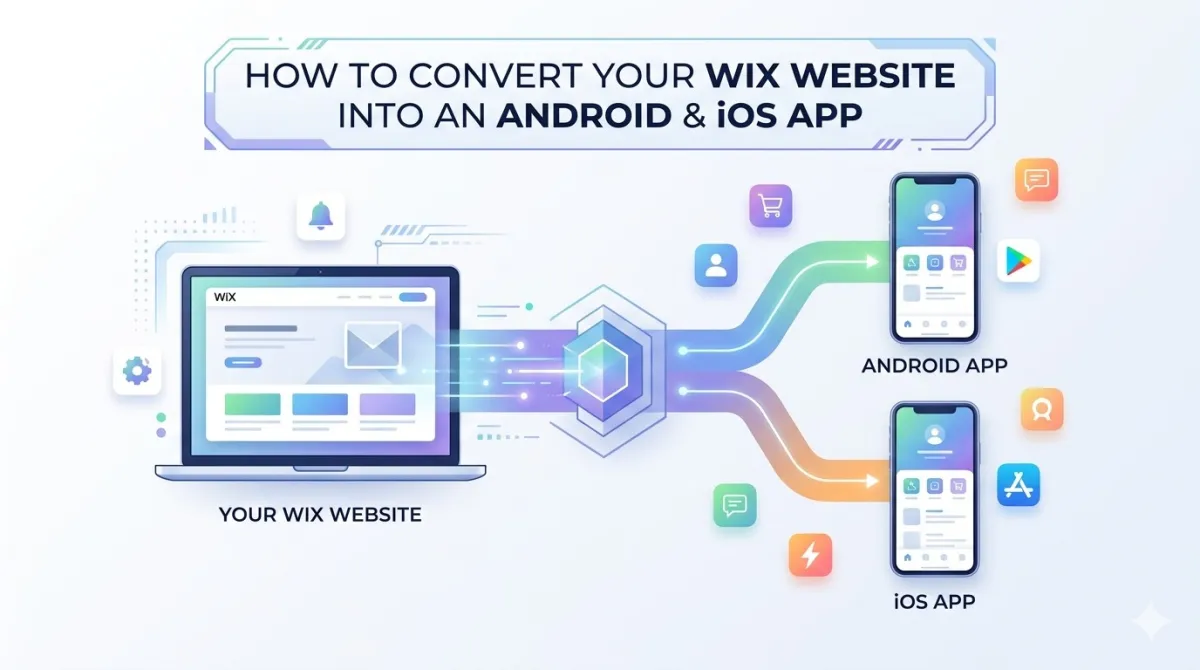
Converting a Wix site does not replace it — a WebView app wraps your live Wix site in a native Android or iOS shell, so the site keeps running exactly as it does now. Here's the key concept that makes this whole thing work: you're not replacing your Wix website. You're wrapping it.
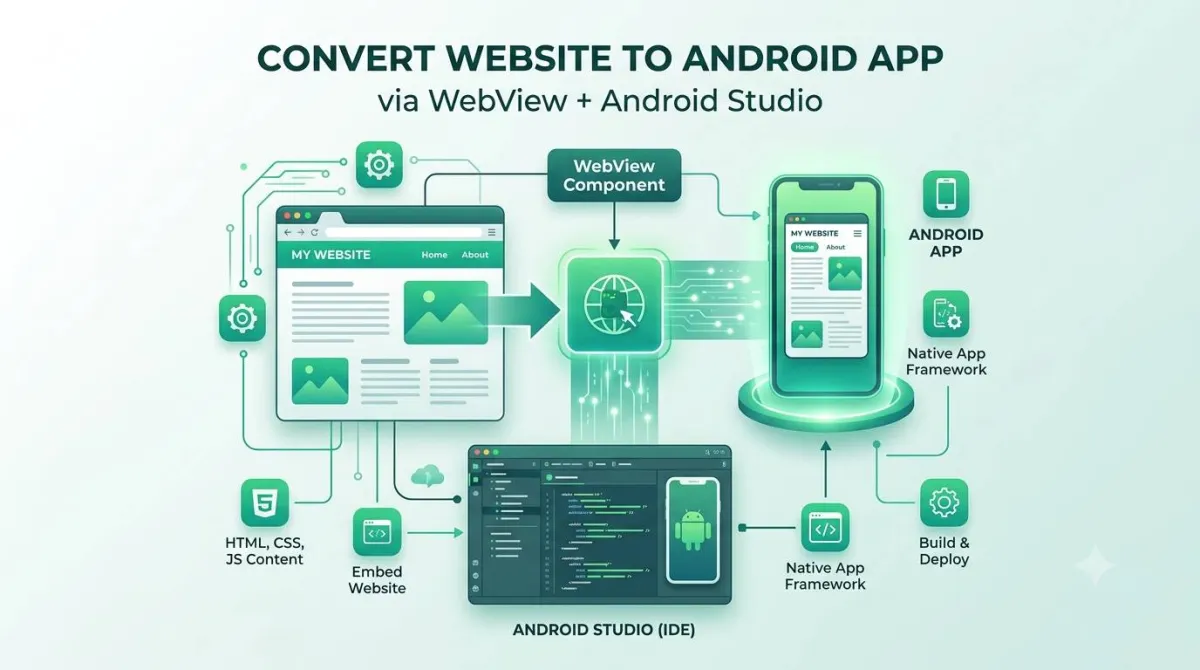
A WebView app is essentially a native Android or iOS shell — think of it like a custom picture frame — that loads your Wix site's URL inside it. From the outside, it looks and behaves like any other app on someone's phone. It has an icon, a splash screen, and it appears in the App Store and Google Play. But under the hood, it's serving up your existing site.
This isn't a workaround or a compromise. It's a legitimate, widely used approach. Airlines, banks, and media companies all use WebView-based apps when their web content is already strong. If your Wix site works well on mobile — and Wix's mobile editor makes this pretty achievable — a WebView app delivers an excellent user experience.
The alternative is a full native rebuild: tearing everything down and recreating your site from scratch using Swift (iOS), Kotlin (Android), or a framework like React Native or Flutter. That approach costs tens of thousands of pounds, takes months, and is genuinely overkill for the vast majority of Wix site owners.
Two Approaches at a Glance
| WebView App | Native/Hybrid Rebuild | |
|---|---|---|
| Cost | Low–Medium | Very High |
| Time to Launch | Days–Weeks | Months |
| Coding Required | None | Yes (or hire devs) |
| Maintenance | Minimal | High |
| App Store Approval | Achievable | Easier |
| Best For | Content, service, eCommerce sites | Apps needing camera, GPS, Bluetooth features |
For 95% of Wix site owners, WebView is the right call. It's faster, cheaper, easier to maintain, and your users won't notice the difference.
The rest of this guide focuses on that approach.
What You Need Before You Start
Prerequisites Checklist
Before you start you need a live Wix site on a custom domain, not a free wixsite.com subdomain, plus developer accounts for the stores you intend to publish to. Get these sorted before you do anything else — skipping ahead causes headaches later.
- A live Wix site with a custom domain. If you're still on a free Wix subdomain (e.g. yourname.wixsite.com/business), sort that first. App store reviewers see your URL, and a free subdomain signals "unfinished" — plus Wix ads show up in the app.
- A Google Play Developer Account — one-time $25 fee at play.google.com/console. Required to publish on Android.
- An Apple Developer Account — $99/year at developer.apple.com. Required to publish on iOS. This is where most first-timers hit friction — more on that below.
- App assets ready to go:
- App icon: 1024×1024px (used to generate all sizes)
- Splash screen graphic
- Screenshots of your app for store listings
- Your app name, category, and short description decided in advance. Changing these later is possible but annoying.
App Assets Required/
├── App Icon (1024x1024px PNG)
├── Splash Screen Graphic (High Res)
└── Store Screenshots/
    ├── iOS_6.7_inch_1.png
    ├── iOS_6.5_inch_1.png
    ├── Android_Phone_1.png
    └── Feature_Graphic_1024x500.png
Heads up on Apple: The App Store review process is stricter and slower than Google Play. Budget 1–3 days for your first review, and don't submit until everything is polished.
Mobile-Optimize Your Wix Site First
This step gets skipped more than any other — and it's probably the most important one.
A WebView app inherits your site's performance. A slow website becomes a slow app. A pop-up-heavy website becomes an app that Apple reviewers hate. Before you wrap anything, do this:
- Open Wix's mobile editor and fix any broken layouts, text that's too small, or buttons that are hard to tap.
- Run your site through Google PageSpeed Insights — aim for a score above 70 on mobile.
- Remove intrusive pop-ups that appear immediately on load. App Store guidelines specifically penalize these.
- Make sure external links (social media, payment pages) work correctly — you'll configure how they open in the app, but they need to function first.
- Test on at least two or three real physical devices, not just the Wix preview. The preview lies.
Method 1 — DIY Website-to-App Builders
How DIY App Builders Work
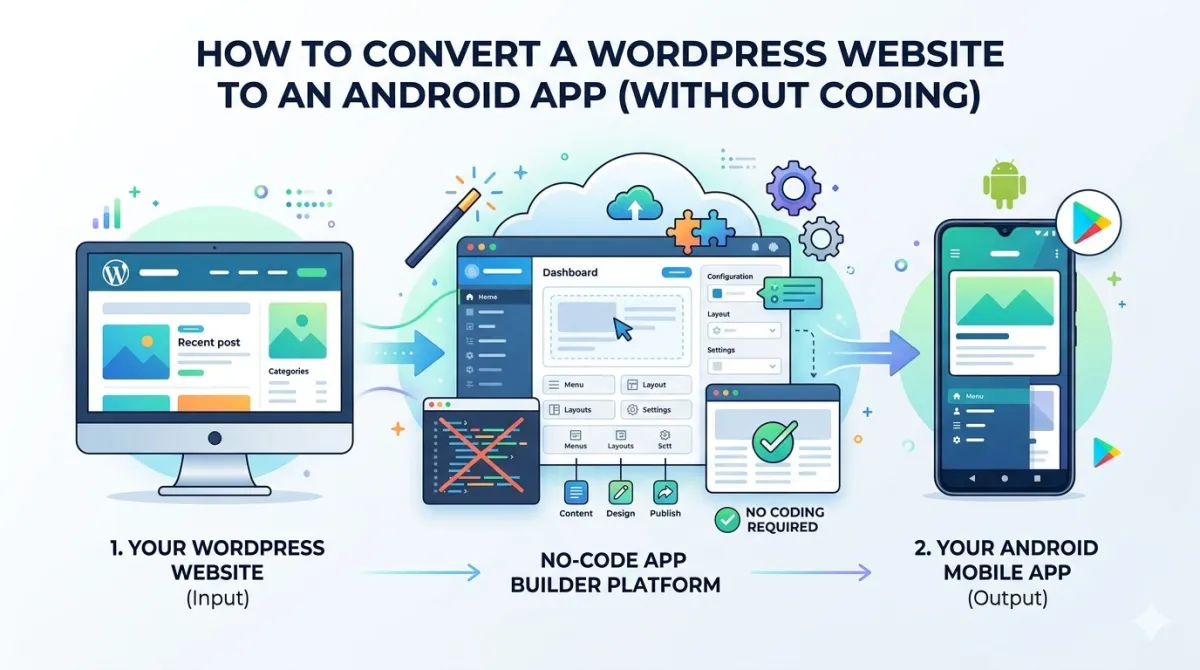
DIY builders give you the most control for the lowest cost, in exchange for doing the configuration, store submission and maintenance yourself. DIY app builders are no-code platforms that take your URL, let you customise the look and feel, and generate a working app. Tools in this space include AppMySite, WebToNative, and Gonative, among others.
The general process is:
- Sign up, paste your Wix URL
- Customise your icon, splash screen, and navigation
- Configure which links open inside the app vs. in an external browser
- The platform generates your app files (APK for Android, IPA for iOS)
- You submit to the stores — or the platform does it for you (on paid tiers)
Most offer a free preview or trial build. Always test on a real device before paying. Wix uses a fair amount of JavaScript and dynamic content, and not all builders handle it equally well.
Step-by-Step: DIY Builder Walkthrough
Step 1 — Sign up and enter your Wix URL
The builder will scan your site and generate a preview. Check it carefully on mobile. Pay attention to how your homepage loads and whether your navigation works.
Step 2 — Configure your app identity
Upload your app icon and splash screen. Set your app name — this is what appears in the App Store listing, so make it count. Keep it short, descriptive, and searchable.
Step 3 — Set up navigation
Most builders let you add a bottom navigation bar or a slide-out side drawer. Replicate your Wix site's main menu here. Stick to 4–5 items maximum — more than that overwhelms mobile users.
Step 4 — Define link behaviour
This is critical. Decide which URLs open inside the app (anything on your own domain) and which open in an external browser (PayPal checkout, Instagram, etc.). Getting this wrong means users try to load Instagram inside your WebView — which breaks.
Step 5 — Enable push notifications
If your builder supports it, set this up now. Adding it after launch requires an app update and resubmission. Push notifications are one of the main reasons to have an app at all — don't skip this.
Step 6 — Build and test
Download the Android APK and sideload it onto a physical Android device. For iOS, most builders use TestFlight for beta testing — set that up and test on a real iPhone.
Step 7 — Submit to the stores
Follow the platform-specific steps below (covered in detail in the next two sections).
Limitations of DIY Builders
To be honest with you, DIY builders are great for getting started — but they come with real trade-offs:
- Free tiers are limited. Expect builder branding in your app, feature restrictions, or lower-quality output until you pay.
- App Store rejections become your problem. This is where most first-timers lose hours of their life. Apple's review process is not forgiving, and the error messages aren't always clear.
- Wix-specific quirks. Member login flows, dynamic pages, and Wix animations can behave unexpectedly inside a WebView. You may need to troubleshoot.
- Per-platform pricing. Some builders charge separately for Android and iOS. Read the pricing page carefully before committing.
- Ongoing maintenance. If you restructure your Wix site, you may need to reconfigure the app to match.
If any of that sounds like more hassle than you want, there's a simpler path.
Method 2 — Done-for-You App Conversion Services
What "Done-for-You" Actually Means
A done-for-you service handles development, configuration, store submission and maintenance for you — you are paying for expertise and time rather than software. Instead of learning an app builder yourself, a done-for-you service takes your URL and handles everything: development, configuration, App Store submission, and maintenance. You're paying for expertise and time saved, not just software.
This is the right option if:
- You want a professional result without learning a new tool
- You'd rather not personally navigate Apple's review process
- You have a business to run and limited time for tech projects
When evaluating a done-for-you service, look for: both platforms covered (Android and iOS), App Store publishing included, post-launch support, and transparent pricing.
appofweb.com is built specifically for this — converting websites (including Wix sites) into high-quality WebView apps for both platforms. They offer a free demo build so you can see your app before committing to anything.
How the Done-for-You Process Works
Here's what the process looks like with a service like appofweb.com:
Step 1 — Submit your URL
You provide your Wix website address. That's the hard part — for you.
Step 2 — Free demo build
The team generates a working demo version of your app. You review it, request changes, and confirm you're happy with how it looks and functions.
Step 3 — Customisation and development
App icon, splash screen, navigation structure, link behaviour, push notification setup, platform-specific configuration — all handled by the team.
Step 4 — App Store submission
They submit to both Google Play and the Apple App Store on your behalf, including all the documentation, screenshots, descriptions, and compliance requirements that Apple and Google need.
Step 5 — Ongoing maintenance
Your app stays compatible as Wix and the app stores evolve, without you having to track changes or push updates yourself.
For a full breakdown of what's included: appofweb.com/#pricing.
Publishing to the Google Play Store (Android)
Setting Up Your Google Play Developer Account
- Go to play.google.com/console and sign in with a Google account
- Pay the one-time $25 registration fee
- Choose individual or organisation (organisations need a D-U-N-S number or equivalent — allow extra time if you don't have one)
- Accept the Developer Distribution Agreement
- Use a business email address, not a personal Gmail — it shows on your public listing
Creating Your App Listing
- Create a new app, set the default language, and confirm it's an app (not a game)
- Write a short description (80 characters max) — this is prime real estate; make it clear and keyword-relevant
- Write a full description (4,000 characters max) — include your primary keyword naturally, focus on user benefits
- Upload at least 2 screenshots (8 recommended) — use real device screenshots, not design mockups
- Upload your app icon (512×512px, PNG, no transparency)
- Upload a feature graphic (1024×500px) — required for potential featured placement
- Complete Google's content rating questionnaire honestly
Warning: Incomplete listings are the #1 reason for delayed reviews. Fill in every field, even the optional ones.
Uploading Your App and Going Live
- Google now requires Android App Bundle (.aab) format for new apps — not APK. Confirm your builder or developer outputs .aab.
- Upload via Releases → Production → Create new release
- Write release notes (what's new)
- Review the pre-launch report for crashes or policy flags
- You can roll out to 20% of users initially and expand — useful for catching issues before they reach everyone
- First reviews typically take a few hours to 3 days; subsequent updates are usually faster
Publishing to the Apple App Store (iOS)
Setting Up Your Apple Developer Account
- Enrol at developer.apple.com — $99/year
- Choose Individual or Organisation enrollment. If you want the app listed under a company name, choose Organisation — this requires a D-U-N-S number, which can take up to two weeks to obtain if you don't have one. Plan accordingly.
- Set up App Store Connect at appstoreconnect.apple.com — this is your listing management dashboard
- Create an App ID and provisioning profile for code signing. If you're using a done-for-you service, they handle this. If DIY, follow Apple's signing documentation carefully — it's fiddly.
Creating Your App Store Connect Listing
- Create a new app, assign your Bundle ID, and set your primary and secondary categories
- App name: 30 characters max — include your most important keyword naturally
- Subtitle: 30 characters max — use this for a secondary keyword or clear value statement
- Description: 4,000 characters max — the first 3 lines show without "Read More," so lead with your strongest value proposition
- Keywords field: 100 characters total, comma-separated — this is your main ASO lever on iOS; choose carefully and don't repeat words already in your app name
- Upload screenshots for each required device size: iPhone 6.7" and 6.5" are mandatory; iPad sizes if you support iPad
- Add a support URL and a privacy policy URL — both are required; missing either means automatic rejection
Apple's Guideline 4.2 (Minimum Functionality) is the most common rejection reason for WebView apps. Your description must clearly explain the value users get from the app — beyond just "access our website." Emphasise push notifications, the home screen presence, and any enhanced UX your app delivers.
Submitting for Review and Handling Rejections
- Upload your signed IPA file via Xcode or Apple's Transporter tool
- Submit for review in App Store Connect
- First-time submissions typically take 24–48 hours; sometimes up to 3 days
The most common rejection reasons for WebView apps:
| Rejection Reason | What It Means | How to Fix It |
|---|---|---|
| Guideline 4.2 (Minimum Functionality) | App doesn't offer enough value beyond a website | Strengthen your description; highlight push notifications, offline access, enhanced UX |
| Guideline 5.1.1 (Data Collection) | No privacy policy, or an incomplete one | Publish a privacy policy at a live URL and link to it in your listing |
| Login wall on first launch | First screen forces users to log in before seeing anything | Ensure your Wix homepage is accessible without login |
If rejected, respond through the Resolution Center with a clear, calm explanation of how you've addressed the issue. Most WebView rejections don't require rebuilding the app — just updating the listing or making a small configuration change.
Configuring the Features That Make Your App Feel Native
Push Notifications
Push notifications are the single biggest native feature to configure, using Firebase Cloud Messaging on Android and Apple's push service on iOS. Push notifications are the single biggest advantage of a mobile app over a mobile website. A website can't tap someone on the shoulder unprompted. An app can.
- Android uses Firebase Cloud Messaging (FCM); iOS uses Apple Push Notification Service (APNs)
- Most done-for-you services include push notification setup; DIY builders vary — confirm before choosing
- Start simple: a welcome notification on install, a weekly update, and promotional alerts for sales or events
- Ask for notification permission after the user has experienced some value, not the instant the app opens. Acceptance rates are meaningfully higher when users understand why they're being asked.
Deep Linking and Navigation
Deep links let a URL from an email or social post open directly inside your app rather than a browser — which feels much more polished and keeps users in your ecosystem.
- Configure your app to handle your Wix domain links
- Set up a bottom navigation bar that mirrors your Wix site's main menu. Mobile users expect nav at the bottom, not the top.
- Keep it to 4–5 items maximum
Splash Screen and Branding
Your splash screen is the first thing users see every time they open your app. Make it count.
- Logo on a solid brand-colour background is the safest, cleanest approach
- Duration: 1.5–2 seconds. Shorter feels abrupt; longer feels broken.
- Test in dark mode — both iOS and Android default many users to dark mode, and a white splash screen on a dark phone looks like a bug.
- Your app icon displays at 60×60px on iOS home screens — make sure it's recognisable at that size before you submit.
Mistakes That Get Your App Rejected — or Deleted After Launch
Most rejections and post-launch deletions trace back to two things: wrapping a Wix site that was never optimised for mobile, and using a free Wix subdomain that shows Wix ads inside your app.
Mistakes During Development
- Not optimising your Wix site before wrapping it. Say it with me: a bad website makes a bad app. Fix it first.
- Using a free Wix subdomain. Wix ads appear inside your app. App reviewers don't love it. Users definitely don't.
- Forgetting to configure external link behaviour. Without this, tapping your Facebook link tries to open Facebook inside your WebView — it doesn't work, and it looks terrible.
- Building for only one platform. Android and iOS have completely different file formats, signing processes, and review requirements. Plan for both from day one.
- Ignoring landscape mode. Most builders default to portrait-only. That's usually fine — but decide deliberately, don't just forget.
Mistakes During App Store Submission
- No privacy policy. Required by both Apple and Google. Non-negotiable. If you don't have one, generate one for free and publish it at a real URL.
- Generic screenshots. Store screenshots are marketing material. Show your best screens with context. "Here's what using this app looks like" — not just your homepage.
- Pasting your website "About" section as your app description. Describe the app experience, not your business.
- Submitting to Apple before your Wix site is fully live and polished. Apple reviewers actually visit your URL. Placeholder content = rejection.
Mistakes After Launch
- Never updating the app. Both stores can delist apps that haven't been updated in 1–2 years. Schedule maintenance updates even if nothing seems broken.
- Ignoring user reviews. App Store reviews affect your ranking and click-through rate. Respond to negative ones promptly — it shows you're paying attention.
- Restructuring your Wix site and forgetting the app exists. If you change URL paths or rename pages, test your app immediately after.
Tips That Separate Good Apps from Great Ones
App Store Optimisation (ASO) — Get Found in the Stores
App Store Optimisation is a separate discipline from SEO, and your app name and subtitle or short description carry most of the weight. SEO gets you found on Google. ASO gets you found inside the App Store and Google Play. They're different games.
- Your app name and subtitle (iOS) / short description (Android) carry the most keyword weight — use them wisely
- Research competitor apps in your category — look at their keyword choices, then find gaps
- Update your screenshots and feature graphic seasonally, or after a major Wix site redesign — stale store listings lose clicks
- Encourage genuine reviews from satisfied customers. In-app review prompts (native iOS and Android dialogs) dramatically increase review volume compared to asking by email.
- The first 3 lines of your description are visible without tapping "Read More." Put your strongest value proposition there.
Performance Optimisation for WebView Apps
Your app's perceived speed is your Wix site's actual speed. The two are inseparable.
- Enable caching in your WebView configuration so repeat visitors load faster
- Lazy-load heavy images on your Wix site
- Show a branded loading screen while pages load — a white blank screen for two seconds feels like a crash; a branded screen for two seconds feels intentional
- Monitor your Wix site's uptime. If your site goes down, your app goes down with it.
Engagement Features Worth Adding
- Pull-to-refresh — users expect this on mobile; most quality builders include it
- In-app browser for external links — instead of dropping users into Safari or Chrome, open external links in a styled in-app browser that keeps your branding visible
- Biometric login — if your Wix site has a member area, fingerprint and Face ID login adds a genuine sense of premium quality
Who Actually Benefits Most from a Wix App
Local service businesses, e-commerce stores and content publishers get the most from a Wix app, largely because push notifications replace email for time-sensitive messages. WebView apps aren't just a tech novelty — they solve real problems for real businesses.
- Local service businesses (salons, gyms, restaurants): push notifications replace email for flash deals, appointment reminders, or last-minute availability. Email open rates average around 20%; push notification open rates can be 4–8x higher.
- Wix eCommerce stores: repeat customers convert better when they're shopping from a home screen icon with saved cart state, rather than retyping a URL. Push notifications for back-in-stock or abandoned cart are genuinely powerful.
- Content creators and bloggers: an app creates a dedicated reading experience and lets fans add you to their home screen — a stronger loyalty signal than a browser bookmark.
- Event organisers: push notifications replace email for time-sensitive announcements — schedule changes, door times, ticket releases. Speed matters; apps win.
- Membership site owners: a Wix Members area inside a native app shell feels significantly more premium than logging into a website in a mobile browser.
It's also worth noting: WebView-based apps are used by major brands across every industry. The technology isn't a compromise — it's a deliberate architectural choice when the web content is already strong. The App Store and Google Play collectively host hundreds of thousands of WebView apps in good standing.
The investment-to-outcome ratio is strong for existing Wix owners specifically because you already have the content. You're not building something new — you're extending what you already have to a new surface.
Frequently Asked Questions
Can I convert my Wix site into an app without knowing how to code?
Yes, completely. WebView-based app conversion requires no coding knowledge. DIY tools provide no-code interfaces; done-for-you services like appofweb.com need nothing from you except your URL. The only real decision is choosing which approach suits your situation — and this guide covers that. The harder part for most people isn't building the app; it's navigating App Store submission, especially Apple's.
Will my app be approved by the Apple App Store?
WebView apps are approved regularly — but Apple's review is the more scrutinising of the two stores. Keys to approval: a strong app description that clearly explains user value, a published privacy policy at a live URL, a Wix site that doesn't require login on first load, and a fast, functional mobile experience. Apple's Guideline 4.2 (Minimum Functionality) is the most common sticking point. A done-for-you service that knows Apple's requirements handles this more reliably than a first-time DIY submitter. Expect 1–3 review cycles for a first submission — this is completely normal.
What's the difference between a WebView app and a native app?
A WebView app loads your existing website inside a native container — it's your site, packaged and distributed as an app. A native app is built from scratch using platform-specific code (Swift for iOS, Kotlin for Android) or a cross-platform framework like React Native. For most Wix site owners, a WebView app delivers around 95% of the user experience benefit at a fraction of the cost and time. Native makes sense only when you need hardware features — custom camera processing, GPS tracking, Bluetooth — that your Wix site doesn't already support.
How much does it cost to convert a Wix site into an app?
Costs vary depending on your approach:
| Approximate Cost | |
|---|---|
| Google Play Developer Account | $25 one-time |
| Apple Developer Account | $99/year |
| DIY builder (subscription) | Free–$150/month |
| Done-for-you service | Typically a one-time or annual fee |
The hidden cost of DIY is your time — specifically the time spent troubleshooting App Store rejections, re-submissions, and maintenance. For a full pricing breakdown on a done-for-you solution: appofweb.com/#pricing.
What happens to my app when I update my Wix site?
Because your app loads your live Wix URL, content changes — new blog posts, updated product listings, price changes — reflect automatically. No app update needed. Structural changes (new pages, renamed URLs, navigation restructuring) may require a small update to the app's configuration, but this is minor. A done-for-you service handles this so you don't have to track it yourself.
Do I need separate apps for Android and iOS?
Yes — Android and iOS are entirely separate platforms with different file formats, signing requirements, and store review processes. Both stores should be targeted from day one. Splitting them creates a fragmented user experience and complicates your marketing. Any reputable conversion service covers both platforms together.
Can I add push notifications to my Wix app?
Yes — and you should. Push notifications are one of the primary reasons to convert a website to an app in the first place. They require integration with Firebase Cloud Messaging (Android) and Apple Push Notification Service (iOS) at the app level — this isn't a Wix feature; it lives in the app shell. Done-for-you services typically include push notification setup; DIY builders vary, so confirm before choosing. Start simple: a welcome notification, a weekly update, and promotional alerts are enough to see meaningful engagement improvement over email alone.
Your Wix Website Is Ready to Become an App — Here's What to Do Next
Key Takeaways
- Wix doesn't natively export apps, but your site can become a professional Android and iOS app using a WebView approach — no rebuild required.
- The two main paths are DIY no-code builders (more control, more effort) and done-for-you services (faster, more reliable, no technical involvement).
- Before converting, optimise your Wix mobile experience — your app inherits your site's performance.
- App Store submission — especially Apple's — is where most people get stuck; a service that handles publishing removes that friction entirely.
- Push notifications, deep linking, and a polished splash screen are what make your app feel like a real product, not just a website in a frame.
Your Next Steps
- Audit your Wix site's mobile experience. Fix speed issues, remove intrusive pop-ups, and make sure navigation works properly on a real phone.
- Set up your developer accounts. Google Play ($25 one-time) and Apple Developer ($99/year) — do this now, before you need them, because Apple's account setup can take time.
- Decide: DIY or done-for-you? If you're comfortable troubleshooting tech and have time to learn the tools, a DIY builder works. If you want a polished result without the learning curve, a done-for-you service is worth every penny.
Want It Done for You — Properly?
If you'd rather skip the setup, the store submissions, and the troubleshooting — and just have a polished Android and iOS app ready to go — appofweb.com does exactly that.
- You provide your Wix URL. They handle everything else — development, App Store publishing, and ongoing maintenance.
- Free demo build available — see exactly what your app will look like before committing to anything.
- Built specifically for website-to-app conversion; no generic templates, no off-the-shelf builders.
Your Wix website already works. Now let it work on every device, in every app store.