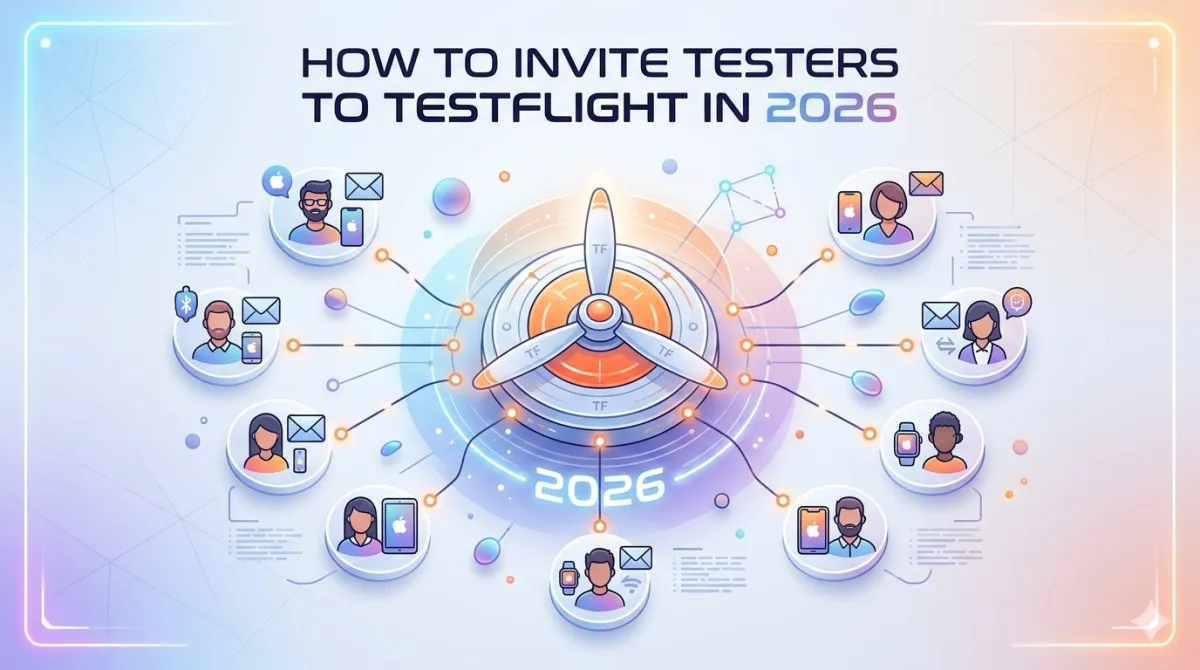
How to Invite Testers to TestFlight in 2026 (Internal & External)
Imagine spending months building your app, submitting it to the App Store, and then watching one-star reviews roll in because of a bug you could have caught in five minutes. That's the nightmare TestFlight exists to prevent.
TestFlight is Apple's free beta testing platform — it lets real people install and test your app before it ever goes public. Think of it as a safety net between your code and your customers.
This guide walks you through everything: inviting internal testers (your team), inviting external testers (the wider world), managing your beta program, and avoiding the mistakes that trip up most developers. Whether you're a solo indie dev, a no-code builder on FlutterFlow, or a QA lead at a growing startup — this one's for you.
By the end, you'll be able to go from zero to a fully running beta test with real people on real devices.
What Is TestFlight — and Why Does It Matter?
TestFlight in Plain English
TestFlight is Apple's official beta testing tool, and it's completely free to use with an Apple Developer account. It works across iPhone, iPad, Apple Watch, Apple TV, and Mac.
Here's how it works: testers download the free TestFlight app from the App Store, and your beta build appears inside it automatically after they accept an invite. No App Store listing needed. No TestFlight subscription. Just builds and testers.
One thing to know upfront: every build expires after 90 days. We'll come back to this a few times because it catches a lot of people off guard.
Internal vs. External Testers — Key Differences at a Glance
TestFlight has two testing tracks: internal and external. They serve very different purposes.
| Internal Testing | External Testing | |
|---|---|---|
| Tester limit | Up to 100 | Up to 10,000 |
| Who can test | App Store Connect team members only | Anyone with an Apple ID |
| Apple review required? | ❌ No | ✅ Yes (first build) |
| Setup complexity | Lower | Slightly higher |
| Best for | Dev team, QA, close colleagues | Community beta, early adopters, press, stakeholders |
The short version: use internal testing for your team, and external testing when you're ready to open things up.
One important heads-up: Managed Apple Accounts — the kind used in corporate or school environments — cannot accept TestFlight invites. If you're inviting colleagues who have company-managed Apple IDs, they'll need to use a personal Apple ID instead. There's no workaround for this.
Prerequisites — What You Need Before Sending a Single Invite
Before you invite anyone, you need a few things in place. Skip any of these and you'll hit a wall.
Apple Developer Account
You need to be enrolled in the Apple Developer Program, which costs $99/year. No TestFlight without it — there's genuinely no workaround.
If you're a solo dev, an Individual account works fine. If you're a company, an Organization account gives you better team management tools (separate roles, multiple team members, etc.).
App Store Connect Setup
Your app needs to exist in App Store Connect before you can do anything with TestFlight. When setting it up, you'll need at minimum:
- An app name
- A bundle ID
- A primary language
The bundle ID is the one that trips people up most. It must match exactly what's in your Xcode project or no-code build tool. Even a single character difference will cause problems.
A Valid Build Ready to Upload
To test your app, you need a compiled build — a .ipa file with correct code signing and a valid provisioning profile.
If you're using Xcode, the workflow is: Product → Archive → Distribute App → App Store Connect.
If you're using a no-code or low-code tool (Adalo, FlutterFlow, WebToNative, etc.), they handle this step inside their own platform — look for a "Publish" or "Build" option that submits directly to App Store Connect.
Either way, the build has to pass Apple's basic validation checks before it shows up in TestFlight.
Required Roles for Inviting Testers
Not everyone on your team has the same TestFlight powers. Here's a quick breakdown:
| Role | Can Manage Builds? | Can Invite External Testers? |
|---|---|---|
| Account Holder / Admin | ✅ Yes | ✅ Yes |
| App Manager | ✅ Yes | ✅ Yes |
| Developer | ✅ Yes (limited) | ❌ No |
| Marketing | ❌ No | ✅ Yes |
If you're a Developer-role-only team member trying to create an external tester group, you'll hit a permission wall. Roles are managed in App Store Connect under Users and Access.
How to Invite Internal Testers to TestFlight (Step-by-Step)
Internal testing is the quickest way to get your build in front of your team. No Apple review, no waiting — just invite and test.
Step 1 — Add Users to Your App Store Connect Team
Before someone can be an internal tester, they need to be on your App Store Connect team.
Go to App Store Connect → Users and Access → People, click the "+" button, and enter their email. Assign them a role (Admin, Developer, etc.), and they'll receive an invitation email from Apple.
Important: they must accept that email invitation before you can add them as a tester. Don't skip this step and then wonder why they don't appear in your tester list.
Step 2 — Navigate to the TestFlight Tab
In App Store Connect, select your app from My Apps, then click the TestFlight tab in the top navigation. The left sidebar will show your Internal Testing and External Testing sections.
Tip: If you don't see the TestFlight tab at all, your account role probably doesn't have the right permissions.
Step 3 — Create an Internal Testing Group
Click the "+" next to Internal Testing in the sidebar. Give your group a clear name — something like "Core Dev Team" or "QA Squad" works well.
You'll also see a toggle for Automatic Distribution. Turn this on and new builds will flow to this group automatically whenever you upload. Leave it off if you want manual control over which builds reach which testers.
You can create multiple internal groups — useful if you want to separate your design team from engineering, for example. Groups are per-app, not account-wide.
Step 4 — Add Testers to the Group
Inside the group, click "Invite Testers". You'll see a list of your existing App Store Connect team members — check the boxes next to whoever you want, then click Add.
You're limited to 100 internal testers per app, so pick your core people.
Once added, they'll automatically receive an email invite from Apple.
Step 5 — Add a Build to the Internal Testing Group
Click "Add Builds" inside the group, then select your platform and the specific build you want testers to receive.
Fill in the "What to Test" field. This is what testers see inside the TestFlight app — use it to tell them exactly what to focus on. (More on why this matters later.)
Click Add. Since no Apple review is required for internal builds, the build goes live immediately.
If you have Automatic Distribution turned on, future builds will show up here on their own. If you don't, you'll repeat this step with each new build.
What the Internal Tester Experiences
Here's what happens on your tester's end:
- They receive an email from Apple with an invitation link
- They install the TestFlight app (free on the App Store) if they haven't already
- They accept the invite — the build appears inside TestFlight automatically
- They can see the version number, build date, and your "What to Test" notes
After 90 days, the build expires and they'll see a "Build Expired" message. At that point they can't open the app until you push a fresh build.
How to Invite External Testers to TestFlight (Step-by-Step)
External testing is where things get exciting — you can have up to 10,000 testers installing your app. The trade-off is that Apple reviews your build first.
Step 1 — Upload and Prepare Your Build
Upload via Xcode (Product → Archive → Distribute App → App Store Connect) or your no-code tool's publish feature.
After uploading, the build will show a "Processing" status for around 15–30 minutes, then change to "Ready to Submit". You'll need to wait for that before anything else.
A couple of limits to know:
- You can submit up to 6 builds for Beta App Review within a 24-hour window
- Only one build per version can be in review at a time
Step 2 — Create an External Testing Group
Click "+" next to External Testing in the sidebar. Name it something meaningful — "Public Beta", "Press & Reviewers", or "Launch Waitlist" all work well.
Unlike internal groups, external groups do not auto-distribute builds. You'll add builds manually to each group.
You can create multiple external groups for different purposes — for example, one for power users and another for press reviewers, each with different "What to Test" instructions.
Step 3 — Add a Build and Configure Test Details
Inside the group, click "Add Builds". Select your platform, version, and specific build number.
Fill in the "What to Test" field — this is required, and testers will see it in the TestFlight app. You can also add localized testing notes if you have international testers.
If you want testers to receive an email automatically when the build is approved, check "Automatically Notify Testers". Then click Submit for Review.
Step 4 — Wait for Apple's Beta App Review
The first build you submit to a new external group goes through Beta App Review. This typically takes 24–48 hours.
Apple checks for crashes, basic functionality, and App Store guideline compliance. You can't speed this up, so build the wait into your launch timeline.
The good news: subsequent builds to the same group are often reviewed faster, and sometimes skip review entirely.
If Apple rejects the build, they'll tell you why. Fix it and resubmit.
Step 5 — Invite External Testers (Three Methods)
Once the build is approved, it's time to actually get people in. You've got three ways to do it.
Method A — Email Invitation
Inside the group, click "+" in the Testers section. You can:
- Add new testers individually (name + email)
- Add existing testers from your App Store Connect account
- Upload a CSV file with a list of testers
The invite email doesn't need to match the tester's Apple ID — any email address works for delivery. But they'll still need an Apple ID to actually use TestFlight.
Best for: controlled betas, known contacts, stakeholder reviews.
Method B — Public Shareable Link
Inside the group, click "Create Public Link". Set a maximum tester cap for the link, then share it wherever you like — social media, your email newsletter, Product Hunt, a waitlist page, anywhere.
Anyone who clicks the link and has an Apple device can join your beta, right up to your limit. You can toggle the link on or off at any time, which makes it perfect for managing beta waves.
Best for: open betas, community launches, collecting diverse feedback.
Method C — CSV Bulk Upload
If you have a large waitlist, a CSV upload is the most efficient option. Prepare a file with three columns: First Name, Last Name, Email.
Follow Apple's exact template format — no extra columns, no header row variations. Upload it inside the group via "+" → Upload via CSV.
Best for: large waitlists, migrating testers from another platform.
Step 6 — Notify Testers
If you turned on Automatically Notify Testers, emails go out as soon as the build is approved. If you didn't, navigate to the build after approval and click Notify Testers manually.
Testers get an email from Apple with a redemption link. They tap it in TestFlight, hit Install, and the app lands on their device just like a regular app install.
Pro tip: Don't rely on Apple's notification email alone. Send your own message with context about the app, what to test, any known bugs, and where to send feedback. The difference in feedback quality is massive.
What the External Tester Experiences
Here's the tester's side of things:
- An email arrives from noreply@email.apple.com with a beta invite
- If TestFlight isn't installed, the link guides them there first
- The build appears under "Apps Being Tested" with the app icon, version, and expiry date
- They can submit feedback from inside the app using the built-in feedback button — or by shaking their device
After 90 days, they'll see a prompt that the build has expired and the app won't open.
Managing Your TestFlight Program Ongoing
Getting testers in is step one. Keeping the beta running smoothly is the real job.
Updating Builds — Sending a New Version to Testers
When you upload a new build (with an incremented build number), add it to your existing groups. Testers in groups with Automatic Distribution will receive it automatically. Everyone else gets it once you manually add the build.
Write fresh "What to Test" notes specific to what changed in this build — testers don't automatically know what's different.
Old builds stay available to testers until they expire or you remove them manually.
Managing and Removing Testers
To remove a tester: open the group → click their name → click Remove. They lose access immediately and can't reinstall the build.
You can re-invite anyone you've removed at any time.
To stop new testers from joining via a public link, just toggle the link off. You can turn it back on whenever you're ready for the next wave.
Tester activity — sessions, crashes, device info — is visible in App Store Connect under each build.
Reading TestFlight Feedback and Crash Reports
TestFlight collects a few types of feedback automatically:
- Screenshots with annotations — testers can mark up exactly what they're seeing and send it directly through the TestFlight app
- Crash logs — automatically collected and visible in App Store Connect under TestFlight → Crashes
- Session data — shows how often and how long testers are using the build
Export crash reports to share with your engineering team. And use your "What to Test" notes to steer testers toward the specific flows you most need validated.
Common Mistakes & Pitfalls
These are the mistakes that break beta programs. Learn from other people's pain.
Mistake 1 — Inviting Testers Before the Build Is Approved
Sharing an external link before Beta App Review passes means testers hit a broken experience. Always confirm the build status shows "Testing" before sharing any links. Public links shared too early waste your tester slots and annoy people who were excited to help you.
Mistake 2 — Using Managed Apple Accounts
Corporate and education Apple accounts (called Managed Apple Accounts) cannot accept TestFlight invites. There is no workaround. If you're inviting team members or testers from a company environment, they need to use a personal Apple ID. Tell them before you send the invite — not after.
Mistake 3 — Hitting the 6-Build Daily Submission Limit
Apple caps external TestFlight submissions at 6 builds per 24-hour period. If you're pushing rapid hotfixes without planning, you can hit this ceiling and block your entire testing pipeline. Batch your fixes into fewer builds, or stagger submissions across the day.
Mistake 4 — Vague "What to Test" Notes
"Test the app" is not helpful. Testers don't know your app the way you do — they need direction. Which flows? Which new features? Which edge cases are you worried about?
This field is the single biggest lever you have for feedback quality. Use it properly.
Mistake 5 — Forgetting the 90-Day Build Expiry
Testers lose access after 90 days with no warning to you as the developer. If you have a long-running beta, set a calendar reminder when you submit each build. A good rule: plan to refresh the build by day 80 so there's no gap in tester access.
Mistake 6 — Mixing Internal and External Goals
Using internal testing for a large community feedback push creates permission and privacy complications. Using external testing for a 5-person dev team means waiting through unnecessary Apple reviews. Match the track to the purpose — internal for team and QA, external for community and stakeholders.
Expert Tips & Best Practices
Segment Your External Groups by Purpose
Instead of one big external group, create several:
- Press & Reviewers — small, invite-only, focused on first impressions
- Power Users — people who'll push the app to its limits
- General Public — open beta via public link with a tester cap
Each group gets its own targeted "What to Test" notes, which means you get much more useful feedback.
A "Founders Beta" group with a private link creates a sense of exclusivity that tends to drive higher engagement from early adopters.
Use the Public Link as a Beta Signup Funnel
Don't just drop the public link everywhere at once. Instead, put it behind a simple landing page or email waitlist — Notion, Carrd, or Mailchimp all work for this, and they're either free or very cheap.
Collect interest, then activate the link in batches. This lets you control feedback volume and create a sense of anticipation at the same time.
Communicate Outside TestFlight
Apple's email notifications are functional. They're not warm. They give no context, no personality, and no direction.
Always send a separate message alongside Apple's invite — a quick email, Slack message, or even a short Loom video walking through what's new in the build. A 2-minute Loom video alone can dramatically increase both the volume and quality of feedback you get back.
Use Feedback to Prioritize, Not Just Fix
When feedback starts coming in, sort it into three buckets:
- Bugs — must fix before launch
- UX friction — should fix, these hurt retention
- Feature requests — backlog, evaluate later
Triage crash reports first before acting on subjective opinions. And if multiple independent testers flag the same friction point? That's a signal, not noise.
Keep Your Tester Roster Fresh
After two build cycles, remove testers who haven't opened the app. They're diluting your signal.
Rotate in fresh testers periodically — people who've used your app for months become blind to the onboarding experience. New testers catch the things your veterans stopped noticing.
For testers who've gone quiet, a short personal email (not Apple's automated one) often re-activates them.
Frequently Asked Questions
Do testers need an Apple ID to use TestFlight?
Yes. Testers need an Apple ID to accept the invitation and install the build via the TestFlight app. The invite email address doesn't have to be their Apple ID, but they must have one to proceed. Managed Apple Accounts are not supported.
How long does Apple's Beta App Review take?
Typically 24–48 hours for the first submission to a new external group. Subsequent builds to the same group are often faster or may not require a review at all. Apple doesn't publish an official SLA, so build this buffer into your release schedule.
Can I invite testers on Android with TestFlight?
No — TestFlight is exclusively for Apple platforms (iOS, iPadOS, macOS, tvOS, and watchOS). For Android beta testing, the equivalent is Google Play's Internal Testing or Open Testing tracks.
What happens when a TestFlight build expires?
After 90 days, testers can no longer launch the app — they see an "expired" message. The build data and feedback in App Store Connect are not deleted, only tester access ends. Upload a new build and add it to your group; existing testers will receive a fresh invite automatically.
Can a tester be in both an internal and external group?
Yes. An App Store Connect team member can be added to both internal and external groups simultaneously. Their experience in the TestFlight app is the same either way. This is useful for QA leads who want to validate what external testers see.
Is there a cost to use TestFlight?
TestFlight itself is free. The only cost is the $99/year Apple Developer Program membership, which you'd need anyway to distribute any app. There's no limit on the number of builds you upload or the number of groups you create.
What should I do if a tester says they never received the invite email?
A few things to check:
- Ask them to check their spam or junk folder — Apple's noreply emails are commonly filtered
- Resend the invite from App Store Connect (open the tester entry → Resend Invite)
- Share a public link directly if one is available for that group
- Confirm the email address is correct and not a Managed Apple Account
Conclusion
What You've Learned
By now you should have a clear picture of:
- The difference between internal and external testing — and when to use each
- The full step-by-step process for inviting both types through App Store Connect
- How to manage builds, groups, public links, and the end-to-end tester experience
- The most common mistakes that sink beta programs — and exactly how to avoid them
Key Takeaways
- Preparation is everything. Your build, your Apple Developer account, and your team's roles must all be ready before you send a single invite.
- External testing requires Apple's Beta App Review. Build a 24–48 hour buffer into your timeline.
- Builds expire in 90 days. Never let your beta go cold without a refresh — set the calendar reminder now.
- Feedback quality reflects your "What to Test" quality. The more specific you are, the more useful your testers become.
Your Next Steps
Wherever you are in the process, here's what to do next:
- Haven't set up App Store Connect yet? Start there — create your app record and upload your first build.
- Got a build ready? Create your first internal group and invite your team today.
- Internal test going well? Open an external group and launch your public beta.
- Beta running? Pair TestFlight with a feedback triage tool — a dedicated Notion board, a Linear project, or even a Slack channel — so tester input doesn't get lost.
Got a question about your TestFlight setup? Drop it in the comments — we answer every one.