APK vs AAB: What's the Difference & Why Google Play Requires App Bundles
If you've tried uploading an Android app to the Play Store recently, you've almost certainly hit a wall: "Your app must be published as an Android App Bundle." It's a hard block now — not a suggestion.
So what actually separates an APK from an AAB, and why did Google make this change mandatory? Short version: an APK is a self-contained installer you push directly to devices. An AAB is a publishing format that lets Google Play build optimised, device-specific APKs on the fly — shrinking download sizes, cutting install failures, and reducing storage pressure for users.
This post walks through every angle: how each format works under the hood, the 2025–2026 policy updates, a step-by-step publishing walkthrough, and the mistakes developers make most often.
What Is an APK?
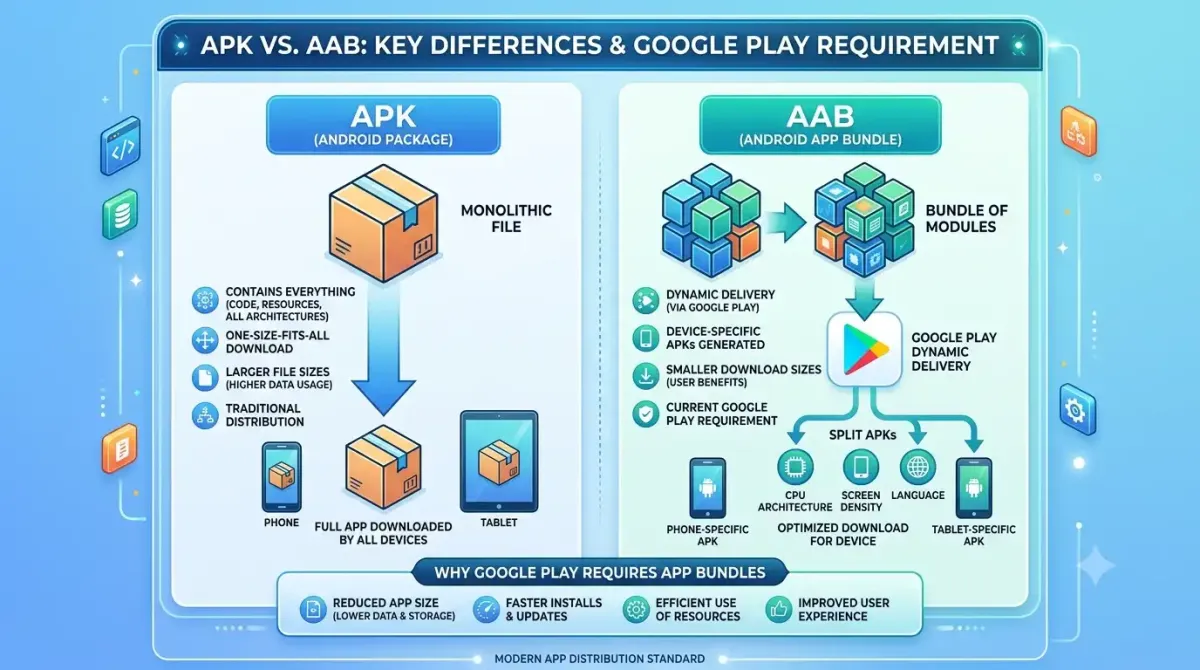
An APK (Android Package Kit) is a single compressed archive — essentially a ZIP with a .apk extension — containing everything needed to install and run an Android app directly on a device. If you are starting from the other direction and want to turn your own ZIP of HTML files into one, see our guide to the HTML to APK builder and converting a ZIP file to an APK free.
Open one up and you'll find a predictable set of contents:
AndroidManifest.xml— permissions, components, version infoclasses.dex— compiled Dalvik/ART bytecoderes/— compiled XML layouts, drawables, stringsassets/— raw files: fonts, WebGL shaders, ML modelslib/— native.solibraries for each ABI (arm64-v8a, x86_64, etc.)META-INF/— signature certificates
For about a decade, APKs were the Android distribution format. The "one file = one app" model is genuinely simple: build it, sign it, ship it. Sideloading requires no store. Every Android version, every device class, every OEM — APKs just work.
The catch is what "works everywhere" actually means in practice: every device gets every resource. All screen densities. All CPU architectures. All language strings. A user in Germany downloading your app on a Pixel phone still gets the HDPI drawables for a 240 dpi screen and the arm-v7 native libs they'll never run. That's a "fat APK" — and as apps got richer, they got fatter. Median APK sizes ballooned, users deleted apps to free storage, and install failure rates climbed on low-storage devices. Something had to give.
What Is an AAB?
An AAB (Android App Bundle) is a publishing format, not an installer. You upload a single .aab file to Google Play. Google's servers then build and sign tailored APKs for each specific device that downloads the app.
The internal structure reflects this. An AAB contains:
- A base module with core code and resources required at install
- Optional dynamic feature modules for functionality you want to deliver on demand
BundleConfig.pb— build metadata and split configuration- No device-specific binaries: resources, native libs, and language packs live in separate "splits"
When a user installs your app, Play matches their device fingerprint — screen density, CPU ABI, system language — and assembles a set of "configuration APKs" containing only the matching resources. Your 80 MB universal APK might become a 55 MB tailored install. That's the whole point.
Here's how the formats compare side by side:
| Attribute | APK | AAB |
|---|---|---|
| File extension | .apk |
.aab |
| Who signs the final installer | Developer (locally) | Google (via Play App Signing) |
| Can be sideloaded directly | ✅ Yes | ❌ No |
| Device-tailored delivery | ❌ No | ✅ Yes |
| Typical download size reduction | — | 15–35% smaller |
| Dynamic Feature Modules | ❌ No | ✅ Yes |
| Required for new Play apps | ❌ | ✅ (since August 2021) |
Why Google Play Made AABs Mandatory
Google Play requires AABs because they let Google serve optimised, device-specific installs — reducing download sizes by an average of 15–35%, lowering storage pressure, and decreasing install failures. That's good for users, and it's good for Google's store metrics.
The rollout happened in stages:
- August 2021: AAB mandatory for all new apps
- 2022: Existing apps had to use AABs to raise their target API level
- 2023–2024: Play Console warnings escalated to hard blocks for non-compliant updates
- 2025–2026: Stricter enforcement of Play App Signing, expanded asset pack requirements, and AGP 8.x defaults (covered below)
The incentives aren't purely altruistic. Smaller downloads convert better on slow or metered connections. Less storage use means fewer uninstalls and better long-term retention signals. Dynamic Feature Modules give Google a path toward richer, post-install engagement patterns. And centralised signing via Play App Signing reduces the distribution of compromised APKs outside Play — a real security benefit Google is happy to take credit for.
What did developers give up? Full control over the final installer artifact, and a straightforward sideloading pipeline. Both are manageable — but you need to plan for them.
What Changed in 2025–2026
In 2025–2026, Google tightened app bundle policies further — stricter Play App Signing enforcement, new Data Safety compliance requirements tied to the merged manifest, expanded asset pack mandates for games, and Android Gradle Plugin defaults that now build AABs even in debug configurations.
AGP 8.x defaults
AGP 8.0+ moved bundleRelease to the default publish task. You can now also build debuggable AABs via bundleDebug for QA pipelines — useful for testing split APK behaviour without going through Play. Baseline profiles are now bundled directly into AABs for faster cold starts, and R8 / ProGuard integration within AAB builds has been updated.
Play App Signing
The legacy opt-out of Play App Signing has been removed for new submissions. If you're starting a new app in 2025, Google-managed signing is mandatory. For existing apps migrating, you'll need to export and back up your keystore, then re-sign future AABs with a dedicated upload certificate. The impact on APK Signature Scheme v2/v3/v4 is worth checking against the Play App Signing documentation — signing scheme support varies by device and Android version.
Dynamic Feature Modules and Asset Packs
Play Feature Delivery API updates now handle conditional module delivery more granularly. For games specifically: Play Asset Delivery with Texture Compression Format Targeting is now widely enforced. If your game ships large binary assets, the AAB + asset pack format isn't optional.
Data Safety form compliance
When completing the Play Console Data Safety form, your AAB's AndroidManifest.xml permissions must precisely match your declared data practices. AGP 8.x generates a merged manifest report — this is now a practical necessity, not a nice-to-have. Mismatches between AAB-packaged permissions and Data Safety answers are a common rejection reason in 2025 reviews. Third-party SDKs adding permissions you didn't explicitly declare are the usual culprit.
When You Still Need an APK
APKs are still essential even if you're publishing exclusively on Google Play. Sideloading, internal testing, enterprise distribution, third-party stores, and CI pipelines that run automated device tests all require installable APKs.
Concrete use cases:
- Internal testing / QA: direct device install via
adb install— no Play required - Enterprise / MDM distribution: custom app stores don't consume AABs
- Non-Play stores: Amazon Appstore, Samsung Galaxy Store, and Huawei AppGallery each have their own submission pipelines that accept APKs
- Emulators and CI: automated UI test runners (Espresso, UIAutomator) need installable packages
- Closed beta outside Play: sharing builds with stakeholders not on your testing track
If you need a device-specific APK from an existing AAB, bundletool is the official tool:
# Generate an APK set from your AAB
bundletool build-apks \
  --bundle=app-release.aab \
  --output=app.apks \
  --ks=keystore.jks \
  --ks-pass=pass:STORE_PASS \
  --ks-key-alias=KEY_ALIAS \
  --key-pass=pass:KEY_PASS

# Install the correct splits on a connected device
bundletool install-apks --apks=app.apks
Play Console's Internal App Sharing is a lower-friction alternative if your testers have Play Services — share a link, they install the correct splits automatically.
How to Build and Publish an AAB to Google Play
Publishing an AAB to Google Play takes under 30 minutes once your keystore is in order. Build a signed release bundle in Android Studio or via Gradle, upload it to Play Console, configure Play App Signing if you haven't already, and submit for review.
Step 1 — Configure your Gradle build
// build.gradle (app module)
android {
    bundle {
        language { enableSplit = true }
        density  { enableSplit = true }
        abi      { enableSplit = true }
    }
}
Confirm compileSdk and targetSdk meet current Play requirements (API 35 in 2025). Enable R8 full-mode shrinking for the smallest possible bundle.
Step 2 — Generate a signed AAB in Android Studio
- Go to Build → Generate Signed Bundle / APK
- Select Android App Bundle
- Choose an existing keystore or create a new one — store your
.jks/.p12file somewhere secure and backed up - Select the release build variant
- Click Finish — output lands at
app/release/app-release.aab
Step 3 — Generate a signed AAB via Gradle CLI (for CI/CD)
./gradlew bundleRelease \
  -Pandroid.injected.signing.store.file=/path/to/keystore.jks \
  -Pandroid.injected.signing.store.password=STORE_PASS \
  -Pandroid.injected.signing.key.alias=KEY_ALIAS \
  -Pandroid.injected.signing.key.password=KEY_PASS
Output: app/build/outputs/bundle/release/app-release.aab
Step 4 — Set up Play App Signing in Play Console
- Open Play Console → Setup → App integrity
- Choose "Use Google-managed key" (recommended) or "Export and upload a key from Java keystore"
- If migrating an existing app: download the upload certificate and re-sign future AABs with it
- Verify fingerprints match in the App signing certificate section
This is the step developers skip and regret later. Do it before your first upload.
Step 5 — Upload the AAB
- Navigate to Release → Production (or Internal Testing)
- Click Create new release
- Drag-and-drop your
.aabfile - Add release notes — up to 500 characters per locale
- Review the Pre-launch report (automated tests on real devices via Firebase Test Lab)
- Save and roll out
Step 6 — Validate with bundletool before uploading
Don't skip this. Running bundletool locally catches split configuration issues before Play's review queue does.
# Install on macOS
brew install bundletool
# Or download the JAR from github.com/google/bundletool/releases

# Build APK set and check size
bundletool build-apks \
  --bundle=app-release.aab \
  --output=app.apks \
  --ks=keystore.jks \
  --ks-pass=pass:STORE_PASS \
  --ks-key-alias=KEY_ALIAS \
  --key-pass=pass:KEY_PASS

bundletool get-size total --apks=app.apks
If the numbers look wrong — a native library split that's suspiciously large, a missing density split — fix it here rather than after submitting. See the full publishing checklist for what to verify before every release.
Common Mistakes Developers Make With AABs
The most common AAB mistakes are uploading a debug bundle instead of a release bundle, skipping Play App Signing setup, embedding secrets in string resources, and failing to test split APK installs locally. Here's what each looks like and how to fix it.
Mistake 1 — Uploading a debug AAB. Play Console rejects with "Debuggable apps are not allowed." Always run bundleRelease, never bundleDebug for production uploads. Add a CI guard: if buildType.debuggable, throw a GradleException before the upload step.
Mistake 2 — Skipping Play App Signing setup. Users report "App not installed" errors after an update. Root cause: the upload certificate used to sign the AAB doesn't match the key Google has on file. Fix: read the signing certificate fingerprint in Play Console and re-export your upload key. See the Android signing keys guide for the full key management workflow.
Mistake 3 — Not testing split APK installation locally. The app runs fine as a monolithic APK, then crashes after Play delivers split APKs — a missing native lib, the wrong density drawable. Run bundletool install-apks on a physical test device before submitting. Verify all ABI and density splits.
Mistake 4 — Secrets in string resources. API keys get extracted after users manually unpack splits. Never hardcode keys in res/values/secrets.xml. Use Android Keystore, a backend proxy, or encrypted config instead.
Mistake 5 — Ignoring the merged manifest report. Unexpected permissions appear in production; the Data Safety form gets flagged during review. After every AAB build, inspect app/build/outputs/logs/manifest-merger-release-report.txt and strip unneeded permissions from third-party SDKs using manifest tools.
Mistake 6 — Breaking your sideload / enterprise workflow. The QA team can no longer adb install after the team switches to AAB-only output. Maintain a parallel assembleRelease step in CI that outputs a universal APK for internal distribution, gated to non-production environments.
Mistake 7 — Forgetting to increment versionCode. Play Console rejects with "Version code already used." Automate versionCode increments in CI using Git commit count or build number injection — don't leave it as a manual step.
FAQs
Can I sideload an AAB directly onto a device?
No. An AAB is a publishing artifact, not an installable package. To install from an AAB, use bundletool build-apks to generate a compatible APK set, then bundletool install-apks to push it to a connected device. Play Console's Internal App Sharing is the simpler alternative for stakeholder testing.
Will switching to AAB break existing users' installs?
It shouldn't, as long as your signing configuration is correct. Users upgrading from a previously installed APK will receive an optimised split APK set from Play. The critical requirement is that the signing key Google holds on file matches the upload certificate you use to sign the new AAB. A mismatch will surface as an update installation failure.
How much smaller will my app actually get?
Google reports an average 15–35% reduction in download size when switching from a universal APK to an AAB with splits enabled. The savings depend on how many ABI libraries you ship, how many screen-density drawable sets you include, and whether you use asset packs for large binary resources. Apps with multiple native libraries — React Native, Unity, game engines — typically see the largest gains.
Select your current Universal APK size to see average projected savings.
Original APK Size
80 MBEstimated AAB Download
52 - 68 MBDoes my AAB need to be under 150 MB?
Not quite. The 150 MB limit applies to the initial download APK that Play delivers to a device — not the AAB itself. The raw AAB you upload can be up to 2 GB. For large content, use Play Asset Delivery with asset packs, which can deliver several additional gigabytes on demand post-install.
Do third-party stores like Amazon Appstore accept AABs?
Generally no. Amazon Appstore, Samsung Galaxy Store, and Huawei AppGallery each have their own submission pipelines that accept APKs. Your CI/CD pipeline should produce both an AAB (for Google Play) and a universal APK (for third-party distribution) from the same source.
What happens to my upload signing key if I enrol in Play App Signing?
When you enrol, Google manages your app signing key — the one users' devices use to verify the app. You sign AABs with a separate upload key before submitting. If your upload key is compromised, you can request a key rotation in Play Console, something impossible with the old self-managed APK model. Back up both keys, but the upload key is the one to protect day to day.
I'm building with Flutter, React Native, or Unity — do AAB requirements apply?
Yes. All frameworks targeting Android and Google Play are subject to the same mandate. Flutter (flutter build appbundle), React Native (via Gradle tasks), and Unity (Build Settings → Android → App Bundle) all have first-class AAB support. The most common friction point for cross-platform frameworks is native library ABI splits — always run bundletool install-apks on a real device after switching.
Key Takeaways
APKs and AABs serve different purposes. APKs are universal installers you deploy directly to devices. AABs are publishing containers that let Google Play optimise each download for the specific device requesting it. For Google Play distribution, AABs have been mandatory for all new apps since 2021 — and compliance is more tightly enforced than ever in 2025–2026.
The short list to remember:
- APK = installer; AAB = publishing format. Not interchangeable — each has a distinct role.
- Google Play has required AABs for all new apps since August 2021, with enforcement tightening every year.
- AABs deliver 15–35% smaller installs by splitting resources, native libs, and language packs per device.
- Play App Signing is now effectively mandatory — understand how upload keys and app signing keys differ, and back both up.
- You still need APKs for sideloading, QA automation, CI pipelines, and third-party stores.
bundletoolis essential for validating AABs before submission.- Data Safety form compliance requires your AAB's merged manifest permissions to match exactly what you've declared — audit on every release.
- 2025–2026 changes include stricter Play App Signing enforcement, AGP 8.x defaulting to AAB builds, and expanded asset pack requirements for games.
Get your Play Console setup checklist squared away before your next release, and the format transition is straightforward. The hard part isn't the AAB — it's building good habits around signing, testing, and manifest auditing that will save you rejected builds down the line.